
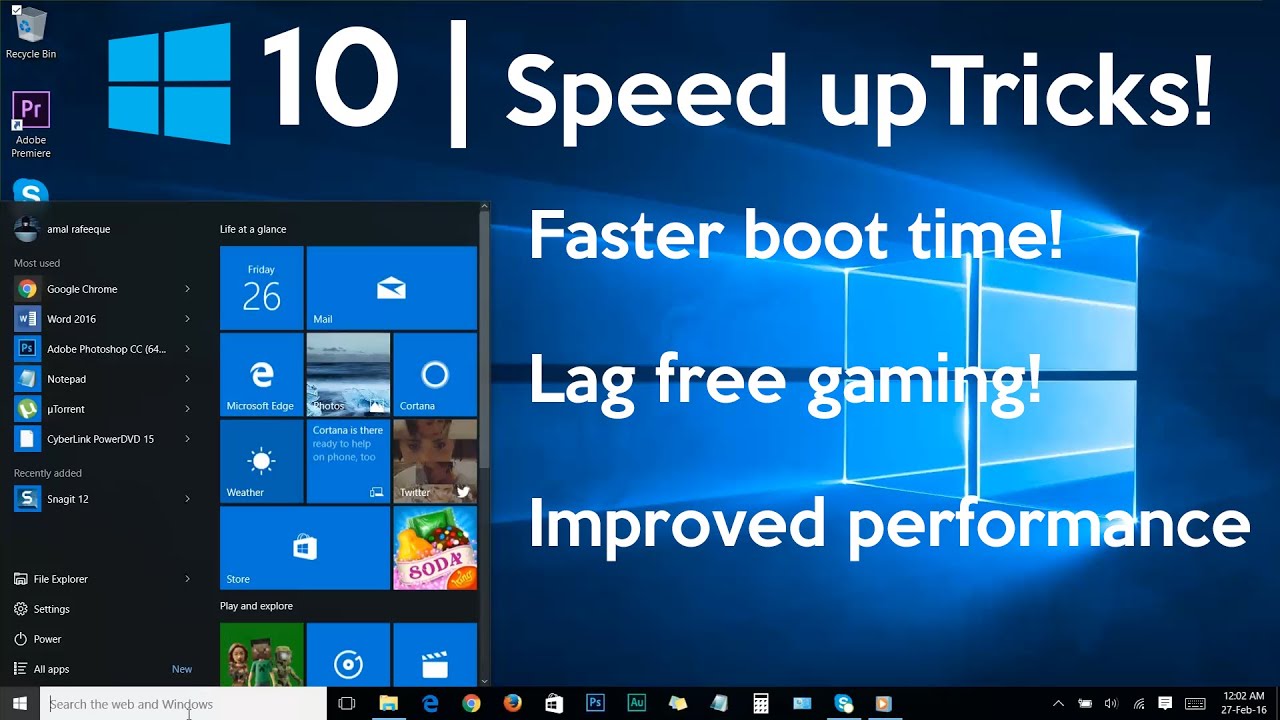
How to Make Your Portable PC Fast Again
Are you tired of your portable PC being slow? Do you find yourself waiting for what feels like an eternity for programs to load or tasks to complete? You’re not alone! Many people experience slowdowns with their portable PCs, but the good news is that there are several steps you can take to make your device faster again.
In this article, we’ll explore some of the most effective ways to speed up your portable PC. From cleaning out unnecessary files and disabling automatic program starts to upgrading your hardware and optimizing your system settings, we’ll cover it all.
Why Your Portable PC Might Be Slow
Before we dive into the solutions, let’s take a look at some possible reasons why your portable PC might be slow in the first place.
- Outdated Software: If you’re running an old version of Windows or macOS, it may not have the latest performance improvements and bug fixes.
- Fragmented Hard Drive: Over time, your hard drive can become fragmented, leading to slower loading times and overall performance issues.
- Too Many Programs Running in The Background: Having too many programs open at once can slow down your PC and consume valuable system resources.
- Malware or Viruses: Malicious software can cause significant slowdowns by consuming system resources and causing other problems.
Solution 1: Clean Out Unnecessary Files
The first step to making your portable PC faster is to clean out unnecessary files. This includes deleting temporary files, emptying the recycle bin, and removing any programs you no longer use.
You can do this using the built-in disk cleanup tool on Windows or macOS. On Windows, go to Start > Disk Cleanup, while on macOS, go to About This Mac > Storage.
Solution 2: Disable Automatic Program Starts
Another way to speed up your portable PC is to disable automatic program starts. These programs can consume system resources and slow down your device when they’re not needed.
To do this on Windows, go to Start > Run, type in “msconfig,” and hit Enter. On macOS, go to System Preferences > Users & Groups > Login Items.
Solution 3: Update Your Operating System
Keeping your operating system up to date is crucial for maintaining optimal performance. Regular updates often include performance improvements and bug fixes that can help speed up your portable PC.
To update your operating system on Windows, go to Start > Settings > Update & Security > Windows Update. On macOS, go to About This Mac > Software Update.
Solution 4: Defragment Your Hard Drive
If you’re using a mechanical hard drive, it may become fragmented over time, leading to slower loading times and overall performance issues.
To defragment your hard drive on Windows, go to Start > Disk Cleanup, select the disk you want to defragment, and follow the prompts. On macOS, go to About This Mac > Storage, select the disk you want to defragment, and click “Optimize.”
Solution 5: Upgrade Your Hardware
If your portable PC is several years old, it may be time to consider upgrading your hardware. Upgrading to a faster processor or more RAM can make a significant difference in performance.
Before making any upgrades, however, be sure to check the compatibility of the new components with your device.
Solution 6: Optimize Your System Settings
Finally, optimizing your system settings can also help speed up your portable PC.
This includes adjusting your display settings, disabling animations, and turning off any unnecessary features.
To do this on Windows, go to Start > Settings > System > Display. On macOS, go to System Preferences > Displays.
Conclusion
In conclusion, making your portable PC faster again is possible with a few simple steps. By cleaning out unnecessary files, disabling automatic program starts, updating your operating system, defragmenting your hard drive, upgrading your hardware, and optimizing your system settings, you can enjoy a smoother and more efficient computing experience.
Frequently Asked Questions
- Q: Why is my Portable PC Slow?
A: There are several possible reasons why your portable PC might be slow, including outdated software, fragmented hard drives, too many programs running in the background, malware or viruses, and more. - Q: How Can I Clean Out Unnecessary Files?
A: You can use the built-in disk cleanup tool on Windows or macOS to delete temporary files and empty the recycle bin. - Q: How Can I Disable Automatic Program Starts?
A: On Windows, go to Start > Run, type in “msconfig,” and hit Enter. On macOS, go to System Preferences > Users & Groups > Login Items. - Q: Why is it Important to Update my Operating System?
A: Regular updates often include performance improvements and bug fixes that can help speed up your portable PC. - Q: How Can I Defragment my Hard Drive?
A: On Windows, go to Start > Disk Cleanup, select the disk you want to defragment, and follow the prompts. On macOS, go to About This Mac > Storage, select the disk you want to defragment, and click “Optimize.” - Q: Can I Upgrade my Hardware to Make my Portable PC Faster?
A: Yes, upgrading your hardware can make a significant difference in performance. Be sure to check the compatibility of the new components with your device before making any upgrades.
Recommended Reading
- How to Make Your Portable PC Faster Again (Part 2)
- The Ultimate Guide to Cleaning Out Unnecessary Files on Windows And Macos
- How to Disable Automatic Program Starts on Windows And Macos
- Why You Should Update Your Operating System Regularly
- How to Defragment Your Hard Drive on Windows And Macos


