
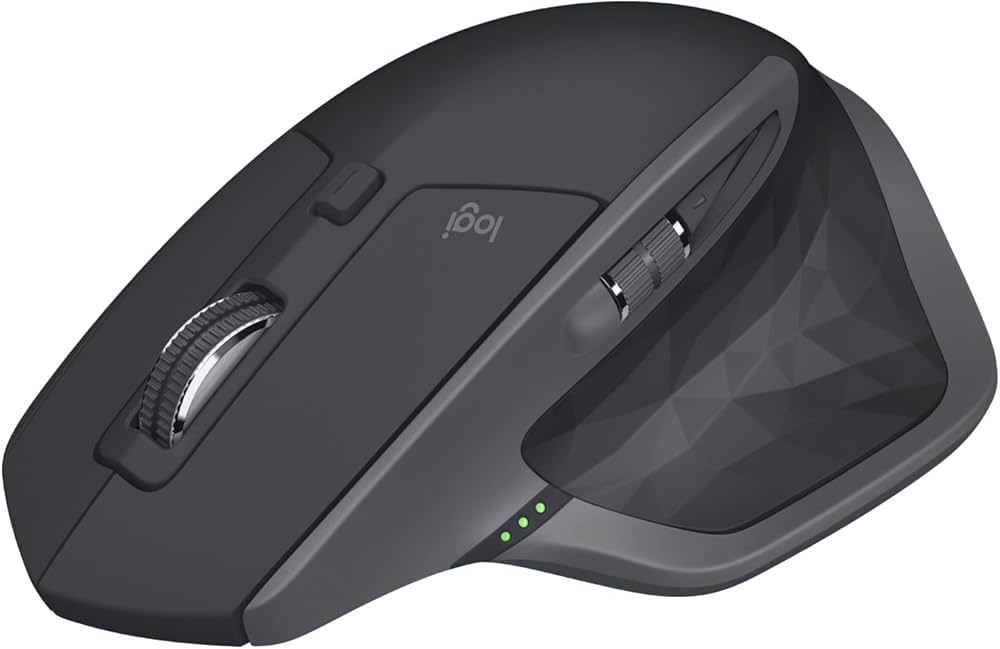
Characteristics of Logitech MX Master 2S
The Logitech MX Master 2S is one of the most advanced wireless mice in the Logitech catalog and one of the best on the market. Aesthetically, it’s nearly identical to its predecessor but comes in different color schemes and boasts greater autonomy (its battery lasts up to 70 days). It also features support for Logitech Flow technology, allowing you to share data and files across multiple computers connected to the same network.
Functionality of Logitech MX Master 2S
The Logitech MX Master 2S functions using Bluetooth or a wireless USB receiver and can be paired with up to three devices simultaneously. This allows seamless switching between computers with just one click or by moving the cursor to an external monitor (if you’re using Logitech Flow). It’s compatible with Windows, macOS, and features seven programmable buttons. Additionally, it has a touch surface that supports gestures and two scroll wheels – central and lateral.
Ergonomics, Comfort, And Autonomy
The Logitech MX Master 2S stands out for its exclusive functionalities, including Easy Switch, which allows you to switch between three devices with ease, and the support for Logitech Flow technology. This technology enables you to share data and files across multiple computers connected to the same network.
Installation of Logitech MX Master 2S
Installing the Logitech MX Master 2S is straightforward. If using Bluetooth, ensure it’s active on your computer, turn on the mouse (using the dedicated button), and press the button located at the back of the device for three seconds. On Windows, access Settings > Devices, add a Bluetooth or other device, select the mouse from the list, and follow the prompts to connect.
Configuration of Logitech MX Master 2S
Once connected, configure your mouse using the Logitech Options software. This is available for both Windows and macOS. Download and install the software, then launch it and select the “Mouse” tab. From there, you can customize the behavior of each button, including the central scroll wheel, gesture surface, lateral scroller, and forward/backward buttons.
Backup And Management of Profile
Before making any changes to your settings, ensure that Logitech Options is associated with your account. This will allow for cloud backup and synchronization across devices. Access the “Profile” tab in Logitech Options, select “Backup,” and then “Create a backup.” This will create a cloud backup of your settings.
Personalization of Buttons
To personalize button behavior, navigate to the “Mouse” tab in Logitech Options. Select the desired button, choose from available actions (such as opening files or folders), and associate them with specific gestures. The gesture surface can be set to execute five different actions when held and moved left, right, up, or down.
Regulation of Pointer And Scrolling
To regulate pointer speed and scrolling preferences, navigate to the “Pointer” and “Scrolling” tab in Logitech Options. Use the bars for Speed Pointer and Speed Scroller (with inch) to adjust these settings. Additionally, use the menu Direction Scroller and Direction Scroller (with inch) to change the direction of scrolling.
Sharing of Rows And Pin (Logitech Flow)
One of the most significant features of the Logitech MX Master 2S is its support for Logitech Flow technology. This allows you to share data and files across multiple computers connected to the same network, with a maximum of three computers supported. To enjoy this functionality, download and install Logitech Options on each computer, ensure they are connected to the same network (wired or wireless), and initiate Logitech Options.
For More Information
If you’d like more information about the Logitech MX Master 2S, please consult the product page on the Logitech website. You can find helpful resources there, including answers to frequent questions from users, access to the Logitech community for support, downloads of software configurations, and detailed assurance documents.
Frequently Asked Questions (FAQs)
- What is The Maximum Range of The Logitech MX Master 2S?
The maximum range of the Logitech MX Master 2S is approximately 10 meters when using Bluetooth technology or the wireless USB receiver.
- Can I Customize The Buttons on The Logitech MX Master 2S?
Yes, you can customize the behavior of each button on the Logitech MX Master 2S using the Logitech Options software.
- What is The Battery Life of The Logitech MX Master 2S?
The battery life of the Logitech MX Master 2S is up to 70 days when fully charged, and just three minutes of charging will provide around eight hours of use.
- Can I Share Data And Files Across Multiple Computers With The Logitech MX Master 2S?
Yes, you can share data and files across multiple computers connected to the same network using the Logitech Flow technology supported by the Logitech MX Master 2S.
- What Operating Systems is The Logitech MX Master 2S Compatible With?
The Logitech MX Master 2S is compatible with Windows 7, Windows 8, and successive versions of the Microsoft operating system, as well as all Macs equipped with macOS 10.8 Or later versions of the Apple operating system.
- How do I Install The Logitech MX Master 2S on my Computer?
To install the Logitech MX Master 2S on your computer using Bluetooth, ensure it’s active, turn on the mouse, and press the button located at the back for three seconds. On Windows, access Settings > Devices, add a Bluetooth or other device, select the mouse from the list, and follow the prompts to connect.
- Can I Use The Logitech MX Master 2S With More Than One Computer?
Yes, you can pair up to three devices simultaneously using the Logitech MX Master 2S.
- What is The Price of The Logitech MX Master 2S?
The price of the Logitech MX Master 2S varies depending on the region and retailer but typically starts at around €114.99.


