
Installing a Printer on Your Network: A Step-by-step Guide
Are you tired of dealing with cables and manual installations? Installing a printer on your network can be a breeze, especially with the right guidance. In this article, we’ll walk you through the process of setting up a printer on your computer or mobile device, whether it’s connected directly to the router or via a server.
Why Install a Printer on Your Network?
Installing a printer on your network offers several benefits:
- Convenience: With a network-connected printer, you can print from any device connected to the same network.
- Easy Maintenance: No more manual installations and driver updates. The printer takes care of its own maintenance, ensuring smooth operations.
- Cost-effective: Reduce the need for separate printers in different areas or offices.
Getting Started: Preparing Your Printer
Before you begin, ensure your printer is turned on and connected to the network. If it’s an older model without Wi-Fi capabilities, consider upgrading or exploring alternative solutions like a USB printer server.
Installing Printers With Internet Support
Printers equipped with internet support can be connected directly to the router using Ethernet or Wi-Fi cables.
Windows 10 And Later Versions
- Open Device Manager: Click on Start > System > Device Manager.
- Add Printer: Right-click on ‘Devices’ and select ‘Add printer.’
- Connect Printer: Follow the prompts to connect your printer to the network using an Ethernet cable or Wi-Fi connection.
Windows 7 And Earlier Versions
- Open Control Panel: Click Start > Control Panel.
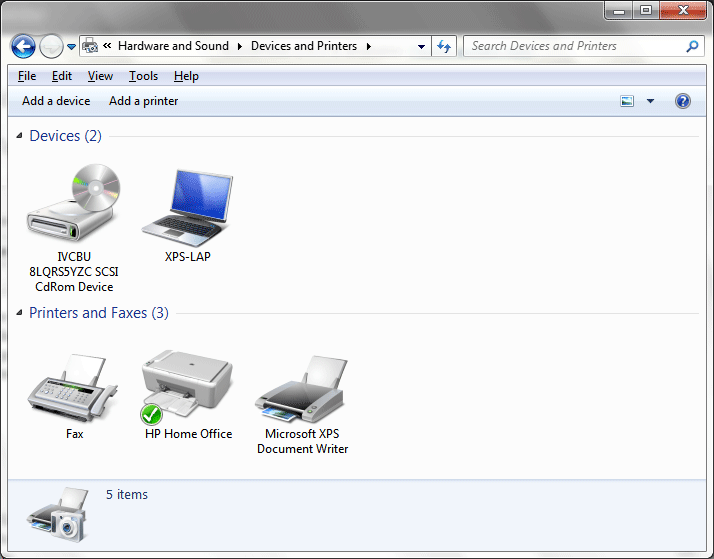
- View Devices And Printers: Expand ‘Hardware and Sound’ > ‘Devices and printers.’
- Add Printer: Right-click on ‘Devices and printers’ and select ‘Add a device.’
Installing Printers Without Internet Support
Printers without internet support can be connected to the router using a USB cable or configured through a server.
Using a Usb Printer Server
- Connect Printer: Plug in your printer’s USB cable to the computer or server.
- Install Driver: Install the necessary driver for your printer, if required.
- Configure Network Sharing: Configure the network sharing settings on both the printer and the server.
Installing Printers on Mac
Installing a printer on your Mac is straightforward:
- Open System Preferences: Click Apple Menu > System Preferences.
- Printers & Scanners: Open ‘Printers & scanners.’
- Add Printer: Select the printer you want to install.
Installing Printers on Smartphones And Tablets
While smartphones and tablets can’t directly connect to printers, some devices have built-in print capabilities:
- Check Your Device’s Capabilities: Some newer devices come with built-in printing capabilities.
- Download a Printing App: Install an app specifically designed for printing from your device.
Tips And Tricks
- Ensure all necessary drivers are installed before starting the installation process.
- Regularly update your printer firmware to ensure optimal performance.
- Consider investing in a high-quality USB printer server for seamless printer connections.
Conclusion
Installing a printer on your network can be an intimidating task, but with this step-by-step guide, you’ll have it set up in no time. Whether you’re using Windows 10 or Mac, we’ve covered the essential steps to ensure your printer is ready to use.
Frequently Asked Questions (FAQs)
- Q: What’s The Difference Between a Network-connected And Non-networked Printer?
A: Network-connected printers can be accessed by multiple devices on the same network, while non-networked printers require manual connection via USB or other cables. - Q: Can I Print From my Smartphone or Tablet Using a Network-connected Printer?
A: Yes, with some mobile apps and built-in printing capabilities, you can print directly from your smartphone or tablet to a network-connected printer. - Q: Do I Need Special Drivers For The Installation Process?
A: Some printers may require additional drivers; however, most modern devices have built-in support for common printer models. - Q: What’s The Best Way to Maintain my Networked Printer?
A: Regularly update your firmware and software to ensure optimal performance and consider investing in a high-quality USB printer server. - Q: Can I Connect Multiple Printers to my Router?
A: Yes, but you may need to configure separate sharing settings for each printer.
Hope this helps!


