
How to Uninstall Games on Ps5: A Step-by-step Guide
Are you tired of running out of storage space on your PlayStation 5? Do you have a bunch of games installed that you no longer play or want to get rid of? Look no further! In this article, we’ll show you how to uninstall games on PS5 with ease.
What You Need to Know Before We Begin
Before we dive into the nitty-gritty of uninstalling games on PS5, it’s essential to understand that the process is relatively straightforward. However, there are a few things you should know beforehand:
- The PS5 has limited storage space, which can fill up quickly if you have many games installed.
- Uninstalling games will free up storage space on your console.
- Some games may not be uninstallable, such as those that are still in progress or have unsaved data.
Step 1: Access The Settings Menu
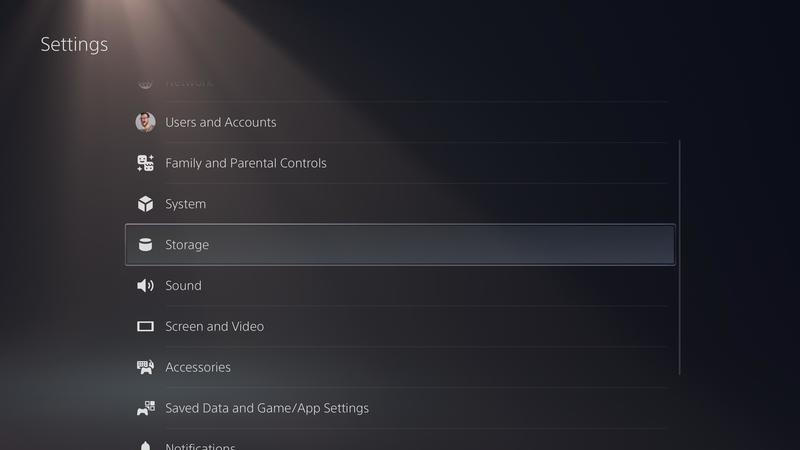
To begin the process of uninstalling games on PS5, you’ll need to access the settings menu. To do this:
- Press the PlayStation button on your controller to go back to the home screen.
- Go to Settings by selecting the icon that looks like a cogwheel ( Gear).
- Scroll down and select Memory of storage.
Step 2: View Your Installed Games
Once you’re in the Memory of Storage menu, you’ll see a list of all the games installed on your PS5. This is where things get interesting:
- Scroll through the list to find the game you want to uninstall.
- You can also sort the list by date or size to make it easier to find what you’re looking for.
Step 3: Select The Game You Want to Uninstall
To select a game for uninstallation, follow these steps:
- Use your controller to highlight the game you want to uninstall.
- Press the Options button (X) on your DualSense controller.
- A menu will pop up with two options: Delete and Keep.
- Select Delete.
Step 4: Confirm Your Selection
Before the game is uninstalled, you’ll be prompted to confirm your selection. To do this:
- Go back to the Memory of storage menu.
- Find the game you selected for uninstallation.
- Under the voice Selezionati (Selected), you’ll see the size of the game in GB.
Step 5: Confirm Uninstallation
To confirm the uninstallation, follow these steps:
- Select the Delete button.
- Press X on your DualSense controller to confirm.
- You’ll be asked if you’re sure you want to delete the game. If so, select OK.
What About Saved Games And Cloud Saves?
You may have noticed that some games still occupy storage space even after uninstallation. This is because they’ve saved data in the cloud or on your external hard drive. Don’t worry; we’ve got you covered!
- To delete saved games and cloud saves, go to Settings > Given saved and settings gamblings/app.
- Select Charge or Delete of memory of storage of the consul.
- You’ll see a list of all your saved data. Select what you want to delete.
Conclusion
Uninstalling games on PS5 is a straightforward process that can help free up storage space on your console. By following these steps, you’ll be able to remove unwanted games and make room for new ones.
Frequently Asked Questions (FAQs)
- Q: How do I Know Which Games Are Uninstallable?
A: Any game with a delete button next to it can be uninstalled. - Q: What Happens if I Uninstall a Game While Still in Progress?
A: Your saved data will not be deleted, but the game will be removed from your PS5. - Q: Can I Reinstall a Game After Uninstalling It?
A: Yes, you can reinstall any game that’s been uninstalled. - Q: Will Uninstalling Games Affect my Cloud Saves?
A: No, uninstalling games will not delete your saved data in the cloud.
Bonus Tips
- Make sure to check for updates before installing new games to ensure compatibility with your PS5.
- Consider using an external hard drive to store your saved data and expand your console’s storage capacity.


