
Recovering Your Skype Password: A Step-by-step Guide
Are you struggling to recover your Skype password? Don’t worry, you’re not alone! Many users face this issue, but with our comprehensive guide, you’ll be able to regain access to your account in no time.
Understanding The Recovery Process
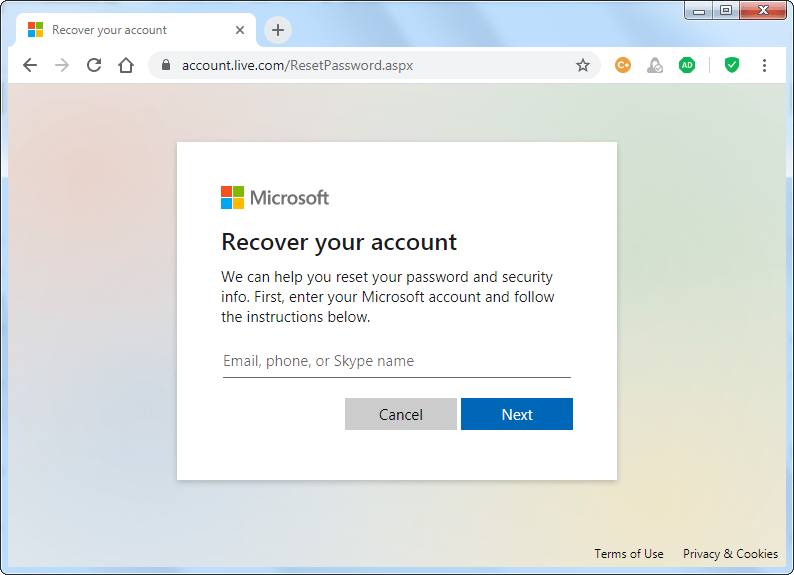
Before we dive into the steps, it’s essential to understand how the recovery process works. When you try to log in to your Skype account using an incorrect password, you’ll be prompted to recover your account. This involves verifying your identity through a code sent to your phone or email address associated with your account.
Requirements For Recovery
To initiate the recovery process, you’ll need:
- A working internet connection
- Access to your email address or phone number associated with your Skype account
Step 1: Download And Install Skype
If you haven’t already, download and install Skype on your computer or mobile device.
Step 2: Launch Skype And Click “Access” or “Create Account”
Launch Skype and click the “Access” or “Create Account” button. You’ll be redirected to a new window where you can enter your email address, phone number, or username associated with your account.
Step 3: Verify Your Identity
You’ll need to choose one of three options to verify your identity:
- Sms: Receive a code via SMS on your phone.
- Call: Receive a call from Skype and answer the code.
- Email: Receive an email with a verification code.
Choose the option that suits you best, and enter the required information in the corresponding field.
Step 4: Enter The Verification Code
Enter the verification code received via SMS, call, or email. Once confirmed, you’ll be prompted to create a new password for your account.
Step 5: Create a New Password
Create a strong password that meets Skype’s requirements (minimum 8 characters, including uppercase and lowercase letters, numbers, and symbols). Confirm the password by re-entering it in the “Confirm Password” field.
Recovering Your Password on Mobile Devices
If you’re using a mobile device, follow these steps:
- Tap on the Skype icon to launch the app.
- Tap on the “Start” or “Access” button.
- Follow Steps 2-5 above.
Additional Tips And Reminders
- If you’re having trouble recovering your password, try checking if you have any other accounts associated with Skype that may be causing the issue.
- Ensure you have access to the email address or phone number associated with your account to complete the verification process.
- Consider updating your Skype app to the latest version for a smoother recovery experience.
Conclusion
Recovering your Skype password can seem daunting, but by following these steps, you’ll be able to regain access to your account in no time. Remember to choose a strong and unique password to ensure your security.
Frequently Asked Questions (FAQs)
- Q: What if I Don’t Have Access to my Email Address or Phone Number Associated With my Skype Account?
A: If you’re unable to recover your password using the traditional method, try reaching out to Skype’s support team for assistance. - Q: Can I Use a Different Verification Method, Such as a Two-factor Authentication App?
A: Yes, you can use alternative methods to verify your identity, but ensure they meet Skype’s security requirements. - Q: How Long Does The Recovery Process Take?
A: The recovery process typically takes a few minutes, depending on your internet connection and the verification method chosen. - Q: Can I Reset my Password if I’ve Forgotten It?
A: Yes, you can reset your password by following the steps outlined above. - Q: What if I’m Still Having Trouble Recovering my Password?
A: If you’re experiencing issues, try clearing your browser cache and restarting the recovery process. If the problem persists, contact Skype’s support team for further assistance. - Q: Can I Use Skype on Multiple Devices With The Same Account?
A: Yes, you can use Skype on multiple devices with the same account by signing in with your email address or phone number associated with your account. - Q: How Often Should I Change my Password?
A: It’s recommended to change your password every 60-90 days to maintain optimal security and prevent unauthorized access to your account.
Additional Resources
For more information on Skype’s recovery process, visit their official website or contact their support team directly.
Table 1: Skype Recovery Steps (PC)
| Step | Description |
|---|---|
| 1. Launch Skype | Download and install Skype on your computer. |
| 2. Click “Access” or “Create Account” | Launch Skype and click the “Access” or “Create Account” button. |
| 3. Verify Your Identity | Choose one of three options to verify your identity: SMS, Call, or Email. |
Table 2: Skype Recovery Steps (Mobile)
| Step | Description |
|---|---|
| 1. Tap on Skype Icon | Launch the Skype app by tapping on its icon. |
| 2. Tap “Start” or “Access” Button | Tap the “Start” or “Access” button to initiate the recovery process. |
| 3. Follow Steps 2-5 above | Complete the verification process and create a new password. |
Table 3: Skype Password Requirements
| Requirement | Description |
|---|---|
| Minimum Length | Password must be at least 8 characters long. |
| Uppercase/Lowercase Letters | Password must include uppercase and lowercase letters. |
| Numbers/Symbols | Password must contain numbers or symbols. |
Table 4: Alternative Verification Methods
| Method | Description |
|---|---|
| Two-Factor Authentication App | Use a two-factor authentication app to verify your identity. |
| Email/Phone Number | Verify your identity using an email address or phone number associated with your account. |


