
Rotating Images: A Guide to Free Programs For Windows And Macos
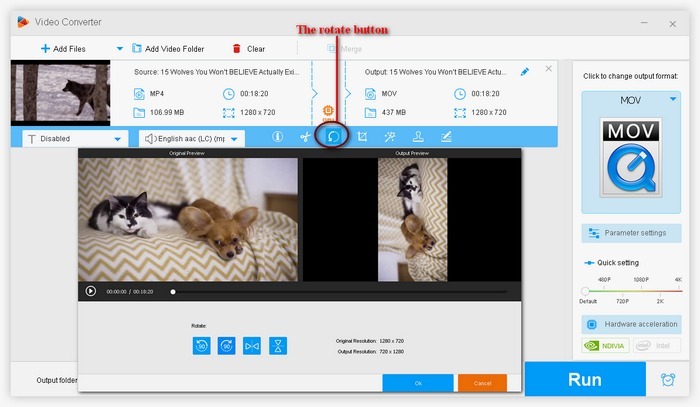
Are you tired of dealing with incorrectly oriented images? Do you want to rotate them easily without having to spend a fortune on software? Look no further! In this article, we’ll explore the best free programs for rotating images on both Windows and macOS.
Understanding Image Rotation
Before we dive into the programs, let’s quickly understand what image rotation is all about. Image rotation involves changing the orientation of an image from its original position to a desired angle. This can be useful when you need to correct the orientation of a photo that was taken at an incorrect angle or when you want to create a mirror-like effect.
Programs For Rotating Images on Windows And Macos
Here are some excellent free programs for rotating images on both Windows and macOS:
Windows Programs
- Photo: If your PC is updated to Windows 10, you can utilize the built-in application Photo to rotate images. To do this, open the image of your interest by double-clicking on its icon. If Photo isn’t the default reader, right-click on the file and select “Open with” > Photo. Once opened, click on the “Modification and create” button (represented by two crossed brushes) and select “Rotation.” Choose the desired angle and save the modifications.
- Gimp: GIMP is a free and open-source photo editing software that’s perfect for rotating images. To do this, select “Open…” From the menu bar and choose the image you want to rotate. Then, go to Image > Transform and select an option like Wheel of 90° in time sense or Wheel of 180°.
- Photoshop: If you have Photoshop installed on your computer, it’s one of the best programs for rotating images. To do this, open the image in Photoshop and go to Image > Rotation. Select the desired angle and save the modifications.
Macos Programs
- Photo: If you have a Mac, you can use the built-in application Photo to rotate images. To do this, double-click on the image icon or right-click and select “Open with” > Photo. Once opened, click on the “Modification” button and select “Rotation.” Choose the desired angle and save the modifications.
- Trailer: If you don’t have Photo as your default reader, you can use Trailer to rotate images. To do this, double-click on the image icon or right-click and select “Open with” > Trailer. Once opened, go to Instruments and select an option like Wheel to left or Wheel to right.
Software For Rotating Images
If the built-in programs don’t satisfy your needs, you can use third-party software specifically designed for rotating images:
- Xnconvert: XnConvert is a free program that allows you to rotate images in batch mode. To do this, download and install the software, then select the image you want to rotate and choose the desired angle.
- Iloveimg: ILoveIMG is an online service that offers various tools for modifying images, including rotation. You can use it without registering, but creating a free account allows you to upload images up to 200MB.
Rotating Photos on Mobile Devices
If you want to rotate photos directly from your smartphone or tablet, there are some excellent apps available:
- Snapseed: Snapseed is a great photo editing app that offers various tools for modifying images, including rotation.
- Google Photos: Google Photos allows you to create an online backup of your photos and organize them in an intelligent manner. It also offers editing functions like rotation.
Conclusion
Rotating images doesn’t have to be a difficult task. With these free programs and software, you can easily correct the orientation of your photos without breaking the bank. Whether you’re using Windows or macOS, there’s a solution for you. So go ahead, experiment with these tools, and enjoy the flexibility that comes with image rotation!
Frequently Asked Questions (FAQs)
- Q: How do I Rotate an Image in Photo on Windows 10?
A: To rotate an image in Photo, open the image by double-clicking on its icon, then click on the “Modification and create” button and select “Rotation.” - Q: Can I Use Gimp to Rotate Images on Macos?
A: Yes, you can use GIMP to rotate images on macOS. - Q: How do I Rotate a Photo in Trailer on Mac?
A: To rotate a photo in Trailer, open the image by double-clicking on its icon, then go to Instruments and select an option like Wheel to left or Wheel to right. - Q: Is There a Free Program For Rotating Images Online?
A: Yes, iLoveIMG is a free online service that offers various tools for modifying images, including rotation. - Q: Can I Rotate Photos Directly on my Smartphone or Tablet?
A: Yes, you can use apps like Snapseed or Google Photos to rotate photos directly from your mobile device.
References
- [1] “Photo” application for Windows 10
- [2] GIMP software for image editing
- [3] XnConvert software for rotating images in batch mode


