
How to Protect a Folder With Password: A Step-by-step Guide
Are you concerned about protecting your sensitive files from unauthorized access? Look no further! In this article, we will guide you through the process of protecting a folder with password using various methods, including Windows 10, Mac, Android, and iPhone.
Protecting a Folder With Password on Windows 10
If you’re looking to protect a folder on your Windows 10 device, there are two primary methods: Creating an encrypted volume or compressing files into a ZIP archive. We’ll explore both options in detail below.
Method 1: Creating an Encrypted Volume
Step 1: Download And Install Veracrypt
VeraCrypt is a free, open-source software that allows you to create encrypted volumes. To get started:
- Visit the official VeraCrypt website and download the installation package for Windows.
- Run the installer and follow the prompts to complete the installation process.
Step 2: Create an Encrypted Volume
Once installed, launch VeraCrypt and follow these steps to create an encrypted volume:
- Select “Create a volume” from the main menu.
- Choose the file system (e.G., NTFS or exFAT) for your encrypted volume.
- Set the password for your encrypted volume.
- Confirm the settings and click “Format” to create the encrypted volume.
Step 3: Access And Manage Your Encrypted Volume
To access and manage your encrypted volume:
- Launch VeraCrypt and select the encrypted volume from the list of available devices.
- Enter the password to unlock the volume.
- You can now access and manage files within the encrypted volume as if it were a regular external hard drive or USB drive.
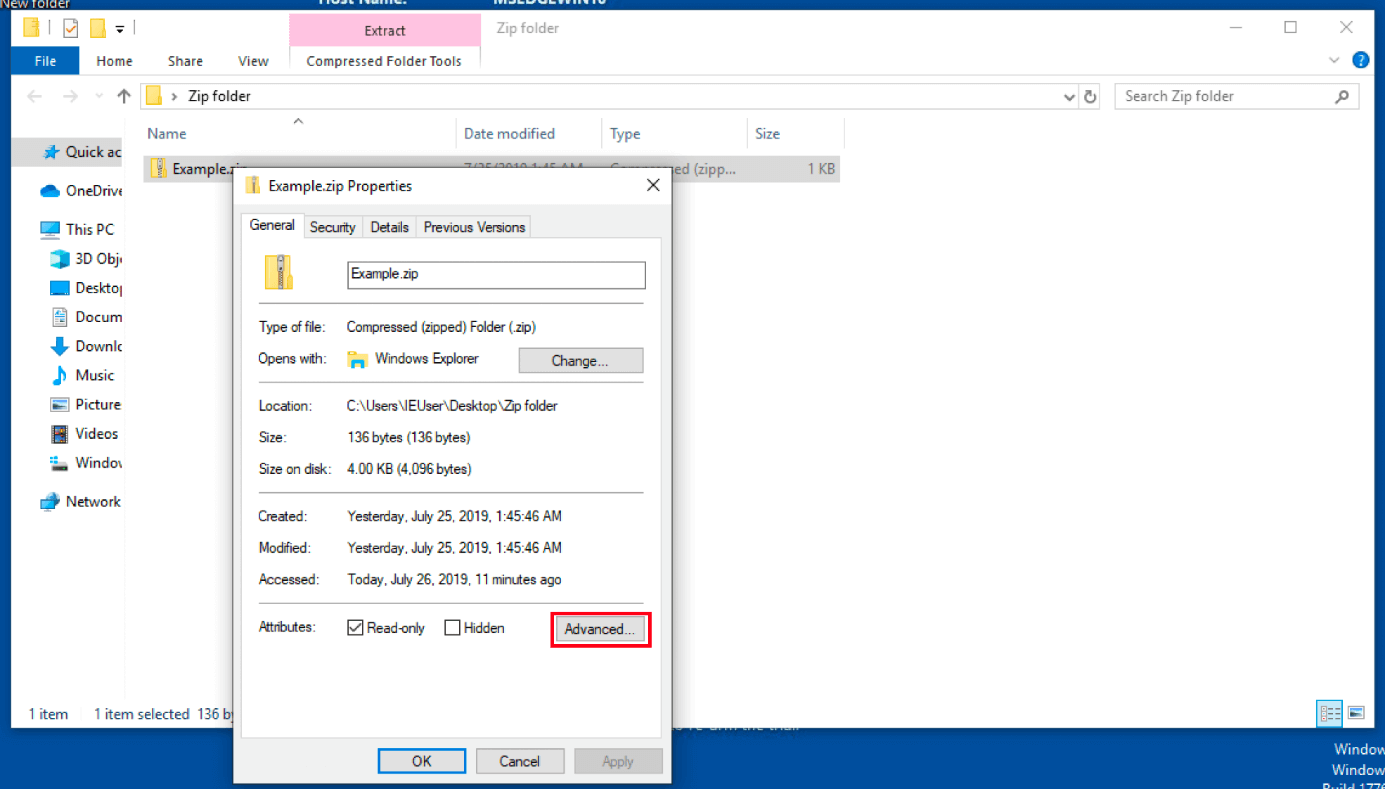
Method 2: Compressing Files Into a Zip Archive
Alternatively, you can compress your files into a ZIP archive using 7-Zip, a free file archiver for Windows.
- Download and install 7-Zip from the official website.
- Select the folder you want to protect and right-click on it.
- Choose “Add to archive” from the context menu.
- Set the password for the ZIP archive using AES-256 encryption.
- Confirm the settings and click “OK” to create the compressed file.
Protecting a Folder With Password on Mac
On your Mac, you can use the built-in Disk Utility or third-party software like VeraCrypt to protect a folder with password.
Method 1: Using Disk Utility
- Launch Disk Utility from Applications > Utilities.
- Select “New Image” and choose the file system (e.G., Mac OS Extended).
- Set the dimensions and partition type for your encrypted volume.
- Set the password using 128-bit AES encryption.
- Confirm the settings and click “Format” to create the encrypted volume.
Method 2: Using Veracrypt
- Download and install VeraCrypt from the official website.
- Follow the steps outlined in the Windows section above to create an encrypted volume on your Mac.
Protecting a Folder With Password on Android
To protect a folder on your Android device:
- Open the Files app and navigate to the folder you want to protect.
- Tap the three dots on the top-right corner of the screen.
- Select “Move” or “Copy” to move the folder to a new location, such as the Google Drive cloud storage.
- Set up password protection for the folder by going to Settings > Password and adding a PIN or pattern lock.
Protecting a Folder With Password on Iphone
While it’s not possible to directly protect folders on an iPhone using built-in methods, you can use third-party apps like Deprived Photo Vault to create virtual “cassforti” for storing photos and videos with password protection.
Conclusion
In this article, we’ve provided step-by-step guides on how to protect a folder with password using various methods. Whether you’re using Windows 10, Mac, Android, or iPhone, there are ways to safeguard your sensitive files from unauthorized access. Remember to always follow best practices for securing your data and take advantage of built-in features and third-party software to ensure your digital security.
Frequently Asked Questions (FAQs)
- Q: Can I protect a folder with password on Windows 10 without installing any additional software?
A: Yes, you can use the built-in BitLocker feature to create an encrypted volume and protect folders. - Q: How do I access my protected folder on Android?
A: You can access your protected folder by opening the Files app, navigating to the Google Drive cloud storage, and entering the password or PIN set up earlier. - Q: Can I use a third-party app to protect a folder on iPhone?
A: Yes, you can use apps like Deprived Photo Vault to create virtual “cassforti” for storing photos and videos with password protection.
References
- [1] – “How to Protect a Folder with Password on Windows 10”
- [2] – “Protecting a Folder with Password on Mac”
- [3] – “Protecting a Folder with Password on Android”
- [4] – “Protecting a Folder with Password on iPhone”


