
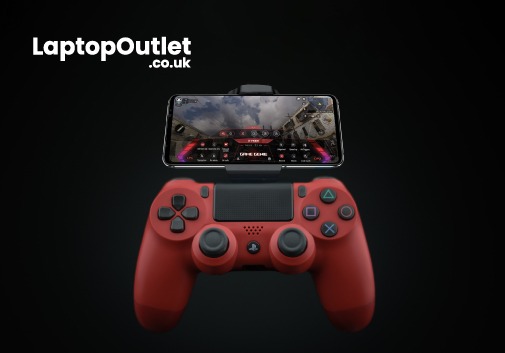
How to Connect a Ps5 Controller to Your Phone: A Step-by-step Guide
Are you an avid gamer looking to take your gaming experience to the next level? Do you want to connect your PS5 controller to your phone and enjoy seamless gameplay on-the-go? Look no further! In this article, we will guide you through the process of connecting a PS5 controller to your phone, whether it’s an Android or iOS device.
The Benefits of Connecting a Ps5 Controller to Your Phone
Connecting a PS5 controller to your phone offers numerous benefits. Firstly, it allows you to enjoy high-quality gaming experiences on-the-go, without having to compromise on graphics or gameplay quality. Secondly, it provides a more immersive and interactive experience, thanks to the precision controls and haptic feedback offered by the PS5 controller.
Step-by-step Guide: Connecting a Ps5 Controller to an Android Device
If you have an Android device, connecting a PS5 controller is relatively straightforward. Here’s what you need to do:
Step 1: Ensure Your Phone Meets The System Requirements
Before proceeding, ensure that your phone meets the system requirements for connecting a PS5 controller. Specifically, your phone should be running on Android 12 or later.
Step 2: Activate Bluetooth on Your Phone
Go to your phone’s Settings and activate Bluetooth. This will enable your phone to detect and connect to nearby devices.
Step 3: Put Your Ps5 Controller in Pairing Mode
Place your PS5 controller in pairing mode by pressing the PlayStation button and holding it until the light bar starts flashing.
Step 4: Search For Available Devices on Your Phone
On your phone, go to Settings > Bluetooth. Look for available devices and select “DualSense Wireless Controller” from the list.
Step 5: Confirm The Connection on Both Devices
Once connected, confirm that both devices are connected correctly by checking the light bar on your PS5 controller. If it stops flashing, you’re good to go!
Troubleshooting Tips: Connecting a Ps5 Controller to an Android Device
If you encounter any issues during the process, here are some troubleshooting tips:
- Ensure that your phone and PS5 controller are both turned on.
- Check that Bluetooth is enabled on your phone and pairing mode is activated on your PS5 controller.
- If still experiencing issues, try restarting your phone or PS5 controller.
Step-by-step Guide: Connecting a Ps5 Controller to an Ios Device
If you have an iOS device, connecting a PS5 controller is equally straightforward. Here’s what you need to do:
Step 1: Ensure Your Phone Meets The System Requirements
Before proceeding, ensure that your phone meets the system requirements for connecting a PS5 controller. Specifically, your phone should be running on iOS 14.5 Or later.
Step 2: Activate Bluetooth on Your Phone
Go to your phone’s Settings and activate Bluetooth. This will enable your phone to detect and connect to nearby devices.
Step 3: Put Your Ps5 Controller in Pairing Mode
Place your PS5 controller in pairing mode by pressing the PlayStation button and holding it until the light bar starts flashing.
Step 4: Search For Available Devices on Your Phone
On your phone, go to Settings > Bluetooth. Look for available devices and select “DualSense Wireless Controller” from the list.
Step 5: Confirm The Connection on Both Devices
Once connected, confirm that both devices are connected correctly by checking the light bar on your PS5 controller. If it stops flashing, you’re good to go!
Troubleshooting Tips: Connecting a Ps5 Controller to an Ios Device
If you encounter any issues during the process, here are some troubleshooting tips:
- Ensure that your phone and PS5 controller are both turned on.
- Check that Bluetooth is enabled on your phone and pairing mode is activated on your PS5 controller.
- If still experiencing issues, try restarting your phone or PS5 controller.
Step-by-step Guide: Connecting a Ps4 Controller to Your Phone
If you have a PS4 controller, connecting it to your phone is also relatively straightforward. Here’s what you need to do:
Step 1: Ensure Your Phone Meets The System Requirements
Before proceeding, ensure that your phone meets the system requirements for connecting a PS4 controller.
Step 2: Activate Bluetooth on Your Phone
Go to your phone’s Settings and activate Bluetooth. This will enable your phone to detect and connect to nearby devices.
Step 3: Put Your Ps4 Controller in Pairing Mode
Place your PS4 controller in pairing mode by pressing the PlayStation button and holding it until the light bar starts flashing.
Step 4: Search For Available Devices on Your Phone
On your phone, go to Settings > Bluetooth. Look for available devices and select “PS4 Wireless Controller” from the list.
Step 5: Confirm The Connection on Both Devices
Once connected, confirm that both devices are connected correctly by checking the light bar on your PS4 controller. If it stops flashing, you’re good to go!
Troubleshooting Tips: Connecting a Ps4 Controller to Your Phone
If you encounter any issues during the process, here are some troubleshooting tips:
- Ensure that your phone and PS4 controller are both turned on.
- Check that Bluetooth is enabled on your phone and pairing mode is activated on your PS4 controller.
- If still experiencing issues, try restarting your phone or PS4 controller.
Conclusion
Connecting a PS5 controller to your phone offers numerous benefits, including high-quality gaming experiences and immersive gameplay. By following these step-by-step guides, you can easily connect your PS5 controller to an Android or iOS device. Whether it’s a PS5, PS4, or Xbox controller, the process is relatively straightforward and requires minimal setup.


