
How to Save an Email as a Pdf: A Step-by-step Guide
Are you tired of sending yourself emails just so you can access important information on the go? Do you wish you could save your emails in a format that’s easy to read and share, like a PDF? You’re in luck! Saving an email as a PDF is a simple process that can be done on most devices. In this article, we’ll show you how to do it using popular email services like Gmail, Outlook, and Thunderbird.
Why Save an Email as a Pdf?
Before we dive into the steps, let’s quickly discuss why saving an email as a PDF is useful. A PDF (Portable Document Format) file can be easily shared with others, accessed on any device, and even edited if needed. This makes it a great way to save important information, like meeting notes or receipts, for future reference.
Saving an Email as a Pdf From Gmail
If you use Gmail on your computer, smartphone, or tablet, saving an email as a PDF is a breeze. Here’s how:
From Computer
- Open Gmail in your browser.
- Find the email you want to save and click on it.
- Click on the three dots in the top right corner of the email window.
- Select “Print” from the menu that appears.
- In the print window, select “Save as PDF” as your printer.
- Choose where you want to save the file and give it a name.
- Click “Save” to save the email as a PDF.
From Smartphone or Tablet
- Open the Gmail app on your device.
- Find the email you want to save and tap on it.
- Tap on the three dots in the top right corner of the email window.
- Select “Print/Share” from the menu that appears.
- In the print window, select “Save as PDF” as your printer.
- Choose where you want to save the file and give it a name.
- Tap “Save” to save the email as a PDF.
Saving an Email as a Pdf From Outlook
If you use Outlook on your computer or smartphone, saving an email as a PDF is also easy. Here’s how:
From Computer (Outlook.com)
- Open Outlook in your browser.
- Find the email you want to save and click on it.
- Click on the three dots in the top right corner of the email window.
- Select “Print” from the menu that appears.
- In the print window, select “Save as PDF” as your printer.
- Choose where you want to save the file and give it a name.
- Click “Save” to save the email as a PDF.
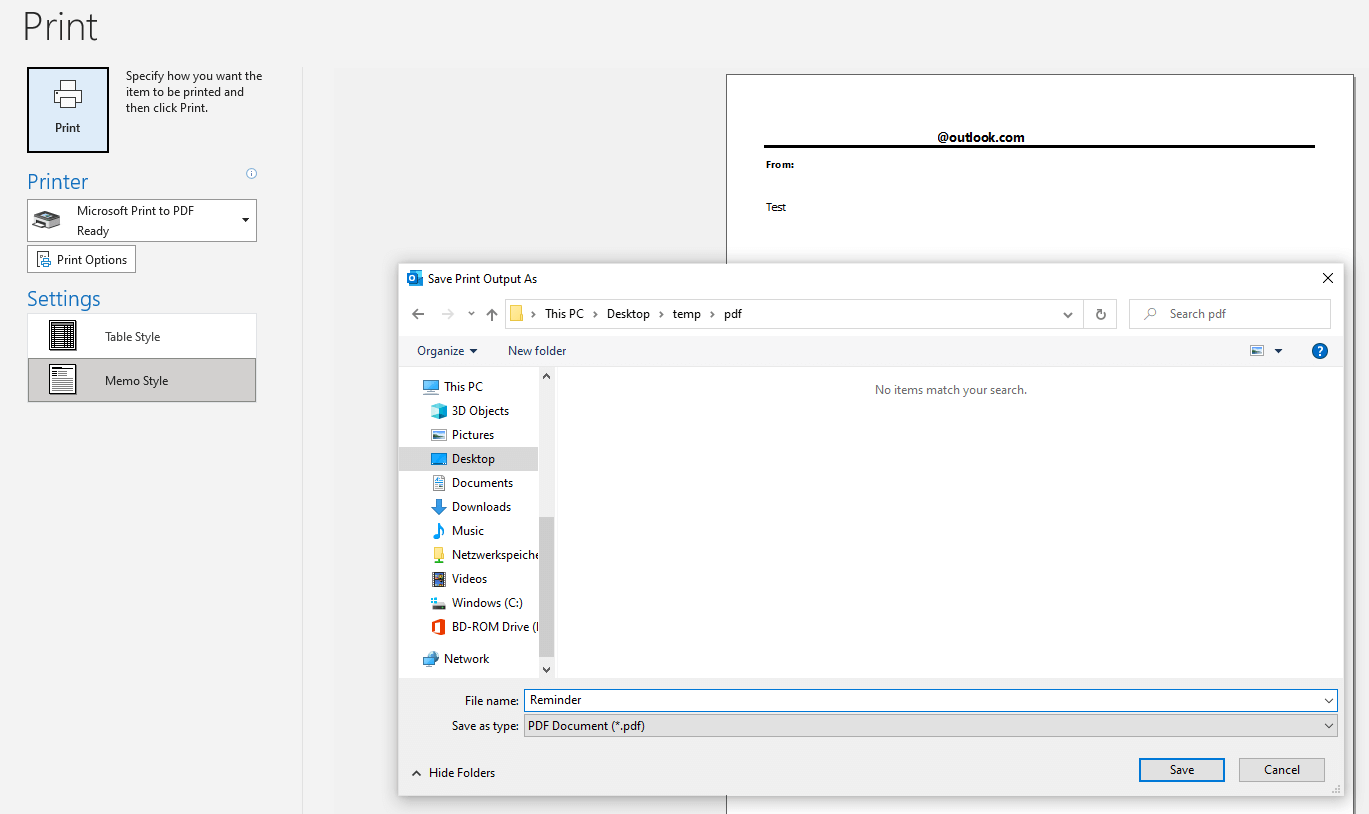
From Computer (Outlook For Windows or Macos)
- Open Outlook on your computer.
- Find the email you want to save and click on it.
- Go to the top menu bar and select “File” > “Print”.
- In the print window, select “Microsoft Print to PDF” as your printer.
- Choose where you want to save the file and give it a name.
- Click “Save” to save the email as a PDF.
From Smartphone or Tablet (Outlook App)
- Open the Outlook app on your device.
- Find the email you want to save and tap on it.
- Tap on the three dots in the top right corner of the email window.
- Select “Print/Share” from the menu that appears.
- In the print window, select “Save as PDF” as your printer.
- Choose where you want to save the file and give it a name.
- Tap “Save” to save the email as a PDF.
Saving an Email as a Pdf From Thunderbird
If you use Thunderbird on your computer, saving an email as a PDF is also easy. Here’s how:
- Open Thunderbird on your computer.
- Find the email you want to save and click on it.
- Go to the top menu bar and select “File” > “Print”.
- In the print window, select “Microsoft Print to PDF” as your printer (on Windows) or “Save as PDF” (on macOS).
- Choose where you want to save the file and give it a name.
- Click “Save” to save the email as a PDF.
Saving an Email as a Pdf From Android
If you use the built-in email app on your Android device, saving an email as a PDF is also easy. Here’s how:
- Open the email app on your device.
- Find the email you want to save and tap on it.
- Tap on the three dots in the top right corner of the email window.
- Select “Print/Share” from the menu that appears.
- In the print window, select “Save as PDF” as your printer.
- Choose where you want to save the file and give it a name.
- Tap “Save” to save the email as a PDF.
Saving an Email as a Pdf From Iphone or Ipad
If you use the built-in Mail app on your iPhone or iPad, saving an email as a PDF is also easy. Here’s how:
- Open the Mail app on your device.
- Find the email you want to save and tap on it.
- Tap on the three dots in the top right corner of the email window.
- Select “Print” from the menu that appears.
- In the print window, select “Save as PDF”.
- Choose where you want to save the file and give it a name.
- Tap “Save” to save the email as a PDF.
Conclusion
Saving an email as a PDF is a simple process that can be done on most devices using popular email services like Gmail, Outlook, and Thunderbird. Whether you need to access important information on the go or simply want to save a copy of an email for future reference, saving it as a PDF is a great way to do so.
Faqs
- Q: Can I Save Multiple Emails as a Pdf at Once?
A: Yes, most email services allow you to select multiple emails and save them as a single PDF file. - Q: How do I Edit a Saved Email as a Pdf?
A: Depending on the service used to save the PDF, you may be able to edit it using a PDF editor like Adobe Acrobat or online tools like SmallPDF. - Q: Can I Share a Saved Email as a Pdf With Others?
A: Yes, sharing a saved email as a PDF is easy – simply attach the file to an email or use a cloud service like Google Drive or Dropbox. - Q: Will Saving an Email as a Pdf Delete it From my Inbox?
A: No, saving an email as a PDF will not delete it from your inbox. It will remain in your inbox until you choose to delete it. - Q: Can I Save Emails as a Pdf Using Other Email Services Like Yahoo or Aol?
A: Yes, most email services allow you to save emails as a PDF – simply look for the “Print” or “Save as PDF” option in the menu.
I hope this article has helped you learn how to save an email as a PDF!


