
Removing Google Restrictions: A Step-by-step Guide
Are you tired of having restrictions on your Google account? Do you want to access all the features and content that Google has to offer, without any limitations? Look no further! In this article, we will guide you through the process of removing Google restrictions, step by step.
Why Are There Restrictions on Google?
Before we dive into the steps, let’s quickly discuss why there are restrictions on Google in the first place. Google has various safety features and parental control systems in place to protect users, especially children, from accessing explicit or mature content. These restrictions can be set up by parents or guardians using their account.
Removing Restrictions on Google: A Step-by-step Guide
Removing Safesearch Restrictions
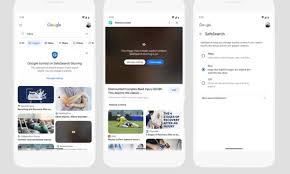
- Using a Pc: Open the Google Chrome browser and click on the three vertical dots in the top right corner. Click on Settings, then Privacy and safety, and finally, Safety. Scroll down to find the SafeSearch filter and toggle it off.
- Using a Smartphone or Tablet: On Android devices, go to google.Com/safesearch and toggle off the SafeSearch filter. On iOS devices, open the Google Chrome browser and tap on the three vertical dots in the top right corner. Tap on Settings > Privacy and safety > Safe search and toggle it off.
Removing Family Link Restrictions
- Using a Pc: Open the Google account settings page and click on Family Link. Click on the family member’s profile, then click on the three vertical dots next to their name. Click on Remove device and confirm the action.
- Using a Smartphone or Tablet: On Android devices, open the Family Link app and tap on the family member’s profile. Tap on Remove device and confirm the action.
Removing Other Parental Control Systems
If you’re using other parental control systems like Windows Family Safety or Safari’s Content & Privacy Restrictions, follow these steps:
- Windows Family Safety: Open the Windows Family Safety settings page and click on Manage family safety. Click on the account of the child whose access is restricted and toggle off the Google Chrome app.
- Safari’s Content & Privacy Restrictions: Go to Settings > Screen Time and tap on Content & Privacy Restrictions. Tap on Allow next to each restriction you want to remove.
Removing Youtube Restrictions
To remove restrictions on YouTube, follow these steps:
- Using a Pc: Open the YouTube settings page and click on Restricted mode. Toggle it off.
- Using a Smartphone or Tablet: On Android devices, open the YouTube app and tap on your profile picture in the top right corner. Tap on Settings > General, then toggle off Restricted mode.
Conclusion
Removing Google restrictions is a straightforward process that can be completed in just a few steps. By following these instructions, you’ll be able to access all the features and content that Google has to offer without any limitations.
Frequently Asked Questions (FAQs)
- What Are Google’s Safety Features?
Google’s safety features include SafeSearch, which filters out explicit or mature content from search results. - How do I Remove Restrictions on Youtube?
To remove restrictions on YouTube, toggle off Restricted mode in the settings page. - Can I Remove Family Link Restrictions Using a Pc?
Yes, you can remove Family Link restrictions using a PC by going to the Google account settings page and clicking on Family Link. - How do I Disable Safesearch on my Smartphone or Tablet?
On Android devices, go to google.Com/safesearch and toggle off the SafeSearch filter. On iOS devices, open the Google Chrome browser and tap on the three vertical dots in the top right corner. Tap on Settings > Privacy and safety > Safe search and toggle it off. - Can I Remove Other Parental Control Systems Using a Pc?
Yes, you can remove other parental control systems like Windows Family Safety or Safari’s Content & Privacy Restrictions using a PC by following the steps provided in this article. - How do I Disable Content & Privacy Restrictions on Safari?
To disable Content & Privacy Restrictions on Safari, go to Settings > Screen Time and tap on Content & Privacy Restrictions. Tap on Allow next to each restriction you want to remove.
Removing Google Restrictions is a Simple Process That Can be Completed in Just a Few Steps. By Following These Instructions, You’ll be Able to Access All The Features And Content That Google Has to Offer Without Any Limitations.


