
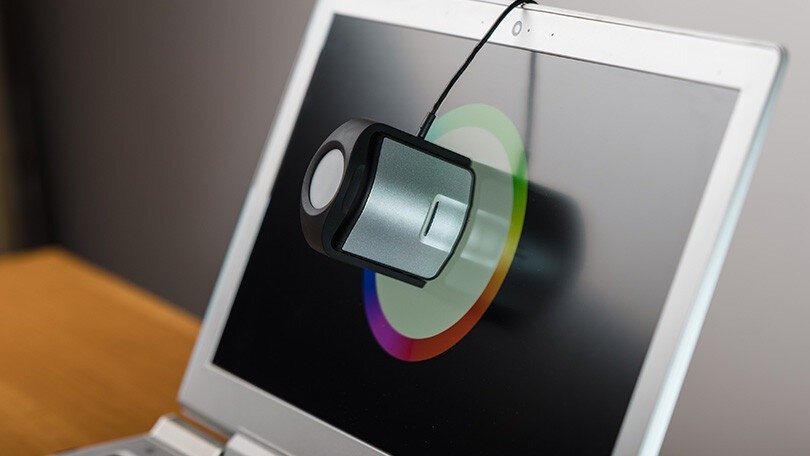
Calibrating Your Monitor: A Comprehensive Guide
Are you tired of looking at your computer screen and thinking, “Why don’t the colors look right?” Calibrating your monitor can be a game-changer. It’s a process that ensures your display shows accurate and vibrant colors, which is essential for graphic designers, photographers, and anyone who works with visual content.
In this article, we’ll guide you through the process of calibrating your monitor on both Windows and Mac operating systems. We’ll also provide tips and tricks for those who want to fine-tune their monitor settings for photography and other applications.
Why Calibrate Your Monitor?
Calibrating your monitor is crucial for several reasons:
- Accurate Color Representation: A calibrated monitor ensures that the colors you see on-screen match the actual colors of your prints or digital files.
- Improved Productivity: When your monitor shows accurate colors, you can work more efficiently and make informed decisions about your design or photography projects.
- Enhanced Visual Experience: Calibrating your monitor also enhances the overall visual experience, making it easier to enjoy movies, games, and other multimedia content.
Calibrating Your Monitor on Windows
To calibrate your monitor on Windows, follow these steps:
- Update to Windows 11: Make sure you’re running the latest version of Windows.
- Search For “calibrate” in The Start Menu: Type “calibrate” in the search bar and select the “Calibrate color profile” option.
- Follow The On-screen Instructions: The calibration process will guide you through a series of tests to adjust your monitor settings.
Calibrating Your Monitor on Mac
To calibrate your monitor on a Mac, follow these steps:
- Update to Macos 12 or Later: Ensure you’re running the latest version of macOS.
- Go to System Preferences > Display: Select your display and choose “Color” from the menu bar.
- Follow The On-screen Instructions: The calibration process will guide you through a series of tests to adjust your monitor settings.
Calibrating Your Monitor For Photography
When calibrating your monitor for photography, keep the following tips in mind:
- Use a Colorimeter: A colorimeter is an instrument that measures the colors displayed on your monitor and provides accurate data.
- Leave Your Monitor Lit For at Least 30 Minutes: This ensures that the colors are stable and consistent.
- Choose The Correct Color Profile: Select a color profile that matches your monitor’s capabilities, such as sRGB or Adobe RGB.
Calibrating Your Monitor With Photoshop
To calibrate your monitor using Photoshop, follow these steps:
- Open Photoshop: Go to File > Color Settings > Assign Profile.
- Select The Correct Profile: Choose the color profile you want to assign to your monitor.
- Save And Apply The Changes: Save the new color settings and apply them to your document.
Calibrating Your Smartphone or Tablet
If you’re looking to calibrate your smartphone or tablet, follow these steps:
- Check Your Device’s Settings: Go to Settings > Display > Color Calibration (if available).
- Follow The On-screen Instructions: The calibration process will guide you through a series of tests to adjust your display settings.
Conclusion
Calibrating your monitor is an essential step in ensuring accurate and vibrant colors for graphic design, photography, and other visual applications. By following these steps and tips, you can achieve professional-grade results from the comfort of your own home. Remember to update your operating system regularly and choose the correct color profile for your monitor.
Frequently Asked Questions (FAQs)
- Q: Why is Calibrating my Monitor Important?
A: Calibrating your monitor ensures accurate color representation, improved productivity, and an enhanced visual experience. - Q: How Often Should I Calibrate my Monitor?
A: It’s recommended to recalibrate your monitor every 6-12 months or whenever you notice a change in the display settings. - Q: Can I Use a Smartphone App to Calibrate my Monitor?
A: While some smartphone apps can help with color calibration, it’s not a substitute for professional-grade calibration software. - Q: Do I Need Special Equipment to Calibrate my Monitor?
A: A colorimeter is recommended for accurate color calibration, but not required. You can also use online resources like Lagom Color Calibration. - Q: Can I Calibrate Multiple Monitors at Once?
A: Yes, most calibration software allows you to calibrate multiple monitors simultaneously. - Q: Will Calibrating my Monitor Affect The Performance of my Computer?
A: Calibrating your monitor should not significantly impact your computer’s performance.
I hope this article has provided you with a comprehensive guide to calibrating your monitor for various applications. If you have any further questions or need more information, feel free to ask!


