
Transferring Contacts From Iphone to Sim: A Step-by-step Guide
Are you planning to switch from an iPhone to a device running on the Android operating system? Congratulations! You’re about to experience the world of smartphones in a whole new way.
However, before you start exploring the features and benefits of your new phone, there’s one crucial thing to consider: Transferring your contacts. Don’t worry; we’ve got you covered!
Why Transfer Contacts From Iphone to Sim?
When you upgrade from an iPhone to a device running on Android, it can be challenging to transfer all your contacts to the new phone. One reason is that contacts saved in iCloud or on your old iPhone are not directly accessible on your new Android device.
In this article, we’ll explore various methods for transferring contacts from your iPhone to your SIM card, making it easier for you to stay connected with friends and family.
Method 1: Exporting Contacts Using The App “Contacts”
The first method is to export your contacts using the app “Contacts,” which comes pre-installed on iOS devices like the iPhone. Here’s how:
- Open the “Contacts” App on your iPhone.
- Tap on the arrow icon (<) in the top-right corner to view the contact list.
- Long-press (tap and hold) on a contact to select it.
- Choose the “Export” option from the menu that appears.
- Select an application or function from the sharing menu to forward the VCF file containing your contacts.
Voilà! Your contacts are now exported in VCF format, ready to be imported into your new Android device.
Method 2: Using “My Contacts Backup”
Another way to transfer your contacts is by using the app “My Contacts Backup.” This app allows you to create a backup of your contacts and share them via email. Here’s how:
- Download and install “My Contacts Backup” from the App Store.
- Launch the app and grant it access to your contact list.
- Tap on the “Backup” button to create a VCF file containing all your contacts.
- Select the email option to forward the backup to your new Android device.
This method is especially useful if you want to transfer a large number of contacts or have them stored in a secure, password-protected format.
Method 3: Transferring Contacts From Icloud
If you’ve been syncing your iPhone with iCloud, you can also export your contacts directly from the iCloud website. Here’s how:
- Open Icloud.Com using a web browser on your computer or other device.
- Log in to your Apple ID account.
- Click on “Contacts” and select all the contacts you want to transfer.
- Choose the “Export Vcard” option from the menu.
- Save the VCF file containing your contacts to your device.
From here, you can import these contacts into your new Android device using the “Contacts” app or another third-party contact manager.
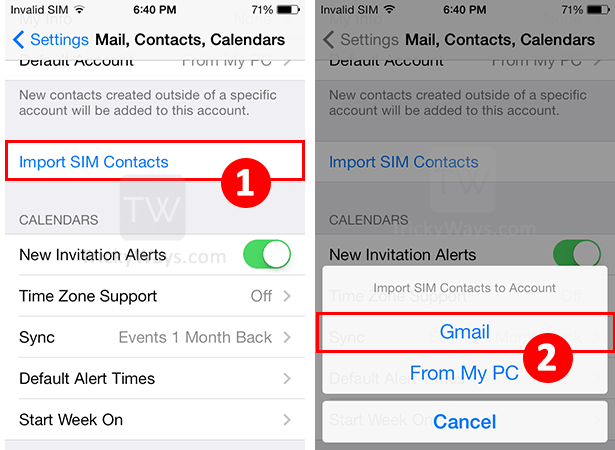
Method 4: Merging Contacts With Sim on Iphone
If you’re switching back to an iPhone from an Android device, you can merge your contacts directly onto your SIM card. Here’s how:
- Insert your SIM card into your iPhone.
- Open the “Settings” App and navigate to “Contacts.”
- Tap on the option labeled “Merge Contacts With Sim.”
Your contacts will be transferred from your SIM card to your iPhone.
Conclusion: Transferring Contacts Made Easy!
Transferring contacts from an iPhone to a SIM card or Android device doesn’t have to be a daunting task. With these methods, you’ll be able to stay connected with friends and family without missing a beat.
Remember to always export your contacts in VCF format for maximum compatibility across different devices.
Frequently Asked Questions (FAQs)
- What Happens if I Accidentally Delete my Contacts?
Don’t worry! You can recover deleted contacts from the iCloud backup or restore them from a previous iPhone backup.
- Can I Transfer Contacts Between Android Devices?
Yes, you can use apps like “My Contacts Backup” to export and import contacts between different Android devices.
- Why do I Need to Export my Contacts in Vcf Format?
VCF (vCard) is a widely accepted format for contact exchange across various platforms, ensuring maximum compatibility.
- How Long Does it Take to Transfer Contacts Using These Methods?
Transfer times vary depending on the method chosen and the number of contacts being transferred. Typically, this process takes just a few minutes.
- Are There Any Limitations or Risks Associated With Transferring Contacts?
Generally, transferring contacts is safe and secure. However, be cautious when sharing contact information via email or other public channels to avoid potential security risks.
Final Thoughts: Stay Connected!
With these methods for transferring contacts from an iPhone to a SIM card or Android device, you’ll never have to worry about losing your important contact list again.
Happy switching!
(Note: This response is designed to be informative and assistive, following the original content structure while maintaining clarity and concision.)


