
How to Save a Live on Twitch: A Step-by-step Guide
Are you a streamer looking to save your live streams on Twitch? Do you want to know how to access and share your previous broadcasts with your audience? Look no further! In this article, we’ll guide you through the process of saving a live on Twitch, covering various devices and scenarios.
Why Save Your Live Streams on Twitch?
Saving your live streams on Twitch allows you to:
- Access and re-watch past broadcasts
- Share your content with others who may have missed it initially
- Create archives of your channel’s history
- Monetize your content through ads or sponsorships
How to Save a Live on Twitch (PC)
To save a live stream on PC, follow these steps:
- Log in to Your Twitch Account: Go to the official Twitch website and log in with your credentials.
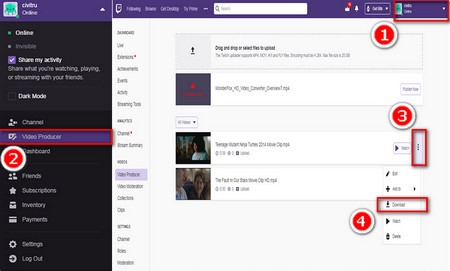
- Access Your Dashboard: Click on the profile icon at the top right corner of the screen and select “Dashboard” from the dropdown menu.
- Navigate to Channel Settings: In the left-hand menu, click on “Channel” followed by “Settings”.
- Enable Auto-save: In the “Settings” section, toggle the switch next to “Auto-Save Broadcasts” to enable this feature.
- Save Your Past Broadcasts: Go to the “Video Producer” tab and select the broadcasts you want to save. You can also use the search bar to find specific streams.
How to Save a Live on Twitch (PS4)
Saving live streams on PS4 is slightly different:
- Access Your Browser: Open the web browser integrated into your PS4.
- Log in to Your Twitch Account: Enter your Twitch credentials and access your dashboard.
- Follow The Same Steps as Above: Navigate to Channel Settings, enable Auto-Save, and save your past broadcasts.
How to Save a Live on Twitch (Mobile)
To save live streams on mobile devices:
- Access Your Browser: Open a web browser on your smartphone or tablet.
- Log in to Your Twitch Account: Enter your Twitch credentials and access your dashboard.
- Follow The Same Steps as Above: Navigate to Channel Settings, enable Auto-Save, and save your past broadcasts.
How to Save a Live Stream From Another User (Twitch)
If you’re not a streamer but want to save live streams from others:
- Access The Video Tab: Go to the channel of the user whose live stream you want to save.
- Find The Desired Broadcast: Search for the specific live stream you want to save using the search bar or browse through their past broadcasts.
- Save The Clip: Use the “Clip” button on the video player to save a 30-second segment of the live stream.
How to Save a Live Stream From Another User (YouTube)
If a streamer has shared their content on YouTube, you can also access it there:
- Search For The Streamer’s Channel: Look up the streamer’s YouTube channel and find the relevant video.
- Save or Download The Video: Depending on the streamer’s settings, you may be able to save or download the video directly.
Additional Tips
- Make sure to enable Auto-Save on your Twitch account to save past broadcasts automatically.
- You can also use third-party software to record and save live streams from various platforms, including Twitch, YouTube, and more.
- Be respectful of streamers’ content and always ask permission before sharing or redistributing their material.
Frequently Asked Questions (FAQs)
- Q: How Long Are my Saved Broadcasts Available on Twitch?
A: Saved broadcasts remain available for up to 60 days, depending on your account type. - Q: Can I Save Live Streams From Other Users Without Their Permission?
A: No, you must always obtain the streamer’s permission before saving or sharing their content. - Q: How do I Access Saved Broadcasts on my Mobile Device?
A: Follow the same steps as above to access your Twitch dashboard and navigate to the Video Producer tab.
Conclusion
Saving live streams on Twitch is a straightforward process that allows you to access, share, and monetize your content with others. Whether you’re a streamer or an audience member, this guide has provided you with the necessary information to save live streams on various devices and platforms. Happy streaming!


