
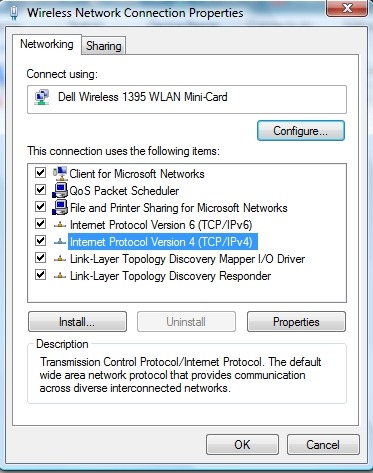
Finding Your Dns: A Comprehensive Guide
As a computer user, you’ve likely heard of DNS (Domain Name System) but may not fully understand what it is or how to find your current DNS settings. In this article, we’ll delve into the world of DNS and provide you with a step-by-step guide on how to find your primary and secondary DNS, as well as how to configure them on various devices.
What is Dns?
DNS is like a phonebook for the internet. It translates human-readable domain names (e.G., Google.Com) into IP addresses that computers can understand (e.G., 74.125.224.72). This process allows you to access websites and online services using easy-to-remember domain names instead of cumbersome IP addresses.
Why Change Your Dns?
There are several reasons why you might want to change your DNS settings:
- To bypass regional blocks or internet restrictions
- To improve internet performance and speed
- To enhance online security and privacy
- To access geo-restricted content
How to Find Your Current Dns Settings
The steps to find your current DNS settings vary depending on the device you’re using. Here’s a breakdown for common devices:
Router
- Open a web browser and navigate to the router’s configuration page (usually by typing the IP address
192.168.0.1Or192.168.1.1Into the address bar). - Log in using your admin credentials.
- Look for the “DNS” or “Internet” section and select it.
- You’ll see your current DNS settings displayed.
Windows
- For Windows 11:
- Click on the Start button and select Settings.
- Choose the option for Network & Internet.
- Select Wi-Fi or Ethernet, then click on the Advanced options button.
- Scroll down to the DNS settings section and you’ll see your current DNS values.
- For Windows 10:
- Click on the Start button and select Settings.
- Choose the option for Network & Internet.
- Select Wi-Fi or Ethernet, then click on the Advanced options button.
- Scroll down to the DNS settings section and you’ll see your current DNS values.
Macos
- Click on the Apple logo in the top left corner of the screen.
- Select System Preferences from the dropdown menu.
- Choose the Network option.
- Select Wi-Fi or Ethernet, then click on the Advanced button.
- Scroll down to the DNS settings section and you’ll see your current DNS values.
Android
- Go to Settings > Connections > Wi-Fi.
- Long press on the connected network’s name.
- Tap on the gear icon next to it.
- Select the Advanced options button.
- Scroll down to the DNS settings section and you’ll see your current DNS values.
Ios/ipados
- Go to Settings > Wi-Fi.
- Tap on the i in the top right corner of the screen.
- Select Configure DNS.
- You’ll see your current DNS settings displayed.
How to Change Your Dns Settings
Now that you know how to find your current DNS settings, let’s talk about how to change them. The process varies depending on the device and operating system you’re using.
Router
- Log in to your router’s configuration page.
- Look for the DNS or Internet section.
- Select the option to use custom DNS values.
- Enter the new DNS values (primary and secondary) into the corresponding fields.
- Save your changes.
Windows
- For Windows 11:
- Follow the steps mentioned earlier to access the DNS settings page.
- Click on the “Use the following addresses” option.
- Enter the new DNS values (primary and secondary) into the corresponding fields.
- Save your changes.
- For Windows 10:
- Follow the steps mentioned earlier to access the DNS settings page.
- Click on the “Use the following addresses” option.
- Enter the new DNS values (primary and secondary) into the corresponding fields.
- Save your changes.
Macos
- Follow the steps mentioned earlier to access the DNS settings page.
- Click on the dropdown menu next to the “DNS” field.
- Select the option to use custom DNS values.
- Enter the new DNS values (primary and secondary) into the corresponding fields.
- Save your changes.
Android
- Follow the steps mentioned earlier to access the DNS settings page.
- Tap on the “Display advanced options” button.
- Select the option to use custom DNS values.
- Enter the new DNS values (primary and secondary) into the corresponding fields.
- Save your changes.
Ios/ipados
- Follow the steps mentioned earlier to access the DNS settings page.
- Tap on the “Manual” option.
- Select the option to use custom DNS values.
- Enter the new DNS values (primary and secondary) into the corresponding fields.
- Save your changes.
Choosing a Better Dns
There are several third-party DNS services that you can use instead of your current one:
- Google Dns: A fast and reliable DNS service with good performance and security features.
- Cloudflare Dns: A secure and private DNS service with built-in DDoS protection and web acceleration.
- Opendns: A free DNS service with advanced security features, including malware blocking and phishing prevention.
To use one of these services:
- Go to the settings page for your router or device (depending on what you’re using).
- Look for the option to change the DNS values.
- Enter the new DNS values for the primary and secondary servers.
- Save your changes.
Conclusion
Changing your DNS settings can be a straightforward process, but it’s essential to understand how to do it correctly on your device or router. By following these steps, you can bypass regional blocks, improve internet performance, enhance online security and privacy, and access geo-restricted content. Remember to choose a reliable third-party DNS service that meets your needs.
Frequently Asked Questions
Q: What is Dns?
A: DNS (Domain Name System) is like a phonebook for the internet. It translates human-readable domain names into IP addresses that computers can understand.
Q: Why Change my Dns Settings?
A: You might want to change your DNS settings to bypass regional blocks or improve internet performance and speed, enhance online security and privacy, or access geo-restricted content.
Q: How do I Find my Current Dns Settings?
A: The steps to find your current DNS settings vary depending on the device you’re using. You can follow the instructions provided earlier for routers, Windows, macOS, Android, and iOS/iPadOS devices.
Q: How do I Change my Dns Settings?
A: Changing your DNS settings also varies depending on the device or router you’re using. You can follow the instructions provided earlier for each device type.
Q: What Are Some Good Third-party Dns Services?
A: Some popular third-party DNS services include Google DNS, Cloudflare DNS, and OpenDNS. Each of these services has its own features and benefits, so choose one that meets your needs.
By following this guide, you’ll be able to find and change your current DNS settings with ease, giving you more control over your online experience.


