
How to Properly Connect Airtag to Iphone: A Step-by-step Guide
As a proud owner of an AirTag, you’re probably eager to connect it to your iPhone and start enjoying its features. In this article, we’ll guide you through the process of linking your AirTag to your iPhone in just a few easy steps.
Before You Begin: Requirements For Connecting Airtag to Iphone
Before diving into the connection process, make sure you meet the necessary requirements:
- Your iPhone must be running iOS 14.5 Or later.
- Two-factor authentication must be enabled on your iPhone.
- Bluetooth and Wi-Fi (or cellular network) must be active on your iPhone.
Connecting Airtag to New Iphone
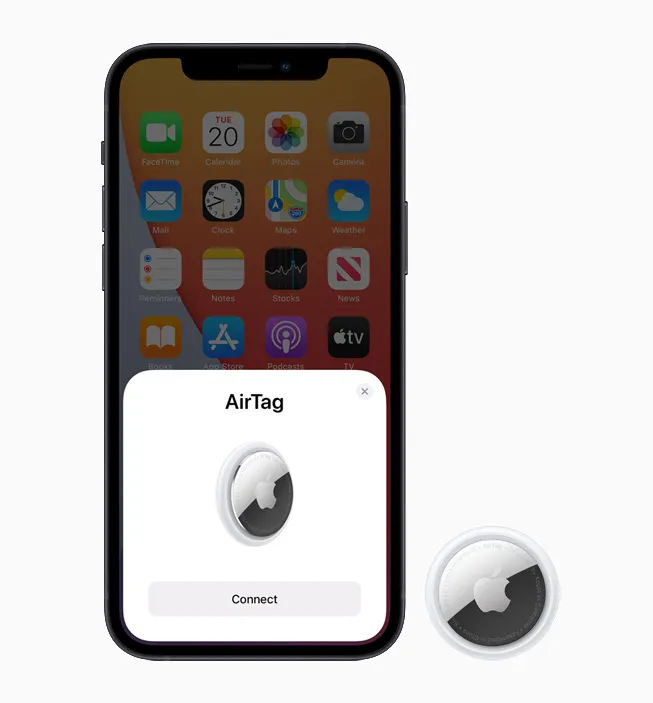
If you’re using a new iPhone, follow these steps to connect your AirTag:
- Approach The Two Devices: Bring your AirTag close to your iPhone.
- Select The Option to Initiate Configuration: On your iPhone, go to Settings > General > About and look for the AirTag icon. Tap on it, then select “Connect.”
- Choose a Name For Your Airtag: Select a name from the available options (e.G., Bicycle, Keys, etc.) Or create a custom name.
- Tap on “Continue”: This will initiate the connection process between your iPhone and AirTag.
What Happens Next?
Once you’ve completed these steps, your AirTag will be connected to your iPhone. You can now view its location in the Find My app.
Sharing Airtag With Others
If you want to share your AirTag with others, follow these steps:
- Open The Find My App: Tap on the icon to open the app.
- Select “Objects”: Choose the object (in this case, your AirTag) from the list.
- Tap on The “Share” Button: Select the option to share your AirTag with others.
Other Options For Sharing Your Airtag
Starting from iOS 17 and later versions, you can share a single AirTag with up to five other people. This feature allows you to locate your AirTag even when it’s not associated with your iPhone.
Tips For Using The Find My App
- To view your AirTag’s location, open the Find My app and select “Objects.”
- You can also modify the name of your AirTag by tapping on it and selecting “Rename Object.”
Troubleshooting Common Issues
If you encounter any issues during the connection process or when using the Find My app, try these troubleshooting steps:
- Restart Your Iphone: Sometimes, a simple restart can resolve connectivity issues.
- Check Bluetooth And Wi-fi Settings: Ensure that both features are enabled on your iPhone.
Alternative Solutions For Taking Screenshots
If you’re looking for alternative solutions to take screenshots of your Windows 7 desktop or specific windows, consider the following options:
- ShareX: A free, open-source software that allows you to capture and edit screenshots.
- SnapCrab: A free tool that enables you to take snapshots of your entire desktop, specific windows, or even just a portion of the screen.
- Nimbus Screenshot & Screen Video Recorder (Chrome/Firefox/Edge): A free extension that allows you to capture and share web pages, browser windows, or custom monitor areas.
- GoFullPage: A free Chrome extension that makes it easy to take screenshots of entire web pages.
Conclusion
Connecting your AirTag to iPhone is a straightforward process that requires just a few minutes. By following these steps and troubleshooting common issues, you’ll be able to enjoy the features of your AirTag and stay connected with your devices.
Frequently Asked Questions (FAQs)
- What Are The System Requirements For Connecting Airtag to Iphone?
Your iPhone must be running iOS 14.5 Or later. - How do I Share my Airtag With Others?
Open the Find My app, select “Objects,” and tap on the “Share” button. - Can I Connect Multiple Airtags to a Single Iphone?
No, each AirTag can only be connected to one Apple ID account. - What Happens if I Try to Share my Airtag With Someone Who Doesn’t Have an Apple Device?
The recipient will receive a notification and can choose to accept or decline the invitation. -
Can I Use my Airtag on Multiple Devices?
Yes, once you’ve connected your AirTag to one iPhone, it will be available on all other devices associated with the same Apple ID account. -
How do I Modify The Name of my Airtag?
Open the Find My app, select “Objects,” and tap on the name of your AirTag to rename it. -
Can I Take a Screenshot of my Airtag’s Location?
Yes, you can use one of the alternative solutions mentioned above to capture a screenshot of your AirTag’s location. -
What Are Some Common Issues That Might Occur When Connecting Airtag to Iphone?
Some potential issues include connectivity problems or difficulties in finding the AirTag’s location. Try restarting your iPhone or checking Bluetooth and Wi-Fi settings for resolution. -
How do I Troubleshoot Common Issues With my Airtag?
Restarting your iPhone, checking Bluetooth and Wi-Fi settings, or using alternative solutions to capture screenshots might resolve common issues. -
What Are Some Additional Features of The Find My App?
The Find My app allows you to locate your devices, including your AirTag, even when they’re not connected to the internet. You can also share your AirTag with others and receive notifications when it’s moved or found.


