
The Ultimate Guide to Extracting Rows Iso: Top Programs And Solutions
Are you tired of struggling to extract rows ISO from your files? Do you want to explore the content of your ISO files without having to masterize them on a diskette? Look no further! In this article, we will guide you through the best programs and solutions to extract rows ISO, making it easy and convenient for you.
What is Extracting Rows Iso?
Extracting rows ISO refers to the process of extracting the contents of an ISO file without having to masterize them on a diskette. This can be useful when you want to explore the content of your ISO files without having to create a physical copy.
Why Choose Our Guide?
Our guide provides a comprehensive overview of the top programs and solutions for extracting rows ISO. We will cover the best software available for both Windows and macOS, making it easy for you to choose the right tool for your needs.
Top Programs For Extracting Rows Iso on Windows
- 7-Zip: 7-Zip is a popular file archiver that can extract rows ISO with ease. It supports various formats, including ZIP, RAR, and more.
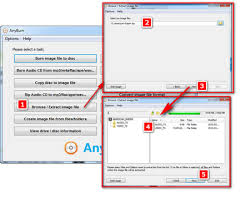
- Isobuster: IsoBuster is a powerful tool that can recover damaged CD and DVD disks, as well as extract rows ISO.
- Wincdemu: WinCDEmu is a free software that allows you to mount ISO files as virtual drives, making it easy to access the contents.
Top Programs For Extracting Rows Iso on Macos
- The Unarchiver: The Unarchiver is a versatile tool that can extract rows ISO, as well as open various file formats.
- Utility Disc: Utility Disc is a built-in tool in macOS that allows you to mount and explore the contents of ISO files.
How to Use 7-Zip to Extract Rows Iso
- Download and install 7-Zip on your Windows computer.
- Associate the .ISO file format with 7-Zip by right-clicking on the file and selecting “Open with” > 7-Zip.
- Double-click on the ISO file to extract its contents.
How to Use Isobuster to Extract Rows Iso
- Download and install IsoBuster on your Windows computer.
- Run IsoBuster and select the CD or DVD drive from which you want to extract the rows ISO.
- Select the option “Open rows image” and choose the ISO file you want to extract.
How to Use Wincdemu to Extract Rows Iso
- Download and install WinCDEmu on your Windows computer.
- Run WinCDEmu and select the option “Create virtual drive”.
- Choose the ISO file you want to extract and WinCDEmu will mount it as a virtual drive.
How to Use The Unarchiver to Extract Rows Iso
- Download and install The Unarchiver on your macOS computer.
- Double-click on the ISO file to open its contents in The Unarchiver.
- You can now explore the contents of the ISO file without having to masterize it on a diskette.
How to Use Utility Disc to Extract Rows Iso
- Open Utility Disc from the Applications folder or by searching for it in Spotlight.
- Select the option “DiskImageMounter” and choose the ISO file you want to extract.
- The contents of the ISO file will be mounted as a virtual drive.
Conclusion
Extracting rows ISO can be a daunting task, but with the right tools, it becomes easy and convenient. Our guide has provided you with the top programs and solutions for extracting rows ISO on both Windows and macOS. Whether you choose 7-Zip, IsoBuster, WinCDEmu, The Unarchiver, or Utility Disc, you can now explore the contents of your ISO files without having to masterize them on a diskette.
Frequently Asked Questions
-
Q: What is The Difference Between Extracting Rows Iso And Masterizing it on a Diskette?
A: Extracting rows ISO refers to the process of extracting the contents of an ISO file without creating a physical copy, whereas masterizing it on a diskette involves creating a physical copy. -
Q: Which Program Should I Use For Extracting Rows Iso on Windows?
A: 7-Zip is a popular choice for extracting rows ISO on Windows due to its ease of use and versatility. -
Q: How do I Extract Rows Iso on Macos?
A: The Unarchiver and Utility Disc are two popular tools that can extract rows ISO on macOS. -
Q: Can I Use These Programs to Create Rows Iso Instead of Extracting Them?
A: Yes, some of the programs mentioned in this guide, such as IsoBuster and WinCDEmu, allow you to create rows ISO in addition to extracting them. -
Q: Are These Programs Free?
A: Some of the programs mentioned in this guide are free, while others require a one-time payment or subscription. -
Q: Can I Use These Programs on Older Versions of Windows And Macos?
A: The compatibility of these programs may vary depending on the version of Windows or macOS you are using.


