
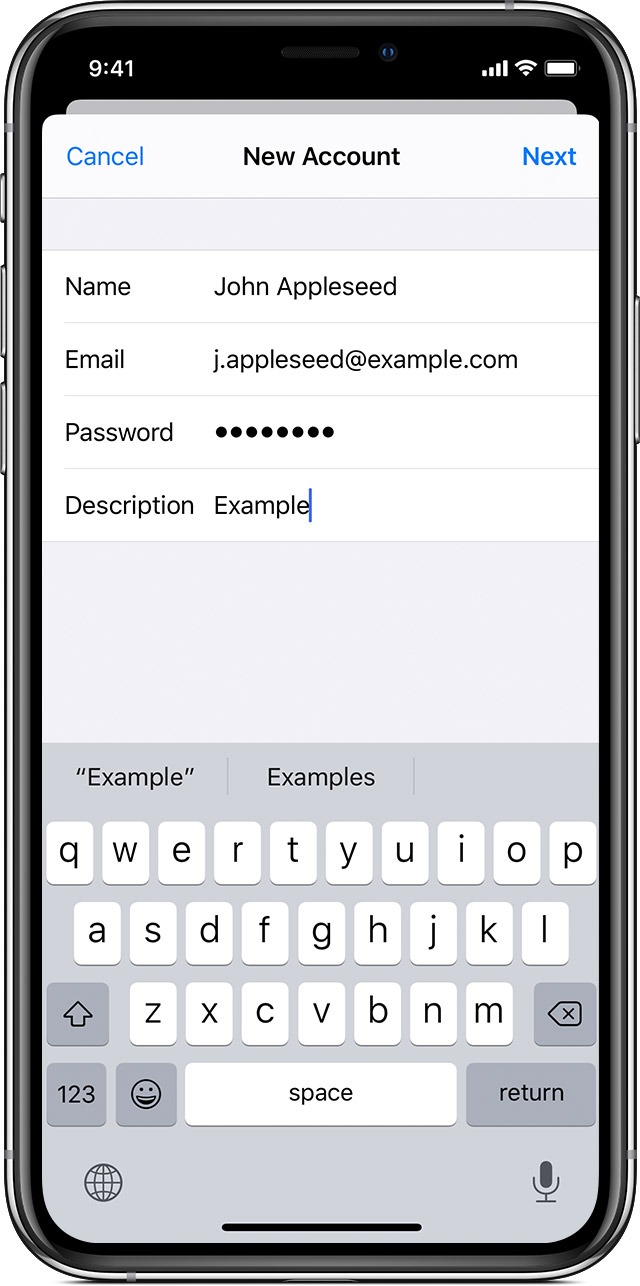
How to Find Your Email on a Phone: A Step-by-step Guide
Have you ever found yourself struggling to locate your email on your phone? You’re not alone. With the rise of mobile devices, it’s become increasingly common for people to have multiple email accounts and clients on their phones. But don’t worry, we’ve got you covered.
Understanding The Challenge
Finding your email on a phone can be a daunting task, especially when you have multiple accounts and clients to manage. The settings and applications on Android and iPhone devices can be overwhelming, making it difficult to locate your email quickly.
The Solution: A Comprehensive Guide
In this article, we’ll walk you through the step-by-step process of finding your email on both Android and iPhone devices. We’ll also provide tips on how to search for emails using popular clients like Gmail, Outlook, and Mail.
Finding Your Email on an Android Device
Step 1: Accessing The Settings
To find your email on an Android device, start by accessing the settings menu. This can be done by:
- Long-pressing on the home screen to access the drawer
- Swiping up from the bottom of the screen to open the notification shade and then tapping on the gear icon
- Pressing and holding the power button until the shutdown menu appears, then tapping on the gear icon
Step 2: Locating The Account Settings
Once in the settings menu, navigate to the “Account” or “Google” section. This may vary depending on your device and Android version.
- Tap on the voice labeled “Account” or “Profile”
- If prompted, enter your Google account credentials to access the associated email address
Step 3: Synchronizing Your Email
If you’ve multiple accounts and clients, synchronize them by:
- Tapping on the three dots in the top right corner
- Selecting “Synchronize accounts”
This will update your device’s list of synchronized accounts.
Finding Your Email on an Iphone Device
The process of finding your email on an iPhone is relatively similar to that of Android devices. Here’s how to do it:
Step 1: Accessing The Settings
Open the Settings app by tapping on the gear icon on the home screen.
- Tap on your name and surname at the top
- Select “Password & Security”
Step 2: Locating Your Email
In the “Password & Security” menu, scroll down to the “Apple ID” section. You’ll find your associated email address listed below.
- Tap on “Edit” next to the Apple ID field
- Change the email address to your desired one
Searching For Emails With Gmail
To search for emails using Gmail on Android or iPhone devices:
Step 1: Open The Gmail App
Launch the Gmail app and navigate to the home screen.
- On Android, tap on the “Search” icon (magnifying glass) in the top right corner
- On iPhone, tap on the “Compose” button and then select “Search”
Step 2: Enter Your Search Query
Type your search query into the search bar. You can filter results by sender, recipient, subject, or attachment.
Step 3: Refine Your Results
Use the various filters available (labels, to, from, etc.) To narrow down your search results.
Searching For Emails With Outlook
To search for emails using Outlook on Android or iPhone devices:
Step 1: Open The Outlook App
Launch the Outlook app and navigate to the home screen.
- On Android, tap on the “Search” icon (magnifying glass) in the top right corner
- On iPhone, tap on the “Compose” button and then select “Search”
Step 2: Enter Your Search Query
Type your search query into the search bar. You can filter results by sender, recipient, subject, or attachment.
Step 3: Refine Your Results
Use the various filters available (labels, to, from, etc.) To narrow down your search results.
Searching For Emails With Mail
To search for emails using Mail on iPhone devices:
Step 1: Open The Mail App
Launch the Mail app and navigate to the home screen.
- Tap on the “Compose” button
- Select “Search”
Step 2: Enter Your Search Query
Type your search query into the search bar. You can filter results by sender, recipient, subject, or attachment.
Conclusion
Finding your email on a phone may seem like a daunting task, but with this comprehensive guide, you’re now equipped to navigate the settings and applications of both Android and iPhone devices. Remember to always access the settings menu and locate the account settings section to find your associated email address.


