
How to Update Your Pc’s Driver: A Step-by-step Guide
Are you tired of dealing with outdated drivers on your computer? Do you want to ensure that your webcam, graphics card, and other peripherals are functioning correctly? Look no further! In this article, we will guide you through the process of updating your PC’s driver, making it easier for you to use your computer efficiently.
Why Update Your Driver?
Updating your driver is essential to ensure that your computer’s hardware components, such as webcams, graphics cards, and audio devices, are functioning correctly. Outdated drivers can cause issues with these peripherals, leading to poor video quality, sound problems, or even system crashes. By updating your driver, you can:
- Improve the performance of your webcam
- Enhance the graphics card’s capabilities
- Resolve audio issues
- Prevent system crashes and freezes
Updating Drivers in Windows
If you’re using a Windows operating system, you can update your drivers directly from the Settings app. Here’s how:
- Click on The Start Button: This will open the Start menu.
- Select Settings: Click on the “Settings” icon (represented by a gear) to access the Settings app.
- Click on Update & Security: In the Settings app, click on “Update & Security.”
- Select Windows Update: In the “Update & Security” window, select “Windows Update.”
- Check For Updates: Click on the “Check for updates” button to see if any driver updates are available.
- Install Updates: If any updates are found, click on the “Download and install now” button to update your drivers.
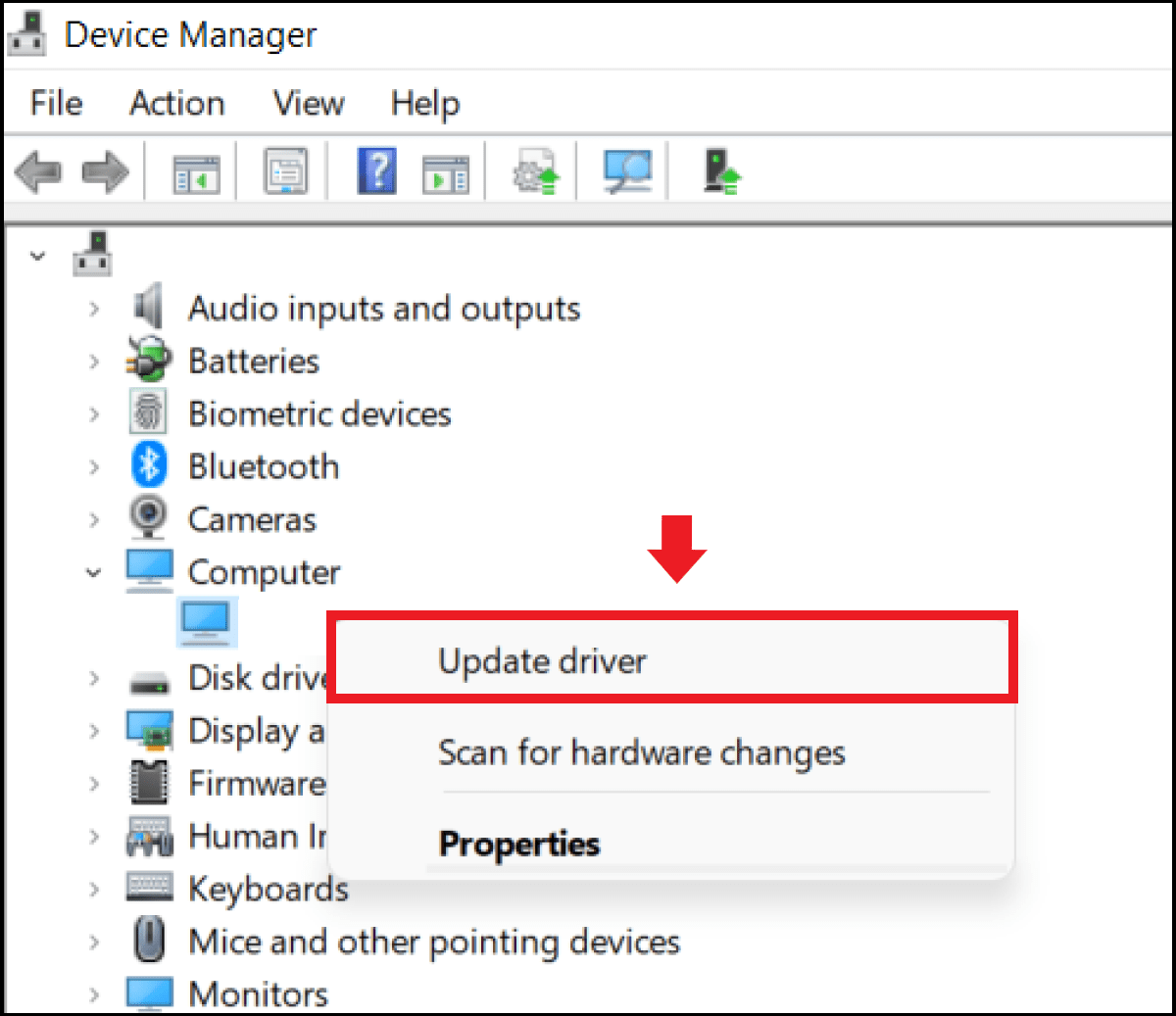
Updating Drivers Using Device Manager
If you’re not able to find any updates in the Windows Update app, you can use the Device Manager to manually update your drivers:
- Press The Win + X Keys: Press the Windows key + X to open the Device Manager.
- Select Device Manager: In the Quick Actions menu, select “Device Manager.”
- Find The Device: Navigate to the device you want to update (e.G., Webcam, graphics card).
- Right-click on The Device: Right-click on the device and select “Update driver.”
- Search Automatically: Select “Search automatically for updated driver software.”
- Install Updates: If any updates are found, click on the “Install” button to update your drivers.
Updating Drivers Using Manufacturer’s Software
Some manufacturers provide their own software to update drivers. This can be a good option if you’re not able to find any updates in the Windows Update app or Device Manager:
- Visit The Manufacturer’s Website: Visit the website of your device’s manufacturer (e.G., NVIDIA, AMD).
- Search For Driver Updates: Search for driver updates on their website.
- Download And Install The Update: Download and install the updated driver software.
Updating Drivers on Mac
If you’re using a Mac, updating drivers is relatively easy:
- Click on The Apple Logo: Click on the Apple logo in the top left corner of your screen.
- Select System Preferences: Select “System Preferences.”
- Click on Software Update: In the “Software Update” window, click on “Update Now.”
- Install Updates: If any updates are found, click on the “Install” button to update your drivers.
Conclusion
Updating your PC’s driver is a simple process that can make a significant difference in your computer’s performance. By following these steps, you can ensure that your webcam, graphics card, and other peripherals are functioning correctly. Remember to always check for updates regularly to prevent issues with your system.
Frequently Asked Questions (FAQs)
Q: Why is it important to update my driver?
A: Updating your driver ensures that your computer’s hardware components, such as webcams, graphics cards, and audio devices, are functioning correctly.
Q: How often should I update my driver?
A: It’s recommended to check for updates regularly (e.G., Every 2-3 months) to ensure that you have the latest drivers installed.
Q: Can updating my driver cause any issues with my system?
A: No, updating your driver is a safe and straightforward process. However, if you’re unsure about updating your driver, it’s always best to consult with a professional or contact the manufacturer’s support team.
Q: Will updating my driver improve my computer’s performance?
A: Yes, updating your driver can improve your computer’s performance by ensuring that your peripherals are functioning correctly.
Q: Can I update my driver on my Mac?
A: Yes, you can update your driver on a Mac using the Software Update app or by visiting the manufacturer’s website for specific instructions.


