
Creating Conceptual Maps on Microsoft Word: A Comprehensive Guide
Are you struggling to create conceptual maps on Microsoft Word? Look no further! In this article, we will guide you through the process of creating conceptual maps on both desktop and online versions of Microsoft Word, as well as on mobile devices.
What Are Conceptual Maps?
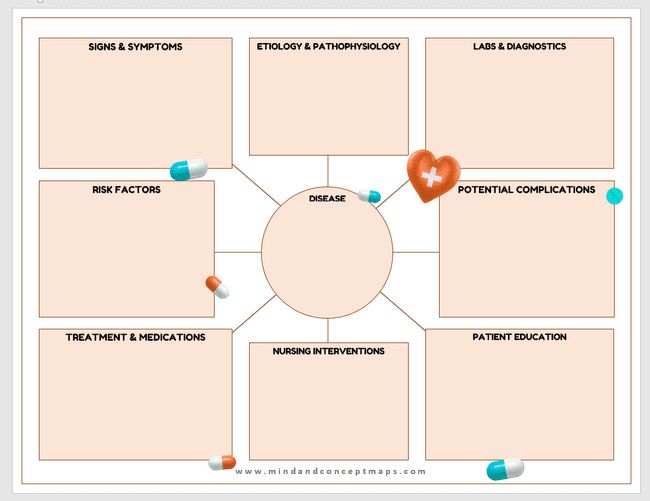
Conceptual maps are visual representations of ideas, concepts, and relationships between them. They are a powerful tool for organizing and communicating complex information in a clear and concise manner.
Creating Conceptual Maps on Microsoft Word Desktop
If you have a desktop version of Microsoft Word installed on your computer, you can create conceptual maps using the SmartArt feature. Here’s how:
- Open Microsoft Word: Launch Microsoft Word on your desktop or laptop.
- Create a New Document: Click on “File” > “New” to create a new document.
- Insert Smartart: Go to the “Insert” tab and click on “SmartArt”.
- Choose a Conceptual Map Template: Select a template from the various categories, such as Lists, Processes, Cycles, Hierarchies, and more.
- Customize Your Map: Add text, images, and other elements to your map using the tools provided in the SmartArt window.
Creating Conceptual Maps on Microsoft Word Online
If you don’t have access to a desktop version of Microsoft Word or prefer to work online, you can still create conceptual maps using Microsoft Word’s web-based version. Here’s how:
- Log In to Microsoft Word Online: Sign in to your Microsoft account and access the online version of Microsoft Word.
- Create a New Document: Click on “File” > “New” to create a new document.
- Insert Cartoonist: Go to the “Insert” tab and click on “Cartoonist”.
- Design Your Map: Use the tools provided in the Cartoonist window to design your conceptual map.
Creating Conceptual Maps on Microsoft Word Mobile
If you have a mobile device with Microsoft Word installed, you can create conceptual maps using the app’s built-in features. Here’s how:
- Open Microsoft Word: Launch Microsoft Word on your smartphone or tablet.
- Create a New Document: Tap on “File” > “New” to create a new document.
- Insert Forms or Design Your Map: Use the “Forms” feature or tap on the “Cartoonist” button to design your conceptual map.
Tips And Tricks
- To save your conceptual map, go to “File” > “Save As” (desktop version) or tap on the three dots in the top-right corner (mobile version).
- You can customize the appearance of your map by using various templates, colors, and fonts.
- Don’t forget to add images, diagrams, or other visual elements to make your conceptual map more engaging.
Conclusion
Creating conceptual maps on Microsoft Word is a straightforward process that requires minimal effort. Whether you’re working on a desktop, online, or mobile device, the steps outlined in this article will guide you through the process of creating a visually appealing and informative conceptual map. So why wait? Get started today and take your note-taking and idea-organization skills to the next level!
Frequently Asked Questions (FAQs)
- What is The Difference Between Microsoft Word’s Desktop And Online Versions?
Microsoft Word’s desktop version offers more features, including SmartArt, while the online version has limited functionality.
- Can I Create Conceptual Maps on Microsoft Word Mobile?
Yes, you can create conceptual maps using Microsoft Word’s built-in “Forms” feature or by tapping on the “Cartoonist” button.
- How do I Save my Conceptual Map?
To save your conceptual map, go to “File” > “Save As” (desktop version) or tap on the three dots in the top-right corner (mobile version).
- Can I Customize The Appearance of my Conceptual Map?
Yes, you can use various templates, colors, and fonts to make your conceptual map more visually appealing.
- What is The Purpose of a Conceptual Map?
A conceptual map is a visual representation of ideas, concepts, and relationships between them, making it easier to organize and communicate complex information.
- Can I Add Images or Diagrams to my Conceptual Map?
Yes, you can use various tools provided in Microsoft Word to add images, diagrams, or other visual elements to your conceptual map.
- How do I Access The Smartart Feature on Microsoft Word Desktop?
To access SmartArt, go to the “Insert” tab and click on “SmartArt”.
- Can I Create a Conceptual Map Without Using Smartart?
Yes, you can use geometrical forms or design your map manually using Microsoft Word’s built-in tools.


