
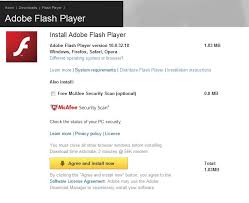
Installing Flash Player: A Step-by-step Guide
Are you having trouble installing Flash Player on your computer? Do you want to know the easiest way to install it on Chrome, Firefox, Edge, Internet Explorer, Safari, or Opera? Look no further! In this article, we will guide you through the process of installing Flash Player on various browsers and devices.
What is Flash Player?
Flash Player is a software that allows users to view multimedia content, such as videos, animations, and games, on their computers. It was developed by Adobe and was widely used in the past. However, due to security concerns and the emergence of newer technologies, Adobe has announced its end-of-life for Flash Player.
Installing Flash Player on Chrome
If you are using Google Chrome as your browser, you don’t need to install Flash Player separately. Chrome already includes Flash Player. To enable or disable it, follow these steps:
- Click on the three dots in the top right corner of the Chrome window.
- Select Settings from the dropdown menu.
- Scroll down to the bottom of the page and click on Advanced.
- In the Advanced settings page, scroll down to the Content settings section.
- Look for the Flash option and select the desired action (Enable or Disable).
Installing Flash Player on Firefox
If you are using Mozilla Firefox as your browser, you can install Flash Player by following these steps:
- Go to the Adobe Flash Player download page.
- Click on the Install now button.
- Wait for the download to complete and then run the installer.
- Follow the prompts to complete the installation.
Installing Flash Player on Edge
If you are using Microsoft Edge as your browser, you don’t need to install Flash Player separately. Edge already includes Flash Player. To enable or disable it, follow these steps:
- Click on the three dots in the top right corner of the Edge window.
- Select Settings from the dropdown menu.
- Scroll down to the bottom of the page and click on Advanced.
- In the Advanced settings page, scroll down to the Content settings section.
- Look for the Flash option and select the desired action (Enable or Disable).
Installing Flash Player on Internet Explorer
If you are using Microsoft Internet Explorer as your browser, you can install Flash Player by following these steps:
- Go to the Adobe Flash Player download page.
- Click on the Install now button.
- Wait for the download to complete and then run the installer.
- Follow the prompts to complete the installation.
Installing Flash Player on Safari
If you are using Apple Safari as your browser, you can install Flash Player by following these steps:
- Go to the Adobe Flash Player download page.
- Click on the Download button.
- Wait for the download to complete and then run the installer.
- Follow the prompts to complete the installation.
Installing Flash Player on Opera
If you are using Opera as your browser, you can install Flash Player by following these steps:
- Go to the Adobe Flash Player download page.
- Click on the Install now button.
- Wait for the download to complete and then run the installer.
- Follow the prompts to complete the installation.
Installing Flash Player on Smartphones And Tablets
If you are using a smartphone or tablet, you can install Flash Player by following these steps:
- On Android devices:
- Go to the Google Play Store.
- Search for “Puffin Web Browser”.
- Install the app.
- Follow the prompts to complete the installation.
- On iOS devices:
- Go to the App Store.
- Search for “Puffin Web Browser”.
- Download and install the app.
- Follow the prompts to complete the installation.
Conclusion
Installing Flash Player is a relatively simple process that can be completed in just a few steps. Whether you are using Chrome, Firefox, Edge, Internet Explorer, Safari, or Opera, we hope this guide has been helpful in assisting you with the installation process. If you have any further questions or concerns, please don’t hesitate to contact us.
Faqs
- Q: What is Flash Player?
A: Flash Player is a software that allows users to view multimedia content, such as videos, animations, and games, on their computers. - Q: Why do I Need to Install Flash Player Separately?
A: Adobe has announced its end-of-life for Flash Player, which means it will no longer be supported or updated. - Q: How do I Enable or Disable Flash Player on my Browser?
A: The process of enabling or disabling Flash Player varies depending on the browser you are using. Please refer to our guide above for instructions. - Q: Can I Install Flash Player on my Smartphone or Tablet?
A: Yes, but only if you have an Android device and download the Puffin Web Browser app from the Google Play Store. - Q: What is The Best Browser to Use With Flash Player?
A: The best browser to use with Flash Player depends on your personal preferences. However, we recommend using Chrome or Firefox as they are both widely used and supported. - Q: Why Did Adobe Announce Its End-of-life For Flash Player?
A: Adobe announced its end-of-life for Flash Player due to security concerns and the emergence of newer technologies such as HTML5. - Q: Will I Still be Able to Use Flash Content on my Browser After It’s no Longer Supported?
A: Yes, but only if you have already installed Flash Player on your browser before Adobe announced its end-of-life. - Q: Can I Install Flash Player on a Mac or Pc?
A: Yes, Flash Player can be installed on both Mac and PC devices using the instructions provided above.
Note: This article is for informational purposes only and does not imply any endorsement or affiliation with Adobe or any other software company.


