
How to Delete Samsung Account: A Step-by-step Guide
Are you wondering how to delete your Samsung account? Look no further! In this article, we’ll guide you through the process of deleting your Samsung account from various devices and platforms.
Why Delete a Samsung Account?
Before we dive into the steps, let’s quickly discuss why you might want to delete a Samsung account. Perhaps you’ve upgraded to a new device, or maybe you’re switching to a different brand altogether. Whatever the reason, deleting a Samsung account is a straightforward process that can be completed in just a few minutes.
Deleting a Samsung Account From a Smartphone
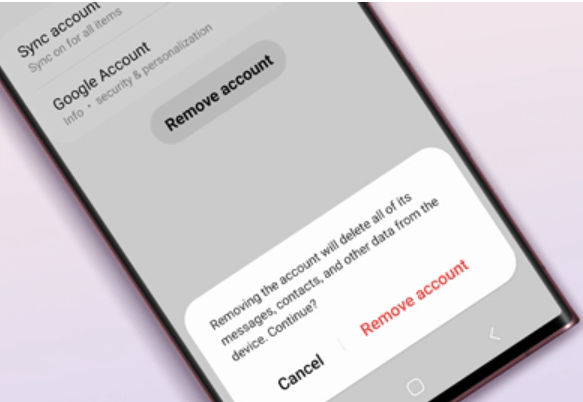
To delete a Samsung account from your smartphone, follow these steps:
- Open Settings: Go to your phone’s settings app and tap on the gear icon.
- Tap on Your Name: Tap on your name at the top of the screen to access your profile settings.
- Select “Disconnect”: Tap on the disconnect button to begin the process of deleting your Samsung account.
- Confirm Deletion: Confirm that you want to delete your account by tapping on the “Disconnetti” button.
- Review And Accept Terms: Review the terms and conditions of deletion, and accept them by tapping on the “Accetto” button.
That’s it! Your Samsung account has been successfully deleted from your smartphone.
Deleting a Samsung Account From a Tablet
The process of deleting a Samsung account from a tablet is similar to that of a smartphone. Here are the steps:
- Open Settings: Go to your tablet’s settings app and tap on the gear icon.
- Tap on Your Name: Tap on your name at the top of the screen to access your profile settings.
- Select “Disconnect”: Tap on the disconnect button to begin the process of deleting your Samsung account.
- Confirm Deletion: Confirm that you want to delete your account by tapping on the “Disconnetti” button.
- Review And Accept Terms: Review the terms and conditions of deletion, and accept them by tapping on the “Accetto” button.
Deleting a Samsung Account From a TV
Deleting a Samsung account from a TV is slightly different than deleting it from a smartphone or tablet. Here are the steps:
- Go to Settings: Go to your TV’s settings menu by pressing the “Menu” button on your remote control.
- Select “General”: Select the “General” option to access the settings menu.
- Select “Account Samsung”: Select the “Account Samsung” option to access your account settings.
- Select “Disconnect”: Select the disconnect option to begin the process of deleting your Samsung account.
- Confirm Deletion: Confirm that you want to delete your account by selecting the “Disconnetti” button.
Deleting a Samsung Account From The Website
If you’re looking to delete your Samsung account from the website, here are the steps:
- Go to The Samsung Website: Go to the Samsung website and log in with your account credentials.
- Select “My Profile”: Select the “My profile” option to access your account settings.
- Select “Delete Account”: Select the delete account option to begin the process of deleting your Samsung account.
- Confirm Deletion: Confirm that you want to delete your account by selecting the “Delete account” button.
Tips And Precautions
Before deleting a Samsung account, make sure to:
- Dissociate the account from all devices
- Download your personal data before deletion
- Review and accept the terms and conditions of deletion
Conclusion
Deleting a Samsung account is a straightforward process that can be completed in just a few minutes. By following the steps outlined above, you should be able to delete your Samsung account from various devices and platforms.
Faqs
Here are some frequently asked questions about deleting a Samsung account:
Q: How do I dissociate my Samsung account from all devices?
A: To dissociate your Samsung account from all devices, go to Settings > Account and Backup > Manage Account. Select the device you want to dissociate from, and follow the prompts.
Q: Can I download my personal data before deleting my Samsung account?
A: Yes, you can download your personal data by going to the Samsung website, logging in with your account credentials, and selecting “My profile” followed by “Download data”.
Q: What happens if I delete my Samsung account without password recovery?
A: If you delete your Samsung account without password recovery, you will no longer be able to access your account or download your personal data.
Q: Can I recover a deleted Samsung account?
A: Unfortunately, it is not possible to recover a deleted Samsung account. Make sure to review and accept the terms and conditions of deletion before proceeding with the process.
We hope this guide has been helpful in answering your questions about deleting a Samsung account!


