
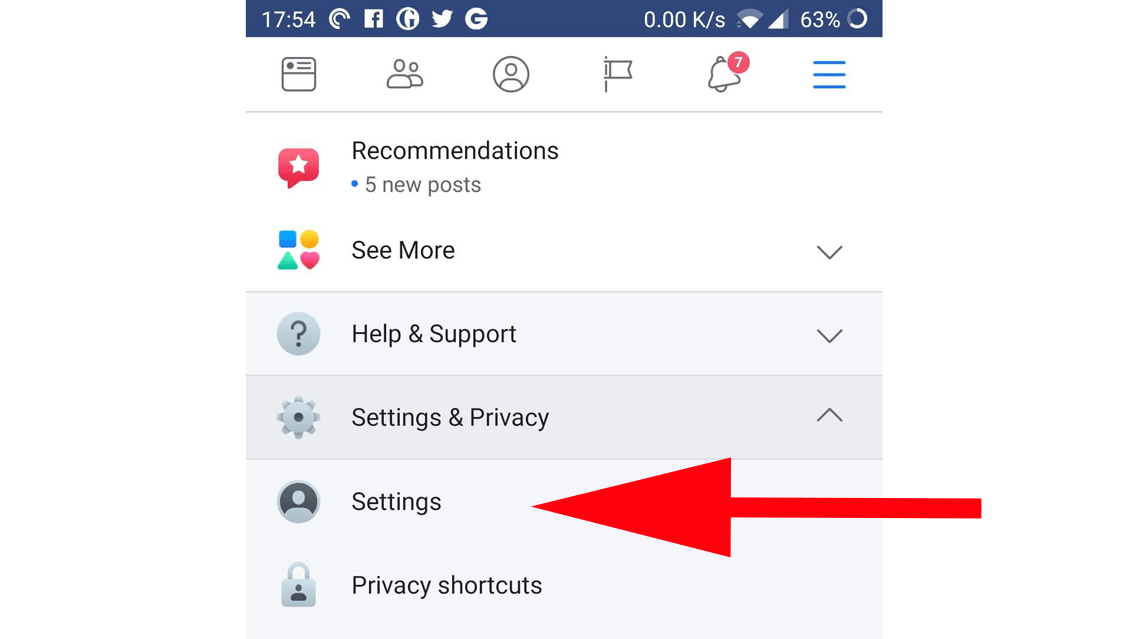
How to Unblock a Person on Messenger
Are you tired of being blocked by someone on Messenger? Do you want to know how to unblock them without any hassle? Look no further! In this article, we will guide you through the step-by-step process of unblocking a person on Messenger.
Why Unblock Someone on Messenger?
Before we dive into the procedure, let’s understand why you might want to unblock someone on Messenger. There could be several reasons:
- You need to communicate with them for personal or professional reasons.
- You’ve changed your mind about blocking them, and now you want to reconnect.
- You’re curious about what they’ve been up to, and you want to see their updates.
Whatever the reason, unblocking someone on Messenger is a straightforward process. Let’s get started!
How to Unblock Someone on Messenger
Using The Messenger App
If you’re using the Messenger app on your smartphone or tablet, follow these steps:
- Launch the Messenger app and log in with your Facebook account credentials.
- Tap on the conversation with the person you want to unblock.
- Tap on the three dots (**) in the top-right corner of the screen.
- Tap on “Unblock” from the menu that appears.
- Confirm that you want to unblock the person by tapping “Unblock” again.
That’s it! You’ve successfully unblocked someone on Messenger using the app.
Using a Computer
If you’re using a computer, follow these steps:
- Log in to your Facebook account and navigate to the Messenger section.
- Click on the conversation with the person you want to unblock.
- Click on the three dots (**) in the top-right corner of the screen.
- Click on “Unblock” from the menu that appears.
- Confirm that you want to unblock the person by clicking “Unblock” again.
Easy, right?
Blocking Someone on Messenger
If you’re not familiar with the process of blocking someone on Messenger, here’s a quick rundown:
- You can block someone directly from the conversation or by accessing your Facebook settings.
- Blocking someone will prevent them from sending you messages, calling you, or video-calling you.
- However, they’ll still be able to send you notifications if they’re not blocked on Facebook.
Common Faqs
Here are some frequently asked questions about unblocking someone on Messenger:
Q: Why Can’t I Find The Unblock Button?
A: If you’re using an older version of the Messenger app, the Unblock button might not be available. Try updating your app to the latest version or use a computer to unblock the person.
Q: Will The Other Person Get Notified When I Unblock Them?
A: No, the other person won’t receive any notification when you unblock them. They’ll only know about it if they’ve been checking their conversation with you.
Q: Can I Undo an Unblock?
A: Yes, if you change your mind and want to block someone again, simply follow the same steps to re-block them.
Conclusion
Unblocking someone on Messenger is a simple process that can be completed in just a few clicks. Whether you’re using the app or accessing your Facebook settings, the procedure remains the same. If you have any further questions or need help with anything else, feel free to ask!
Frequently Asked Questions (FAQs)
Here are some additional FAQs about unblocking someone on Messenger:
- Q: How do I know if someone is blocked on Messenger?
A: You’ll receive a notification that says “This person is blocked” when you try to send them a message or call them. - Q: Can I block someone without blocking their Facebook account?
A: Yes, you can block someone directly from the conversation without affecting their Facebook account. - Q: Will unblocking someone on Messenger affect my relationship with them?
A: Unblocking someone on Messenger won’t necessarily fix any underlying issues between you two. However, it’s a good first step towards reconnecting and starting fresh.
I hope this article has helped clarify the process of unblocking someone on Messenger. If you have any further questions or need assistance, don’t hesitate to reach out!


