
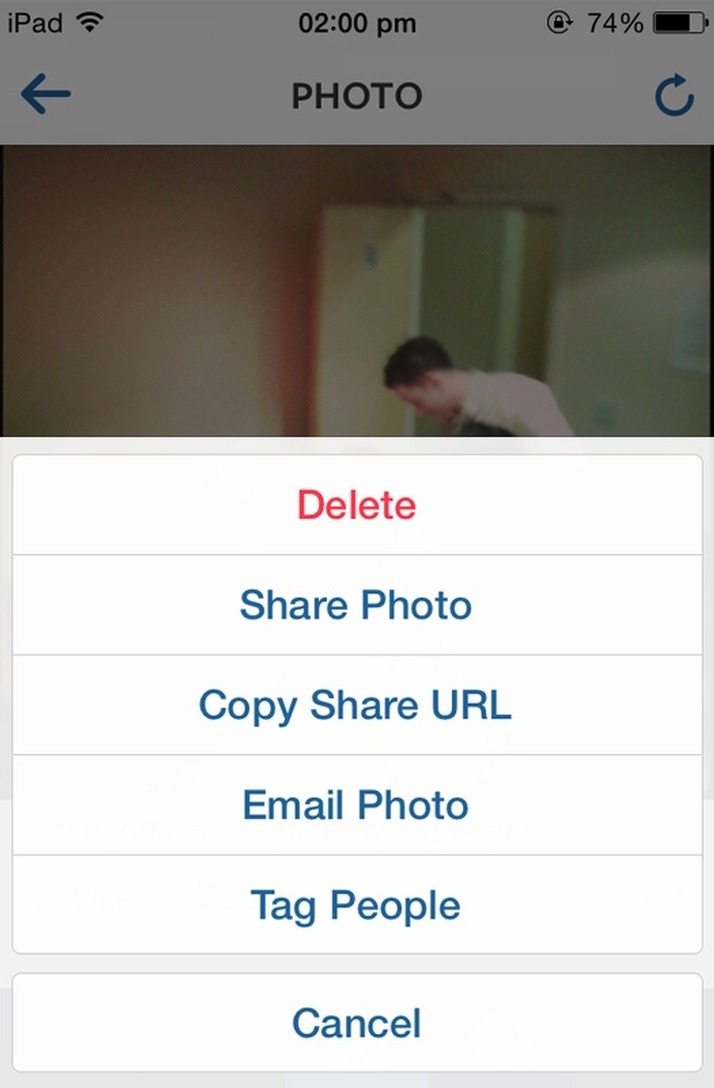
How to Delete a Comment on Instagram: A Step-by-step Guide
Are you wondering how to delete a comment on Instagram? You’re not alone! Deleting comments on Instagram can be a bit tricky, but don’t worry, we’ve got you covered. In this article, we’ll show you how to delete a comment on Instagram on both Android and iOS devices, as well as on PC.
Why Delete Comments on Instagram?
Before we dive into the step-by-step guide, let’s talk about why you might want to delete comments on Instagram. Perhaps you’ve left a comment with a grammatical error or something that you’d rather not have said. Maybe someone has commented on one of your posts and you’d like to remove their comment for some reason.
Whatever the reason, deleting comments on Instagram is easy and straightforward. Here’s how to do it:
Deleting Comments on Android Devices
If you’re using an Android device, follow these steps to delete a comment on Instagram:
- Open Instagram: Open the Instagram app on your Android device.
- Access Your Account: Log in to your Instagram account by entering your username and password.
- Go to The Post With The Comment: Go to the post that has the comment you’d like to delete.
- Select The Comment: Tap on the comment you’d like to delete.
- Delete The Comment: Tap on the trash can icon at the top right corner of the screen.
Deleting Comments on Ios Devices
If you’re using an iOS device, follow these steps to delete a comment on Instagram:
- Open Instagram: Open the Instagram app on your iOS device.
- Access Your Account: Log in to your Instagram account by entering your username and password.
- Go to The Post With The Comment: Go to the post that has the comment you’d like to delete.
- Select The Comment: Swipe left on the comment you’d like to delete.
- Delete The Comment: Tap on the trash can icon at the top right corner of the screen.
Deleting Comments on PC
If you’re using a PC, follow these steps to delete a comment on Instagram:
- Open Instagram in Your Browser: Open Instagram in your web browser or through the Instagram app for Windows.
- Access Your Account: Log in to your Instagram account by entering your username and password.
- Go to The Post With The Comment: Go to the post that has the comment you’d like to delete.
- Select The Comment: Click on the three dots at the top right corner of the screen.
- Delete The Comment: Select “Delete” from the dropdown menu.
How to Remove a Tag in a Comment
If you’ve added a tag to a comment and want to remove it, follow these steps:
- Open Instagram: Open the Instagram app on your Android or iOS device, or access Instagram through your browser.
- Access Your Account: Log in to your Instagram account by entering your username and password.
- Go to The Post With The Comment: Go to the post that has the comment with the tag you’d like to remove.
- Delete The Comment: Follow the steps above to delete the comment, including the tag.
Tips And Tricks
Here are some additional tips and tricks for deleting comments on Instagram:
- If you’ve commented on a post with a grade (i.E., A “like” or a “love”), that comment will automatically be deleted after three days.
- To manually delete a graded comment, follow the steps above to delete it.
Conclusion
Deleting comments on Instagram is easy and straightforward. Whether you’re using an Android device, an iOS device, or PC, the process is the same: Access your account, go to the post with the comment, select the comment, and tap or click “Delete”. We hope this article has been helpful in showing you how to delete a comment on Instagram!


