
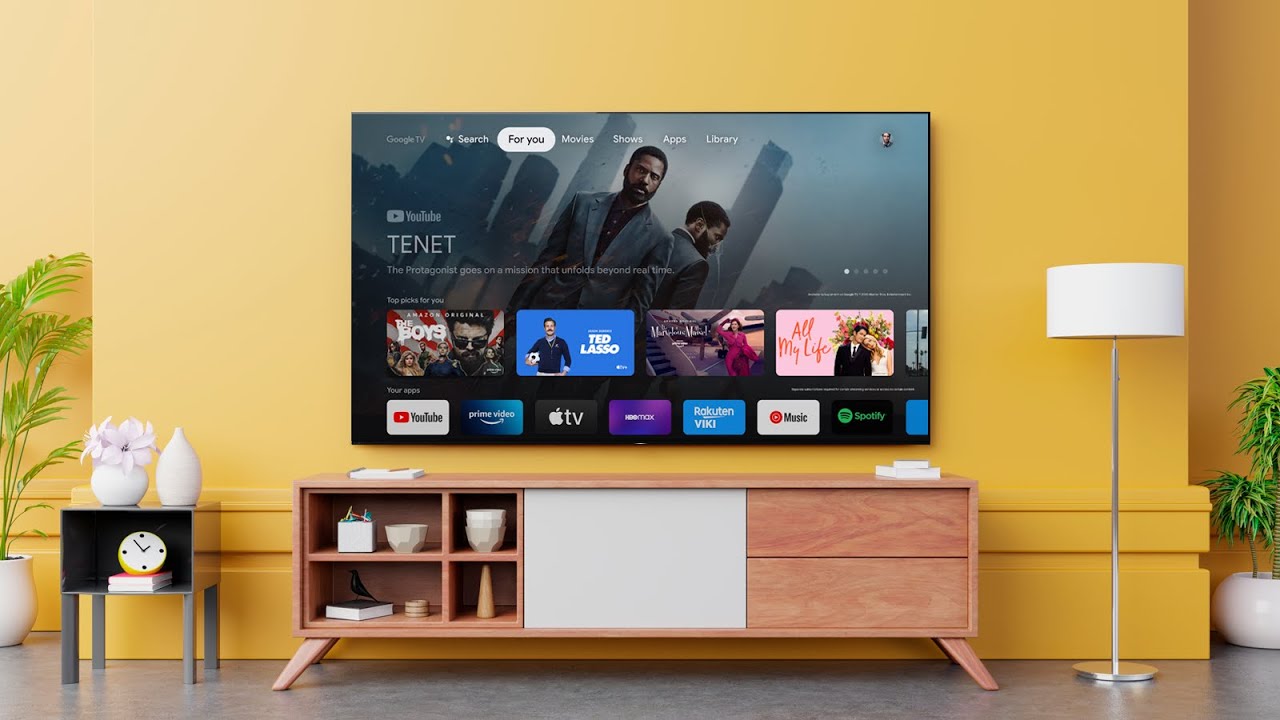
Smart Tv: Your Gateway to Endless Entertainment
Are you one of the lucky ones who have recently acquired a Smart TV? Congratulations! You’re about to experience a world of endless entertainment, from movies and TV shows to music, social media, and more. But before you dive in, let’s take a moment to reflect on what makes a Smart TV truly special.
What is a Smart Tv?
A Smart TV is a type of television that has been embedded with internet connectivity and various apps, allowing users to access a wide range of online content. This means you can stream movies and TV shows, listen to music, browse social media, and even play games directly on your TV.
Connecting Your Smart TV to The Internet
To enjoy all the benefits of a Smart TV, you’ll need to connect it to the internet. Don’t worry; this is a relatively straightforward process. If your TV has a built-in Wi-Fi or Ethernet port, simply follow these steps:
- Go to your TV’s settings menu and select “Network” or “Internet.”
- Choose your preferred network from the list of available options.
- Enter your password (if required) to complete the connection.
Discovering The Best Apps For Your Smart TV
With so many apps available, it can be daunting to choose which ones to download. Don’t worry; we’ve got you covered! Here are some of the most popular and useful apps for your Smart TV:
Entertainment
- Netflix: A must-have for any movie or TV show enthusiast.
- Amazon Prime Video: Access a vast library of content, including original movies and shows.
- Now: Sky’s streaming service offers a wide range of entertainment options.
Music
- Spotify: Stream millions of songs with ease.
- Amazon Music: Enjoy a vast music library, including original podcasts.
- Deezer: A popular music streaming app with a user-friendly interface.
Social Media And News
- Facebook Watch: Stay up-to-date on the latest social media trends.
- Youtube: Access millions of hours of content, from music videos to educational tutorials.
- Accuweather 2.0: Stay informed about local weather forecasts.
Gaming
- 2048: A classic puzzle game that’s perfect for a relaxing evening.
- Bubble Shooter Adventures: Challenge yourself with this addictive bubble-popping game.
Finding Other Apps
If you’re looking to discover more apps, follow these steps:
- Go to your TV’s app store (e.G., LG Content Store or Samsung Smart Hub).
- Browse through the categories and search for specific apps.
- Download and install the ones that catch your eye!
Tips For Using Your Smart TV
- Always check the app store for official apps and updates.
- Keep an eye on system updates to ensure you have the latest features and security patches.
- Experiment with different apps to find what works best for you.
Conclusion
Your Smart TV is a powerful tool that can transform your entertainment experience. By following these tips, discovering new apps, and staying up-to-date with the latest developments, you’ll be well on your way to enjoying endless hours of entertainment, music, social media, and more!
Frequently Asked Questions (FAQs)
-
Q: Can I Connect my Smart TV to The Internet Using an Ethernet Cable?
A: Yes, many Smart TVs have Ethernet ports; simply plug in the cable and follow the on-screen instructions. -
Q: What’s The Difference Between Wi-fi And Ethernet Connectivity?
A: Wi-Fi allows for wireless connection to your network, while Ethernet provides a wired connection. -
Q: Can I Download Apps Directly From my TV or do I Need a Separate Device?
A: You can download apps directly from your TV using the built-in app store. -
Q: How do I Update my Smart Tv’s Operating System?
A: Check your TV’s settings menu for updates and follow the on-screen instructions to install the latest software. -
Q: Can I Use my Smart TV as a Computer Screen?
A: Yes, many Smart TVs allow for PC-free usage with compatible devices like Google Chromecast or Apple TV. -
Q: What Apps Are Available For my Specific Smart TV Model?
A: Check the official app store for your TV brand (e.G., LG Content Store or Samsung Smart Hub) to discover available apps. -
Q: Can I Use Multiple Accounts on my Smart Tv?
A: Yes, many Smart TVs allow for multiple user profiles, making it easy to share your device with family and friends. -
Q: How do I Troubleshoot Common Issues Like Freezing or Buffering?
A: Check the app store for official troubleshooting guides or contact customer support for assistance.
Happy streaming!


