
How to Zip a File: A Step-by-step Guide
Are you tired of dealing with bulky files that take up too much space on your computer? Do you want to learn how to compress files without breaking the bank or sacrificing performance? Look no further! In this article, we’ll show you how to zip a file like a pro.
What is Zipping a File?
Zipping a file is the process of compressing it to reduce its size. This makes it easier to share and store on your computer, phone, or online storage services. ZIP files can contain multiple files and folders, making them ideal for archiving documents, photos, and other types of data.
Best Software to Zip Files
There are several software options available that allow you to zip files easily. Here are some of the most popular ones:
1. Windows Compression Utility (Windows)
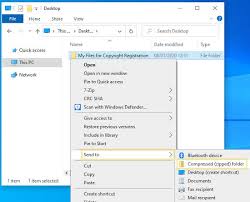
Windows has a built-in compression utility called “Compress to ZIP” that allows you to zip files quickly and easily.
How to Use:
- Select the file(s) or folder you want to compress.
- Right-click on it and select “Compress to ZIP.”
- Choose the compression level (optional).
- Save the zipped file in a desired location.
2. 7-Zip (Windows/Linux)
7-Zip is a free, open-source software that supports multiple file formats, including ZIP, RAR, and more.
How to Use:
- Download and install 7-Zip.
- Select the file(s) or folder you want to compress.
- Right-click on it and select “Add to archive.”
- Choose the compression level and format (e.G., ZIP).
- Save the zipped file in a desired location.
3. Keka (macOS)
Keka is a free, open-source software that supports multiple file formats, including ZIP, 7Z, TAR, GZIP, BZIP2, DMG, and ISO.
How to Use:
- Download and install Keka.
- Select the file(s) or folder you want to compress.
- Right-click on it and select “Compress with Keka.”
- Choose the compression level and format (e.G., ZIP).
- Save the zipped file in a desired location.
4. Online Services
There are several online services that allow you to zip files directly from your browser, without needing to download any software. Some popular options include:
- EzyZip
- Files2Zip
How to Use:
- Visit the website and select the “Select files to archive” button.
- Choose the file(s) or folder you want to compress.
- Select the compression level and format (e.G., ZIP).
- Save the zipped file in a desired location.
5. Mobile Apps
If you’re using a smartphone or tablet, there are several mobile apps that allow you to zip files easily. Some popular options include:
- Files by Google
- Apple’s built-in Files app
How to Use:
- Open the app and navigate to the file(s) or folder you want to compress.
- Long-press on it and select “Compress.”
- Choose the compression level and format (e.G., ZIP).
- Save the zipped file in a desired location.
6. How to Zip a File With Password
If you want to add an extra layer of security to your zipped files, you can use software like 7-Zip or Keka to password-protect them.
How to Use:
- Select the file(s) or folder you want to compress.
- Choose the compression level and format (e.G., ZIP).
- Add a password to protect the zipped file.
- Save the zipped file in a desired location.
Conclusion
Zipping files is an essential skill for anyone who uses a computer. With the right software and online services, you can easily compress files without sacrificing performance or security. Whether you’re using Windows, macOS, or a mobile device, we hope this article has shown you how to zip a file like a pro!
Frequently Asked Questions (FAQs)
- What is Zipping a File?
Zipping a file is the process of compressing it to reduce its size. - Which Software Should I Use to Zip Files?
There are several options available, including Windows Compression Utility, 7-Zip, Keka, and online services like ezyZip and Files2Zip. - How do I Zip a File on my Smartphone or Tablet?
You can use mobile apps like Files by Google or Apple’s built-in Files app to compress files easily. - Can I Password-protect Zipped Files?
Yes, software like 7-Zip or Keka allows you to add a password to protect your zipped files. - Why Should I Zip Files?
Zipping files reduces their size, making them easier to share and store on your computer or online storage services. - Is Zipping Files Safe?
Yes, zipping files is a safe process that doesn’t compromise the integrity of your data. - Can I Uncompress Zipped Files?
Yes, you can easily decompress zipped files using software like 7-Zip or Keka. - How do I Know Which Compression Level to Use?
Choose a compression level based on your needs: High for smaller file sizes, low for faster compression times.
Additional Resources


