
The Ultimate Guide to Using Apple ID Balance
Are you wondering how to use your Apple ID balance? Look no further! In this comprehensive guide, we’ll walk you through the step-by-step process of utilizing your Apple ID balance for various purposes.
What is Apple ID Balance?
Before we dive into the details, let’s understand what Apple ID balance is. The Apple ID balance is a credit amount available on your Apple account, which can be used to make purchases, buy apps, and more.
How to Check Apple ID Balance
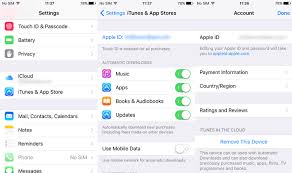
To check your Apple ID balance, follow these simple steps:
- Open the Settings app on your iPhone or iPad.
- Tap on your name at the top of the screen.
- Select “Payment & Shipping” from the menu.
- Look for the “Balance” section under “Apple ID Account”.
- You’ll see the available balance in proximity to the “Balance” label.
Alternatively, you can also check your Apple ID balance by opening the App Store app on your iPhone or iPad, tapping on your profile picture at the top right corner, and looking for the “Balance” section.
How to Pay With Apple ID Balance
To pay with your Apple ID balance, follow these steps:
- Open the App Store app.
- Search for an app you’d like to purchase.
- Tap on the price button next to the app name.
- Confirm the payment using Face ID, Touch ID, or password.
That’s it! Your available balance will be automatically used as a form of payment.
Using Apple ID Balance For Subscriptions
You can also use your Apple ID balance to activate subscriptions to Apple services like Apple Music, Apple Arcade, and iCloud+. To do this:
- Open the App Store app.
- Tap on your profile picture at the top right corner.
- Select “Subscriptions” from the menu.
- Choose the subscription you’d like to activate.
- Confirm the payment using Face ID, Touch ID, or password.
Using Apple ID Balance For Purchases
You can also use your Apple ID balance to make purchases on iTunes, Apple Books, and Apple TV. To do this:
- Open the relevant app (iTunes, Apple Books, or Apple TV).
- Tap on the “Buy” button next to the item you’d like to purchase.
- Confirm the payment using Face ID, Touch ID, or password.
Using Apple ID Balance For Online Purchases
If you’re making online purchases directly from Apple’s website:
- Log in to your Apple account.
- Click on the “Buy” button next to the item you’d like to purchase.
- Select “Pay with Apple Pay”.
- Confirm the payment using Face ID, Touch ID, or password.
Common Questions And Answers
Here are some frequently asked questions and answers:
- Q: How do I Check my Apple ID Balance?
A: To check your Apple ID balance, follow the steps outlined above. - Q: Can I Use my Apple ID Balance to Make Purchases on Itunes?
A: Yes, you can use your Apple ID balance to purchase items on iTunes, including music, movies, and more. - Q: How do I Use my Apple ID Balance For Subscription Services?
A: To activate a subscription service like Apple Music or Apple Arcade, follow the steps outlined above.
Conclusion
Using your Apple ID balance is easy! With this guide, you should now be able to check your available balance, pay with it, and even use it for subscriptions and purchases. Remember to always confirm payments using Face ID, Touch ID, or password for added security.
Faqs
- Q: What Happens if my Apple ID Balance is Zero?
A: If your Apple ID balance is zero, you won’t be able to make purchases using that account. - Q: Can I Share my Apple ID Balance With Others?
A: No, Apple ID balances cannot be shared with others. - Q: How do I Add Credit to my Apple ID Balance?
A: To add credit to your Apple ID balance, follow the steps outlined above. - Q: Can I Use my Apple ID Balance For Online Purchases on Other Websites?
A: No, Apple ID balances can only be used for purchases made directly from Apple’s website or apps. - Q: How do I Cancel a Subscription Service Using my Apple ID Balance?
A: To cancel a subscription service, follow the steps outlined in your account settings. - Q: Can I Use my Apple ID Balance to Make Purchases on The Mac App Store?
A: Yes, you can use your Apple ID balance to make purchases on the Mac App Store using Face ID, Touch ID, or password. - Q: How do I Check my Apple ID Balance on a Mac?
A: To check your Apple ID balance on a Mac, follow the steps outlined above.


