
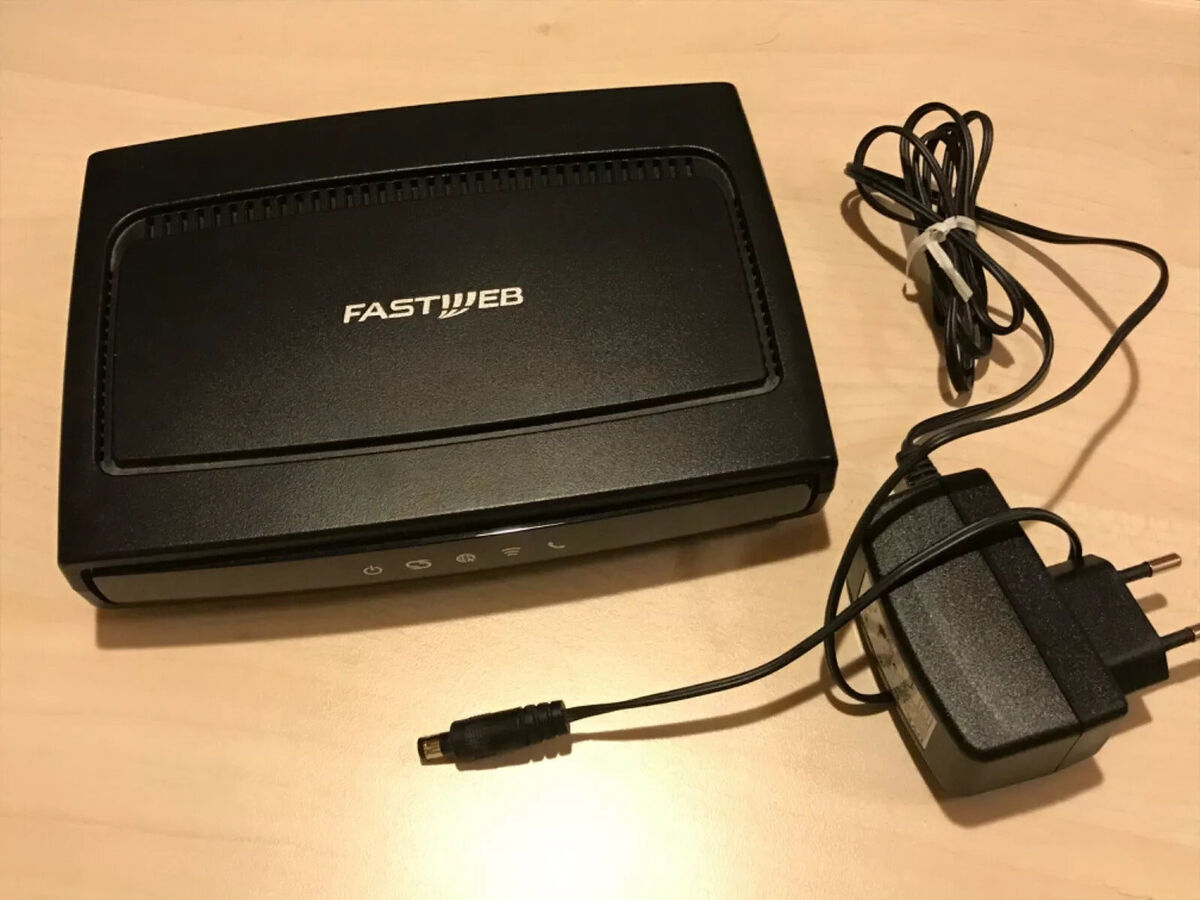
Installing Your Fastweb Modem: A Step-by-step Guide
Are you excited to start using your new Fastweb modem? After waiting anxiously, you’ve finally received the new modem from Fastweb and received a notification from the operator that activation of the service has taken place. This article will guide you through the process of installing your Fastweb modem and configuring it for optimal use.
Why You Need to Install Your Modem Correctly
Installing your modem correctly is crucial to ensure that you can enjoy all the benefits of high-speed internet. A correct installation will also prevent any potential problems or damage to your equipment.
Step 1: Unboxing And Physical Installation
The first step in installing your Fastweb modem is to unbox it and physically connect it to your home network. You’ll need to remove the modem from its packaging and extract the cables, including the telephone cable, filter ADSL (if present), and power adapter.
Step 2: Connecting The Modem to Your Home Network
Next, you’ll need to connect the modem to your home network. If you’re using a connection in optical fibre FTTH/GPON, you may need to consult with a skilled technician for assistance. However, if you’re connecting autonomously, follow these steps:
- Connect the telephone cable to the DSL port on the back of the modem.
- If you have an ADSL filter, connect it to the phone and then to the modem.
- Turn off your router and modem, and plug in the power adapter.
Step 3: Activating Your Modem
Once you’ve physically installed your modem, follow these steps to activate it:
- Insert the power adapter into the back of the modem.
- Connect the telephone cable to the phone.
- Wait for the LED lights on the front of the modem to stabilize and turn green.
Step 4: Configuring Your Modem
Configuring your modem is a straightforward process. You can access the configuration panel using either your computer, smartphone, or tablet. Follow these steps:
- Open the MyFastweb app on your device.
- Enter your credentials to log in.
- Select the option to configure your modem.
Step 5: Configuring Your Wi-fi Network
Configuring your Wi-Fi network is also easy. You can access the configuration panel using either the MyFastweb app or the FastGate interface. Follow these steps:
- Open the FastGate interface on your device.
- Enter your credentials to log in.
- Select the option to configure your Wi-Fi network.
Step 6: Setting Up Your Printer
If you want to install a printer shared among all devices connected to your network, follow these steps:
- Connect the printer to the USB port on the back of your modem using an Ethernet cable.
- Configure the printer settings in the advanced menu of your modem’s configuration panel.
Tips And Tricks For Installing Your Modem Correctly
To ensure that you install your modem correctly, follow these tips and tricks:
- Take your time when physically installing your modem to avoid any potential damage or problems.
- Consult with a skilled technician if you’re unsure about any part of the installation process.
- Use the MyFastweb app to configure your modem for optimal performance.
Frequently Asked Questions
Here are some frequently asked questions and answers to help you troubleshoot any issues:
Q: How long does it take to install my Fastweb modem?
A: The installation process typically takes around 30 minutes to an hour, depending on the complexity of the setup.
Q: Can I install my Fastweb modem myself?
A: Yes, but if you’re unsure about any part of the process, consult with a skilled technician for assistance.
Q: How do I configure my Wi-Fi network?
A: You can access the configuration panel using either the MyFastweb app or the FastGate interface.
Conclusion
Installing your Fastweb modem correctly is essential to ensure that you can enjoy all the benefits of high-speed internet. By following these step-by-step instructions, you’ll be able to configure your modem and printer for optimal performance. If you encounter any issues or have questions, don’t hesitate to consult with a skilled technician or contact the customer support team at Fastweb.
Faqs
-
Q: How do I reset my Fastweb modem?
A: To reset your Fastweb modem, press the power button on the back of the device and wait for 30 seconds before releasing it. -
Q: Can I use multiple devices to connect to my Wi-Fi network?
A: Yes, but make sure that you configure your modem accordingly to ensure optimal performance. -
Q: How do I troubleshoot issues with my Fastweb modem?
A: Consult the user manual or contact customer support for assistance. -
Q: What is the recommended location for placing my Fastweb modem in my home?
A: Place your Fastweb modem in a central location, away from any potential sources of interference. -
Q: Can I use my Fastweb modem with other internet service providers (ISPs)?
A: No, your Fastweb modem is specifically designed to work with the Fastweb network only. -
Q: How do I update my Fastweb modem’s firmware?
A: You can access the configuration panel using either the MyFastweb app or the FastGate interface and follow the instructions provided. -
Q: What are the system requirements for running the MyFastweb app?
A: The MyFastweb app is compatible with Android, iOS, and iPadOS devices. -
Q: Can I use my Fastweb modem in multiple locations?
A: Yes, but make sure that you configure your modem accordingly to ensure optimal performance.


