
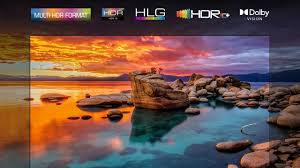
Actuating Hdr on TV Samsung: A Comprehensive Guide
Are you ready to unlock a whole new world of visual excitement? Actuating High Dynamic Range (HDR) on your TV Samsung is an absolute game-changer, and in this article, we’ll guide you through the entire process with ease.
What is Hdr?
Before diving into the nitty-gritty, let’s quickly cover what HDR is all about. HDR stands for High Dynamic Range, a technology designed to amplify the range of colors and contrast levels in video content. This results in a more immersive viewing experience, with an increased number of perceived colors, greater tonality, and enhanced overall visual fidelity.
Types of Hdr
You may have come across various types of HDR standards while researching online. Here are some of the most common ones:
- Hdr10: A widely adopted standard that supports dynamic metadata for optimal color grading.
- Hdr10+: An updated version of HDR10, offering enhanced features like tone mapping and dynamic metadata.
- Hlg (Hybrid Log-gamma): A broadcast-centric standard designed for TV broadcasting.
- Dolby Vision: A proprietary standard that offers advanced features like dynamic metadata and up to 12-bit color depth.
Is My TV Samsung Compatible With Hdr?
To determine if your TV Samsung supports HDR, follow these steps:
- Check the technical specifications of your TV on the official Samsung website.
- Look for the presence of a Dvb-s2 tuner, which is required for satellite transmissions in HDR.
Compatible Channels And Devices
Now that you’ve confirmed your TV’s compatibility with HDR, it’s essential to know which channels and devices support this technology.
- Tivùsat: A digital satellite platform that requires a smart card and supports HDR content.
- Sky Q: A subscription-based service offering numerous HDR channels, including Sky Atlantic in 4K HDR.
- Amazon Prime Video and Netflix: Two popular streaming services that support HDR content, but may not work seamlessly with all TV Samsung models.
Actuating Hdr on Your TV Samsung
Here’s a step-by-step guide to actuating HDR on your TV Samsung:
- Ensure you have a compatible source device connected via HDMI.
- Configure the input settings on your TV Samsung by following these steps:
- Go to Settings > General menu
- Select External Device Management
- Choose Sign of Ingresso Plus and select all HDMI inputs
- Confirm the changes, and your TV will automatically switch to HDR mode when playing back content in this format.
Additional Tips
For an optimal viewing experience, keep these additional tips in mind:
- 4K Resolution: Make sure you’re watching content in 4K resolution for the best visual quality.
- Blue-ray Player: Invest in a 4K Blu-ray player to enjoy HDR content from physical media.
- Gaming Console: If you’re an avid gamer, consider investing in a next-gen gaming console that supports HDR.
Conclusion
Actuating HDR on your TV Samsung is a straightforward process, and with this guide, you should be able to unlock the full potential of your TV. Remember to check compatibility with your source device and configure the input settings correctly for an optimal viewing experience.
Frequently Asked Questions (FAQs)
Here are some additional FAQs to address common concerns:
- What is The Difference Between Hdr10 And Hdr10+?
HDR10+ offers enhanced features like tone mapping and dynamic metadata, while HDR10 provides a more basic level of color grading.
2. Can I Play Hdr Content on my Pc?
Yes, you can play HDR content on your PC if you have a compatible graphics card that supports this technology.
- Does my TV Samsung Support Dolby Vision?
Unfortunately, not all TV Samsung models support Dolby Vision. However, many modern TVs do offer this feature.
- Can I Connect Multiple Devices to my TV Samsung at Once?
Yes, you can connect multiple devices to your TV Samsung using HDMI ports.
- How do I Know if a Channel Supports Hdr?
Check the technical specifications of the channel on their official website or consult the user manual for more information.
- Can I Watch Hdr Content in Different Resolutions?
Yes, you can watch HDR content in various resolutions, including 4K and lower resolutions.
- How do I Configure my TV Samsung to Display Hdr Content Correctly?
Follow the step-by-step guide provided earlier to ensure your TV is configured for optimal HDR performance.


