
How to See Stood Battery Ipad: A Step-by-step Guide
Are you tired of wondering when your iPad’s battery will run out? Do you want to know how to monitor its charge and usage without downloading third-party apps? Look no further! In this article, we’ll show you how to see the stood battery iPad on your device, as well as some helpful tips and tricks to get the most out of your battery.
Understanding Your Ipad’s Battery
Before we dive into the nitty-gritty of seeing your iPad’s battery status, it’s essential to understand how your device’s battery works. The battery is a vital component of your iPad, providing power to all its features and functions. Over time, the battery will degrade, affecting its capacity to hold a charge.
Accessing Your Ipad’s Battery Settings
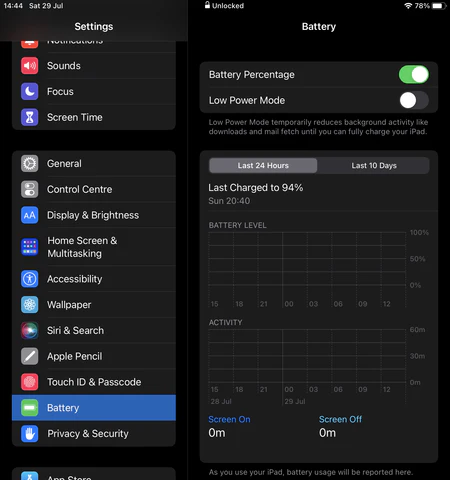
To see the stood battery iPad, you need to access the Battery settings on your device. Here’s how:
- Tap on The Settings Icon: On your iPad’s Home screen, tap on the Settings icon.
- Select Battery: In the Settings menu, select the “Battery” option from the list of available settings.
- View Your Battery Status: In the Battery settings menu, you’ll see various information about your device’s battery, including its current charge level, battery health, and charging speed.
What to Look For in Your Ipad’s Battery Settings
When accessing your iPad’s Battery settings, you’ll notice several important pieces of information:
- Current Charge Level: The current percentage of your battery’s full capacity.
- Battery Health: A measure of your battery’s overall condition, with 100% being perfect and lower numbers indicating potential issues.
- Charging Speed: The rate at which your iPad is charging its battery.
Tips For Optimizing Your Ipad’s Battery Life
To get the most out of your iPad’s battery, follow these tips:
- Avoid Extreme Temperatures: Keep your device away from direct sunlight and avoid exposing it to freezing temperatures.
- Close Unnecessary Apps: Regularly close any apps you’re not using to prevent them from draining your battery.
- Update Your Ipados: Make sure your iPad is running the latest version of iPadOS, which includes various battery-related improvements.
Software Options For Monitoring Your Ipad’s Battery
While the built-in Battery settings on your iPad are useful, there are also several software options available that can provide more detailed information about your device’s battery. Here are a few popular ones:
- Battery Hd+: A free app that displays real-time battery information and provides helpful tips for optimizing your battery life.
- Coconut Battery: A popular software option for monitoring your Mac’s battery, which also works with iPads.
Conclusion
Monitoring your iPad’s battery status is easier than you might think! By accessing the Battery settings on your device and using some helpful software options, you can gain a better understanding of your battery’s performance. Remember to follow our tips for optimizing your battery life, and you’ll be enjoying your iPad for longer.
Faqs
- How Often Should I Charge my Ipad?
Answer: Try to keep your iPad charged between 20% and 80% if possible. - What’s The Best Way to Store my Ipad When Not in Use?
Answer: Keep it in a cool, dry place, away from direct sunlight. - Can I Replace my Ipad’s Battery Myself?
Answer: Not usually, as Apple designs its devices with built-in batteries that are difficult to access and replace without proper technical expertise. - How Can I Prolong my Ipad’s Battery Life?
Answer: Regularly close unnecessary apps, avoid extreme temperatures, and keep your device charged between 20% and 80%. - What’s The Average Lifespan of an Ipad’s Battery?
Answer: Generally around 300 to 500 charge cycles, depending on usage patterns. - Can I Use my Ipad While It’s Charging?
Answer: Yes, but be aware that this can cause your device to heat up and potentially affect its battery life. - How do I Know if my Ipad’s Battery is Failing?
Answer: Look for signs like decreased battery capacity, increased charging time, or strange behavior during use.
Additional Resources
- Apple Support: For more detailed information about your iPad’s battery and troubleshooting tips.
- Ipados User Guide: A comprehensive guide to getting the most out of your device.


