
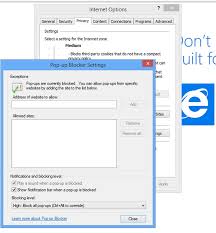
How to Disable The Block Pop-up on Various Browsers
Are you tired of dealing with annoying block pop-ups while trying to download files from websites? Look no further! In this article, we will guide you through the steps to disable the block pop-up on various browsers, including Google Chrome, Mozilla Firefox, Microsoft Edge, and more.
What is a Block Pop-up?
A block pop-up is a feature that prevents certain types of windows from appearing on your screen. It’s designed to protect users from malicious websites that try to trick them into downloading malware or other unwanted software. However, sometimes this feature can get in the way of legitimate downloads or online experiences.
Why Disable Block Pop-up?
Disabling block pop-up is necessary when you need to access a website that requires you to download files or install software. By disabling this feature, you’ll be able to access these websites without any interruptions.
How to Disable Block Pop-up on Google Chrome
To disable block pop-up on Google Chrome:
- Click on the three vertical dots in the top-right corner of your browser window.
- Select “Settings” from the drop-down menu.
- Scroll down to the “Privacy and security” section.
- Click on “Site settings.”
- Look for the “Pop-ups and redirects” section.
- Toggle the switch next to “Block pop-ups” to turn it off.
How to Disable Block Pop-up on Mozilla Firefox
To disable block pop-up on Mozilla Firefox:
- Click on the three horizontal lines in the top-right corner of your browser window.
- Select “Options” from the drop-down menu.
- Scroll down to the “Privacy and Security” section.
- Click on “Settings.”
- Look for the “Permissions” section.
- Toggle the switch next to “Block pop-ups” to turn it off.
How to Disable Block Pop-up on Microsoft Edge
To disable block pop-up on Microsoft Edge:
- Click on the three horizontal dots in the top-right corner of your browser window.
- Select “Settings” from the drop-down menu.
- Scroll down to the “Privacy, search, and services” section.
- Click on “Clear browsing data.”
- Look for the “Pop-ups and redirects” section.
- Toggle the switch next to “Block pop-ups” to turn it off.
How to Disable Block Pop-up on Other Browsers
If you’re using another browser, such as Safari or Opera, follow these general steps:
- Open your browser’s settings menu.
- Look for the “Privacy and security” section.
- Click on the option to disable block pop-ups.
Conclusion
Disabling block pop-up on various browsers is a straightforward process that requires only a few clicks. By following the instructions outlined above, you’ll be able to access websites without any interruptions and download files or install software as needed.
Frequently Asked Questions (FAQs)
Q: What is a block pop-up?
A: A block pop-up is a feature that prevents certain types of windows from appearing on your screen.
Q: Why do I need to disable block pop-up?
A: You may need to disable block pop-up when trying to download files or install software from websites that require this action.
Q: How can I disable block pop-up on Google Chrome?
A: To disable block pop-up on Google Chrome, follow the steps outlined above in “How to Disable Block Pop-Up on Google Chrome.”
Q: Can I disable block pop-up on other browsers as well?
A: Yes, you can disable block pop-up on other browsers by following similar steps as described above.
Q: Will disabling block pop-up make my browser more vulnerable to malware or viruses?
A: No, disabling block pop-up will not make your browser more vulnerable to malware or viruses. However, be cautious when downloading files or installing software from unknown sources.
Q: How can I re-enable block pop-up if needed?
A: To re-enable block pop-up, simply follow the same steps as described above and toggle the switch back on.
Q: Can I disable block pop-up only for certain websites?
A: Yes, you can disable block pop-up only for specific websites by following similar steps as described above and adding exceptions to your browser’s settings.


