
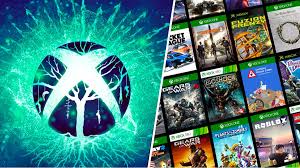
The Ultimate Guide to Downloading Xbox Games
Are you ready to explore the world of Xbox gaming? If yes, then this article is perfect for you. In this comprehensive guide, we will take you through the step-by-step process of downloading Xbox games on various devices, including the Xbox Series X, Xbox Series S, and even your PC.
What You Need to Know Before Downloading Xbox Games
Before we dive into the nitty-gritty details, it’s essential to understand the preliminary requirements for downloading Xbox games. Here are a few things you need to know:
- Internet Connection: Make sure your console is connected to the internet. If you haven’t already done so, follow our guide on how to connect your Xbox to the internet.
- Microsoft Account: You’ll need a Microsoft account to download and play Xbox games. If you don’t have one, create an account by following our guide on how to create a Microsoft account.
Downloading Xbox Games on Xbox Series X
The Xbox Series X is the latest generation of Xbox consoles, and it’s packed with features that make gaming more enjoyable than ever. Here’s how to download games on your Xbox Series X:
- Connect Your Console: Ensure your console is connected to the internet.
- Access Microsoft Store: Open the Microsoft Store app on your Xbox Series X. You can find it on the home screen, represented by the shopping bag icon.
- Search For Games: Use the search bar to find the game you want to download. Type in the game’s name, and select the correct result.
- Download And Install: Once you’ve found the game, click on it, and then select the “Download” option. The game will be downloaded and installed automatically.
Downloading Xbox Games on Xbox Series S
The Xbox Series S is a more budget-friendly version of the Xbox Series X, but don’t worry; downloading games on this console is just as easy! Here’s how:
- Connect Your Console: Ensure your console is connected to the internet.
- Access Microsoft Store: Open the Microsoft Store app on your Xbox Series S. You can find it on the home screen, represented by the shopping bag icon.
- Search For Games: Use the search bar to find the game you want to download. Type in the game’s name, and select the correct result.
- Download And Install: Once you’ve found the game, click on it, and then select the “Download” option. The game will be downloaded and installed automatically.
Downloading Xbox Games on Xbox One
If you’re using an Xbox One console, don’t worry; downloading games is still easy! Here’s how:
- Connect Your Console: Ensure your console is connected to the internet.
- Access Microsoft Store: Open the Microsoft Store app on your Xbox One. You can find it on the home screen, represented by the shopping bag icon.
- Search For Games: Use the search bar to find the game you want to download. Type in the game’s name, and select the correct result.
- Download And Install: Once you’ve found the game, click on it, and then select the “Download” option. The game will be downloaded and installed automatically.
Downloading Xbox Games on PC
Yes, you can even play Xbox games on your PC! Here’s how:
- Access Microsoft Store: Open the Microsoft Store app on your Windows 10 PC. You can find it by typing “Microsoft Store” in the search bar.
- Search For Games: Use the search bar to find the game you want to download. Type in the game’s name, and select the correct result.
- Download And Install: Once you’ve found the game, click on it, and then select the “Download” option. The game will be downloaded and installed automatically.
Cloud Gaming With Xbox Game Pass
If you’re looking for a more convenient way to play games without downloading them, consider using Xbox Cloud Gaming. With this feature, you can play games directly in your web browser or on your mobile device, without the need for downloads or installations.
Conclusion
Downloading Xbox games is easier than ever! Whether you’re using an Xbox Series X, Xbox Series S, Xbox One, or even playing on your PC, follow these simple steps to get started. Remember to always connect your console to the internet and ensure you have a Microsoft account before downloading games. Happy gaming!
Frequently Asked Questions (FAQs)
- Q: What Are The System Requirements For Downloading Xbox Games?
A: To download Xbox games, you’ll need an internet connection and a valid Microsoft account. - Q: Can I Play Xbox Games on my Pc?
A: Yes, with the integration of Xbox Cloud Gaming in Windows 11, you can play Xbox games directly on your PC or even access them via cloud gaming. - Q: How do I Download Xbox Games on my Console?
A: To download Xbox games on your console, simply open the Microsoft Store app, search for the game you want to download, and select the “Download” option. - Q: What is Xbox Cloud Gaming?
A: Xbox Cloud Gaming allows you to play games directly in your web browser or on your mobile device without the need for downloads or installations. - Q: Do I Need a Subscription to Play Xbox Games?
A: No, you don’t need a subscription to download and play most Xbox games. However, some titles may require a subscription to access multiplayer features or online content. - Q: Can I Play Xbox Games For Free?
A: Yes, many Xbox games are available for free download or through cloud gaming. However, some titles may be subject to in-game purchases or subscriptions. - Q: How do I Troubleshoot Issues With Downloading Xbox Games?
A: If you experience any issues while downloading Xbox games, try restarting your console, checking your internet connection, or consulting our guide on troubleshooting common problems.


