
Airplay: The Ultimate Guide to Wireless Media Sharing
Are you tired of being tangled up in cables? Do you want to experience the thrill of wirelessly sharing your favorite media with friends and family? Look no further than AirPlay, the innovative technology from Apple that makes it easy to share photos, videos, music, and more across various devices.
In this comprehensive guide, we’ll walk you through the ins and outs of AirPlay, covering everything from its basic requirements to advanced features. Whether you’re a tech-savvy individual or just starting to explore the world of wireless media sharing, this article has got you covered.
What is Airplay?
AirPlay is a technology developed by Apple that allows users to wirelessly share content between devices. This includes photos, videos, music, and more. With AirPlay, you can send content from your iPhone, iPad, or Mac directly to other compatible devices such as TVs, speakers, and receivers.
Requirements For Using Airplay
Before diving into the world of AirPlay, it’s essential to understand its basic requirements:
- Device Compatibility: All Apple devices, including iPhones, iPads, Macs, and Apple TV, come with built-in support for AirPlay.
- Internet Connection: Both the sending device (e.G., IPhone) and the receiving device (e.G., TV) must be connected to the same Wi-Fi network.
- Software Updates: Ensure that your devices are running the latest software updates to take full advantage of AirPlay.
How to Use Airplay on Mac
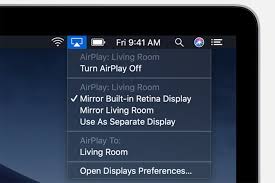
To start using AirPlay on your Mac, follow these steps:
- Open System Preferences: Click on the Apple logo in the top left corner and select “System Preferences.”
- Select General: In the System Preferences window, click on “General.”
- Enable Airdrop And Handoff: Ensure that AirDrop and Handoff are enabled.
- Turn On Receiver Airplay: Go to the “General” tab and toggle the switch next to “Receiver AirPlay” to ON.
How to Use Airplay on Iphone or Ipad
To share content from your iPhone or iPad using AirPlay, follow these steps:
- Open The Content App: Launch the app containing the content you want to share (e.G., Photos, Music, Videos).
- Select Share: Tap the “Share” icon in the top right corner.
- Choose Airplay: Select the receiving device from the list of available AirPlay devices.
- Enter Password (if Required): If prompted, enter the password or code to authenticate the connection.
How to Use Airplay on Smart Tvs
Many modern smart TVs come with built-in support for AirPlay 2. To use AirPlay on your smart TV:
- Connect Your TV to Wi-fi: Ensure that your TV is connected to the same network as your sending device.
- Open The Settings Menu: Access the settings menu on your TV and navigate to the “AirPlay” section.
- Turn On Airplay: Enable AirPlay by toggling the switch to ON.
- Enter Password (if Required): If prompted, enter the password or code to authenticate the connection.
Advanced Features of Airplay
AirPlay 2 introduces several advanced features that enhance your media sharing experience:
- Multi-room Audio: Send audio from multiple devices simultaneously to different rooms in your home.
- Enhanced Video Quality: Enjoy improved video quality with AirPlay 2, which can even send 4K content wirelessly.
- Integration With Smart Home Devices: Seamlessly integrate your media sharing experience with smart home devices, such as lights and thermostats.
Troubleshooting Common Issues
Encountering issues with AirPlay? Don’t worry! Here are some troubleshooting tips to get you back on track:
- Restart Your Devices: Simple yet effective – restart your sending and receiving devices.
- Check Wi-fi Connection: Ensure that both devices are connected to the same network.
- Update Software: Make sure your devices are running the latest software updates.
Conclusion
AirPlay is an incredibly powerful technology that makes it easy to share media wirelessly between devices. By understanding its basic requirements and advanced features, you can unlock a world of possibilities for entertainment, education, and collaboration. Whether you’re using AirPlay on Mac, iPhone, iPad, smart TVs, or other compatible devices, this guide has provided you with the knowledge to get started.
Frequently Asked Questions (FAQs)
- Q: What is Airplay?
A: AirPlay is a technology developed by Apple that allows users to wirelessly share content between devices. - Q: Which Devices Support Airplay?
A: All Apple devices, including iPhones, iPads, Macs, and Apple TV, come with built-in support for AirPlay. - Q: Do I Need an Internet Connection to Use Airplay?
A: Yes, both the sending device and the receiving device must be connected to the same Wi-Fi network. - Q: Can I Share Audio Content Using Airplay?
A: Yes, you can send audio content from multiple devices simultaneously to different rooms in your home with Multi-Room Audio. - Q: How do I Troubleshoot Common Issues With Airplay?
A: Restart your devices, check Wi-Fi connections, and update software to resolve common issues.
We hope this comprehensive guide has helped you understand the world of AirPlay!


