
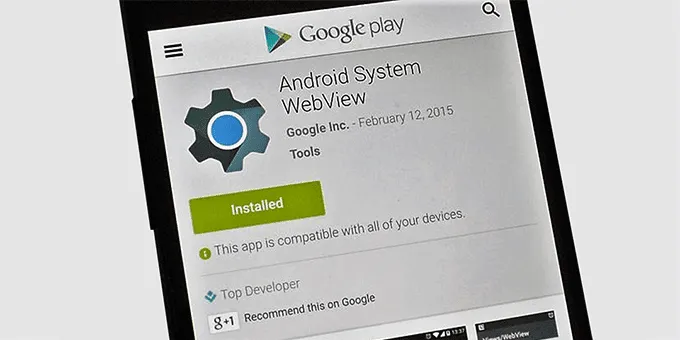
Are you experiencing issues with links not opening within your apps on Android? Do you want to enhance the functionality of your device by enabling Android System WebView? Look no further! In this article, we will guide you through the process of activating Android System WebView on your device.
What is Android System Webview?
Android System WebView is a component that allows web pages to be displayed within apps. It’s essentially a lightweight browser based on Chromium that enables users to view web content without leaving the app. This feature can be particularly useful for apps that require access to web-based information, such as online payment systems or social media platforms.
Why Activate Android System Webview?
Activating Android System WebView can enhance your overall user experience by providing a seamless way to access web content within apps. This feature can also improve the functionality of certain apps, making them more efficient and convenient to use.
How to Activate Android System Webview
To activate Android System WebView on your device, follow these steps:
- Open Settings: First, open the Settings app on your Android device.
- Select App And Notifications/applications: Next, select the “App and notifications” or “Applications” option from the settings menu.
- Choose Display All Apps: From the sub-menu, choose the “Display all apps” option.
- Find Android System Webview: Scroll through the list of apps and find the entry for Android System WebView.
- Tap on Android System Webview: Tap on the Android System WebView app to open its settings menu.
- Select Display System/apps of System: From the menu, select the “Display system” or “Apps of system” option.
- Activate Android System Webview: Finally, tap on the “Active” button to activate Android System WebView.
Troubleshooting: Disabling Android System Webview
If you’re experiencing issues with Android System WebView not working properly, try disabling and re-enabling it. To do this:
- Open Settings: Open the settings app.
- Select App And Notifications/applications: Select the “App and notifications” or “Applications” option from the menu.
- Choose Display System/apps of System: From the sub-menu, choose the “Display system” or “Apps of system” option.
- Tap on Android System Webview: Tap on the Android System WebView app to open its settings menu.
- Select Disable And OK: Finally, select the “Disable” button and confirm your selection.
Updating Android System Webview
To ensure that you have the latest version of Android System WebView, follow these steps:
- Open Google Play Store: Open the Google Play Store app.
- Search For Android System Webview: Search for the Android System WebView app in the store.
- Update Android System Webview: If an update is available, tap on the “Update” button to download and install it.
In Case of Problems
If you’re experiencing issues with Android System WebView after activating it, try updating your device’s operating system or re-downloading and installing the app.
Conclusion
Activating Android System WebView can enhance your overall user experience by providing a seamless way to access web content within apps. By following these simple steps, you can enable this feature on your Android device and enjoy improved functionality.
Frequently Asked Questions (FAQs)
- What is Android System Webview?
Android System WebView is a component that allows web pages to be displayed within apps. - Why Activate Android System Webview?
Activating Android System WebView can enhance the functionality of your device by providing a seamless way to access web content within apps. - How do I Activate Android System Webview?
To activate Android System WebView, open the settings app and select the “App and notifications” or “Applications” option from the menu. - Can I Disable Android System Webview if It’s Not Working Properly?
Yes, you can disable Android System WebView by selecting the “Disable” button in the app’s settings menu. - How do I Update Android System Webview?
To update Android System WebView, open the Google Play Store and search for the app. If an update is available, tap on the “Update” button to download and install it.
References
- Android Developers: Official Android documentation on Android System WebView.
- Google Support: Google’s support page for Android System WebView.


