
How to Search in a Pdf: A Step-by-step Guide
Are you tired of searching for specific words or phrases within a PDF document? Look no further! In this article, we will guide you through the process of searching in a PDF on both PC and mobile devices.
Understanding Pdfs
Before we dive into the nitty-gritty, let’s quickly understand what a PDF is. A Portable Document Format (PDF) is a file format that preserves the layout and formatting of a document, regardless of the device or software used to view it. This makes PDFs ideal for sharing and distributing documents.
Searching in a Pdf on PC
If you’re using a PC, there are several ways to search within a PDF:
Microsoft Edge (Windows)
- Open Microsoft Edge on your Windows 10 or later version.
- Double-click the PDF file you want to search.
- Click on the “Find” icon in the toolbar (it looks like a magnifying glass).
- Type the word or phrase you’re looking for in the search box that appears.
- Press Enter to see the results.
Adobe Acrobat Reader (Windows/Mac)
- Open Adobe Acrobat Reader on your Windows or Mac computer.
- Click on “Open” and select the PDF file you want to search.
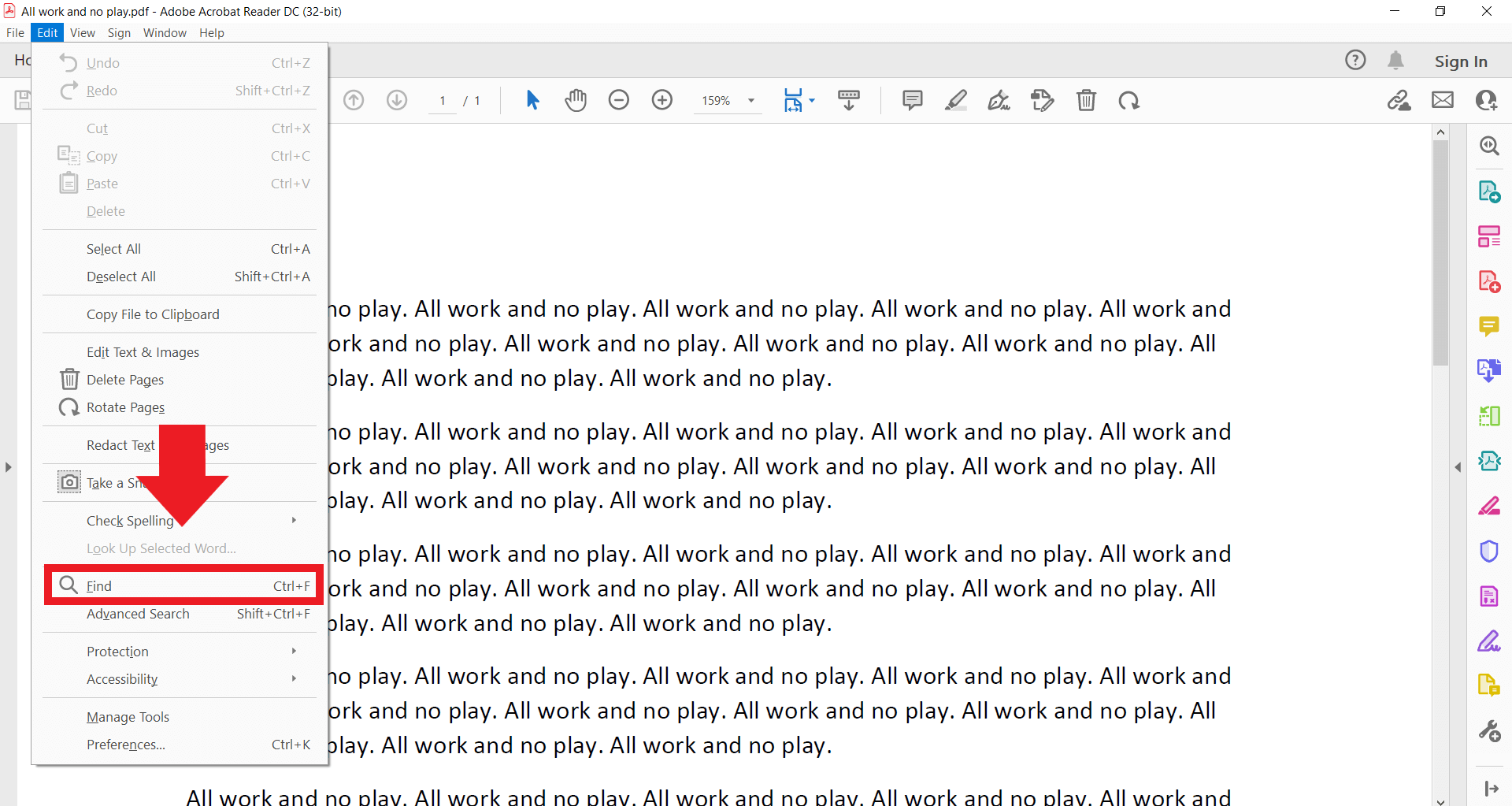
- Click on the “Edit” menu and select “Find Text” (or press Ctrl+F on Windows or Command+F on Mac).
- Type the word or phrase you’re looking for in the search box that appears.
- Press Enter to see the results.
Searching in a Pdf on Mobile Devices
If you’re using an Android or iOS device, searching within a PDF is just as easy:
Android
- Open the Google Drive app on your Android device.
- Find and open the PDF file you want to search.
- Tap on the three vertical dots in the top-right corner of the screen.
- Select “Search” from the menu that appears.
- Type the word or phrase you’re looking for in the search box that appears.
Iphone/ipad
- Open the Files app on your iPhone or iPad.
- Find and open the PDF file you want to search.
- Tap on the magnifying glass icon in the top-right corner of the screen.
- Type the word or phrase you’re looking for in the search box that appears.
Searching in a Scanned Pdf
If you have a scanned PDF document, searching within it can be a bit more challenging:
Pdfgear (Windows/Mac)
- Download and install PDFgear on your Windows or Mac computer.
- Open PDFgear and select “Open” to load the scanned PDF file.
- Click on the “OCR” button in the toolbar to enable Optical Character Recognition.
- Select the pages you want to convert and click “Start” to begin the process.
- Once complete, save the converted PDF as a searchable document.
Trailer (macOS)
- Open Trailer on your Mac computer.
- Find and open the scanned PDF file.
- Click on the magnifying glass icon in the top-right corner of the screen.
- Type the word or phrase you’re looking for in the search box that appears.
Searching a Pdf on Google
If you want to search for a specific PDF document online, you can use Google’s advanced search feature:
- Go to Google.Com and type your query in the search bar.
- Use the “filetype” operator to specify that you’re looking for a PDF document (e.G., “Lorem ipsum filetype:Pdf”).
- Press Enter to see the results.
Conclusion
Searching within a PDF can be a straightforward process, especially with the right tools and software. Whether you’re using a PC or mobile device, we hope this guide has helped you find what you’re looking for. Happy searching!
Frequently Asked Questions
- Q: Can I Search Within a Scanned Pdf?
A: Yes, but it requires Optical Character Recognition (OCR) technology to convert the scanned image into searchable text. - Q: How do I Enable Ocr in Adobe Acrobat Reader?
A: Go to Edit > Preferences > Page Display and check the box next to “Use OCR” to enable automatic OCR conversion. - Q: Can I Search Within a Pdf on my Iphone/ipad?
A: Yes, use the Files app or the PDF viewer app to search within a PDF document. - Q: How do I Search For a Specific Pdf Document Online Using Google?
A: Use the “filetype” operator in your search query to specify that you’re looking for a PDF document (e.G., “Lorem ipsum filetype:Pdf”). - Q: Can I Use Other Software to Search Within a Pdf?
A: Yes, there are several third-party software and apps available that can help you search within a PDF document. - Q: How do I Convert a Scanned Pdf Into a Searchable Document?
A: Use PDFgear or Trailer (on macOS) to enable OCR conversion and save the document as a searchable PDF. - Q: Can I Use Google Drive to Search Within a Pdf?
A: Yes, use the Google Drive app on your mobile device or desktop computer to search within a PDF document. - Q: How do I Enable Searching Within a Pdf in Microsoft Edge?
A: Go to Settings > View and check the box next to “Enable searching” to activate searching functionality within PDFs.


