
How to Regulate The Colors of Your LG Tv: A Comprehensive Guide
Are you dissatisfied with the color accuracy on your LG TV? Do you find yourself adjusting the settings every time you watch something new, only to be disappointed with the results? Look no further! This article provides a comprehensive guide on how to regulate the colors on your LG TV, including the various parameters and settings that can be adjusted to achieve optimal picture quality.
Understanding The Basics: Parameters And Settings
Before delving into the specifics, it is essential to understand the fundamental principles of color regulation on an LG TV. There are several key parameters that can be adjusted to fine-tune the colors on your screen:
- Backlight: This parameter regulates the intensity of the backlight on your TV.
- Contrast: This setting affects the contrast between light and dark areas on the screen.
- Brightness: This parameter controls the overall brightness of the image.
- Sharpness: This setting determines the level of detail in the image.
- Color: This parameter allows you to adjust the saturation of colors on the screen.
- Tint: This setting regulates the intensity of a single color within its RGB range.
Regulating The Colors of Your LG TV
To regulate the colors on your LG TV, follow these steps:
- Access The Settings Menu: Press the “Settings” button on your remote control to access the menu.
- Select The Image Section: Choose the “Image” option from the menu to adjust the color settings.
- Choose a Color Mode: Select one of the pre-set color modes, such as “Cinema,” “Sport,” or “Game Optimizer.”
- Adjust The Parameters: Use the directional arrows on your remote control to adjust the parameters within each mode.
LG Oled Tvs: Adjusting Settings
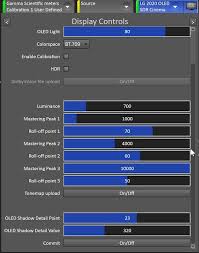
If you have an LG OLED TV, follow these steps:
- Access The Advanced Settings Menu: Press the “Settings” button and then select the “Advanced” option.
- Select The Image Section: Choose the “Image” option from the menu to adjust the color settings.
- Adjust The Parameters: Use the directional arrows on your remote control to adjust the parameters within each mode.
Testing Your Color Settings
To ensure that your color settings are correct, use one of the following methods:
- Youtube Hdtv Calibration Playlist: Download and install the YouTube app on your device and access the HDTV calibration playlist.
- Screen Test App (Android): Use this app to test the color settings on your TV.
- Thx Tune-up App (iOS): This app allows you to adjust the color settings on your LG TV using a simple test procedure.
Tips And Tricks
Here are some additional tips and tricks to keep in mind when adjusting the color settings on your LG TV:
- Use The Auto Color Mode: If you’re not familiar with the different color modes, use the auto color mode as a starting point.
- Adjust Parameters Gradually: When adjusting parameters, do so gradually to avoid sudden changes in the image.
- Use Calibration Tools: Use calibration tools like YouTube’s HDTV calibration playlist or the Screen Test app to ensure that your color settings are correct.
Conclusion
Regulating the colors on your LG TV can be a complex process, but with this comprehensive guide, you’ll be able to adjust the settings with ease. Remember to take advantage of calibration tools and test your color settings regularly to ensure optimal picture quality.
Frequently Asked Questions (FAQs)
- What Are The Different Color Modes on my LG Tv?
The different color modes on an LG TV include Cinema, Sport, Game Optimizer, Photo, and Effect HDR. - How do I Adjust The Color Settings on my LG Oled Tv?
To adjust the color settings on your LG OLED TV, access the advanced settings menu and select the image section. - What is The Purpose of The Backlight Parameter?
The backlight parameter regulates the intensity of the backlight on your TV.
Additional Resources
For more information on regulating the colors on your LG TV, check out the following resources:
- Lg’s Official Support Website: Visit LG’s official support website for detailed instructions on adjusting the color settings on your TV.
- Youtube’s Hdtv Calibration Playlist: Use this playlist to test and adjust the color settings on your TV.
- Screen Test App (Android): Download and install this app to test the color settings on your Android device.


