
How to Unify Pdf Files: A Step-by-step Guide
Are you tired of dealing with multiple PDF files that need to be combined into a single document? Look no further! In this article, we will explore the various ways to unify PDF files on different operating systems and devices.
Why Unify Pdf Files?
Unifying PDF files can save you time and effort when working with documents. By combining multiple PDFs into one file, you can:
- Reduce clutter and make it easier to find specific information
- Improve collaboration by sharing a single, unified document
- Enhance productivity by minimizing the need for repeated tasks
Unifying Pdf Files on Windows And Mac
If you’re using a Windows or Mac computer, there are several software options available to help you unify PDF files.
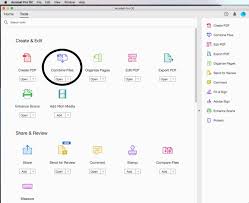
Adobe Acrobat (Windows/Mac)
Adobe Acrobat is an industry-standard tool that allows you to combine multiple PDFs into one file. This powerful program offers advanced editing features and can be used for free with limited functionality.
- To use Adobe Acrobat, download and install the software on your computer.
- Launch the program and click on the “Combine” button in the top menu bar.
- Select the PDF files you want to combine and drag them into the document list.
- Arrange the pages as needed and save the combined file.
Pdfill Pdf Tools (Windows)
PDFill PDF Tools is a free software that allows you to merge, split, rotate, and delete PDF pages. This tool can be used for free with limited functionality or upgraded to a paid version for additional features.
- Download and install the software on your computer.
- Launch the program and click on the “Merge” button in the top menu bar.
- Select the PDF files you want to combine and drag them into the document list.
- Arrange the pages as needed and save the combined file.
Trailer (Mac)
Trailer is a built-in Mac software that allows you to merge and edit PDF files. This tool can be used for free with limited functionality.
- Open the PDF file you want to combine in Trailer.
- Click on the “Edit” menu and select “Merge Pages.”
- Select the additional PDFs you want to combine and arrange them as needed.
- Save the combined file.
Unifying Pdf Files Online
If you don’t have access to a computer or prefer not to install software, there are online services that can help you unify PDF files.
Pdf Candy
PDF Candy is an online service that allows you to merge multiple PDFs into one file. This tool offers advanced editing features and can be used for free with limited functionality.
- Visit the PDF Candy website and drag the PDF files you want to combine into the upload area.
- Arrange the pages as needed and save the combined file.
Online2pdf
Online2PDF is another online service that allows you to merge multiple PDFs into one file. This tool offers advanced editing features and can be used for free with limited functionality.
- Visit the Online2PDF website and drag the PDF files you want to combine into the upload area.
- Arrange the pages as needed and save the combined file.
Ilovepdf
ILovePDF is an online service that allows you to merge multiple PDFs into one file. This tool offers advanced editing features and can be used for free with limited functionality.
- Visit the iLovePDF website and drag the PDF files you want to combine into the upload area.
- Arrange the pages as needed and save the combined file.
Unifying Pdf Files on Android And Ios/ipados
If you’re using an Android or iOS device, there are various apps available that can help you unify PDF files.
Pdf Merge (Android/iOS/iPadOS)
PDF Merge is a popular app that allows you to combine multiple PDFs into one file. This app offers advanced editing features and can be used for free with limited functionality.
- Download and install the app on your device.
- Launch the app and click on the “+” button in the top menu bar.
- Select the PDF files you want to combine and arrange them as needed.
- Save the combined file.
Ilovepdf (Android/iOS)
ILovePDF is an online service that also offers a mobile app. This app allows you to merge multiple PDFs into one file and edit documents on the go.
- Download and install the app on your device.
- Launch the app and click on the “+” button in the top menu bar.
- Select the PDF files you want to combine and arrange them as needed.
- Save the combined file.
Pdf Tools (Android)
PDF Tools is a mobile app that allows you to merge, split, rotate, and delete PDF pages. This tool can be used for free with limited functionality or upgraded to a paid version for additional features.
- Download and install the app on your device.
- Launch the app and click on the “Merge” button in the top menu bar.
- Select the PDF files you want to combine and arrange them as needed.
- Save the combined file.
Pdf Expert (iOS/iPadOS)
PDF Expert is a mobile app that allows you to merge multiple PDFs into one file and edit documents on the go. This tool offers advanced editing features and can be used for free with limited functionality or upgraded to a paid version for additional features.
- Download and install the app on your device.
- Launch the app and click on the “+” button in the top menu bar.
- Select the PDF files you want to combine and arrange them as needed.
- Save the combined file.
Conclusion
Unifying PDF files can be a simple yet effective way to save time and effort when working with documents. Whether you’re using a Windows or Mac computer, or an Android or iOS device, there are various software options available that can help you achieve this task.


