
How to Delete Your Facebook Account: A Step-by-step Guide
Are you thinking of deleting your Facebook account? Maybe you’re tired of the endless notifications, or perhaps you’ve had a change of heart about sharing your personal life with the world. Whatever your reason, we’ve got you covered. In this article, we’ll walk you through the simple process of deleting your Facebook account.
Before You Begin
Before you start, it’s essential to note that deleting your Facebook account is an irreversible process. Once you delete your account, all your data will be gone forever. This includes photos, videos, posts, comments, and even your friends list.
If you’re not sure about deleting your account, we recommend taking a backup of your data first. You can do this by going to the Facebook settings page and clicking on “Download Your Information.” This will create a ZIP file that contains all your data.
Temporary Deactivation vs Permanent Deletion
There are two ways to take a break from Facebook: Temporary deactivation or permanent deletion. Temporary deactivation allows you to take a break without deleting your account permanently. When you temporarily deactivate your account, it will be hidden from public view, but you can still access it by logging in with your password.
On the other hand, permanent deletion is a more drastic measure that will remove all your data and delete your account forever. If you’re sure you want to delete your Facebook account permanently, we’ll guide you through the process below.
Deleting Your Facebook Account Temporarily
If you just want to take a break from Facebook without deleting your account permanently, follow these steps:
On Mobile (Smartphone/Tablet)
- Open the Facebook app on your smartphone or tablet.
- Tap on the three horizontal lines ☰ in the top-right corner of the screen.
- Select “Settings and Privacy” from the menu.
- Choose “Account Ownership and Control” from the settings page.
- Tap on “Deactivation and Elimination.”
- Select the option to deactivate your account temporarily.
- Enter your password and confirm the action.
On Desktop (Computer)
- Log in to Facebook using your email address and password.
- Click on the small arrow next to the gear icon in the top-right corner of the screen.
- Choose “Settings” from the menu.
- Select “Privacy” from the left-hand menu.
- Scroll down to the bottom of the page and click on “Deactivation and Elimination.”
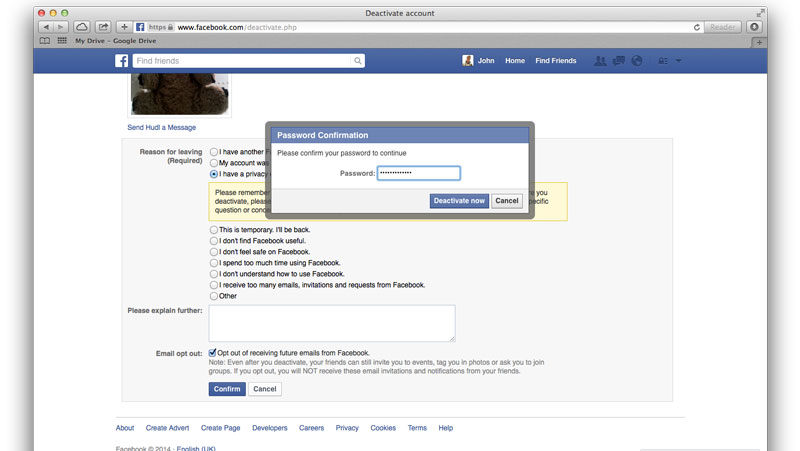
- Select the option to deactivate your account temporarily.
- Enter your password and confirm the action.
Deleting Your Facebook Account Permanently
If you’re sure you want to delete your Facebook account permanently, follow these steps:
On Mobile (Smartphone/Tablet)
- Open the Facebook app on your smartphone or tablet.
- Tap on the three horizontal lines ☰ in the top-right corner of the screen.
- Select “Settings and Privacy” from the menu.
- Choose “Account Ownership and Control” from the settings page.
- Tap on “Deactivation and Elimination.”
- Select the option to delete your account permanently.
- Enter your password and confirm the action.
On Desktop (Computer)
- Log in to Facebook using your email address and password.
- Click on the small arrow next to the gear icon in the top-right corner of the screen.
- Choose “Settings” from the menu.
- Select “Privacy” from the left-hand menu.
- Scroll down to the bottom of the page and click on “Deactivation and Elimination.”
- Select the option to delete your account permanently.
- Enter your password and confirm the action.
What Happens After You Delete Your Account?
After you delete your Facebook account, it will be gone forever. This means that all your data, including photos, videos, posts, comments, and even your friends list, will be deleted.
However, if you decide to reactivate your account within 30 days of deletion, you’ll still have access to your old data. After 30 days, all your data will be permanently deleted.
Deleting a Facebook Group
If you want to delete a Facebook group that you created or are part of, follow these steps:
- Open the Facebook app on your smartphone or tablet.
- Tap on the three horizontal lines ☰ in the top-right corner of the screen.
- Select “Groups” from the menu.
- Choose the group you want to delete.
- Tap on the three vertical dots next to the group’s name.
- Select “Leave Group” and confirm the action.
Frequently Asked Questions
- What Happens to my Facebook Data After I Delete my Account?
- All your data, including photos, videos, posts, comments, and even your friends list, will be deleted forever.
- Can I Reactivate my Facebook Account if I Change my Mind?
- Yes, you can reactivate your account within 30 days of deletion by logging in with your password.
- Will Deleting my Facebook Account Affect my Other Social Media Accounts?
- No, deleting your Facebook account will not affect your other social media accounts.
- Can I Delete a Facebook Group That I Created or am Part Of?
- Yes, you can delete a Facebook group by following the steps outlined above.
Conclusion
Deleting your Facebook account is a permanent decision that should not be taken lightly. We hope this guide has helped you make an informed decision about deleting your account. Remember to take a backup of your data before making any changes. If you have any questions or concerns, feel free to ask in the comments section below!


