
How to Share a Telegram Channel: A Step-by-step Guide
Are you an administrator of a Telegram channel and want to share it with others? Or maybe you’ve come across a channel that interests you and want to send its link to a friend? Look no further! This article will guide you on how to share a Telegram channel, whether it’s private or public, using various devices.
Why Share a Telegram Channel?
Sharing a Telegram channel can be an excellent way to promote your content, reach a wider audience, and engage with others who might be interested in the same topics. Whether you’re sharing a private channel with friends or a public one with the world, this guide will show you how to do it easily.
How to Share a Private Telegram Channel
If you want to share a private Telegram channel, you’ll need to be one of its administrators. This means that even if you’re not an admin, you can’t directly share the channel with others unless you have the link invitation. However, keep in mind that the link can be revoked by admins at any time.
To share a private channel from your smartphone or tablet:
- Open Telegram and access the channel of which you are an administrator.
- Tap on the channel’s name at the top, then select “Settings” and choose “Invite link.”
- On Android devices, tap on the “Share” button to share the link using another app installed on your device. Alternatively, copy the link by pressing on it and selecting “Copy link.”
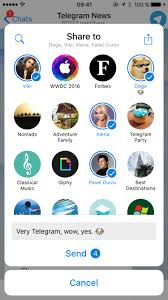
- On iPhone/iPad, press the “Share link” button to share it in a specific Telegram chat or group. You can also select “Copy link” to manually share it or use the icon with three dots to share via email, SMS, or other apps.
Alternative Solution: QR Code
You can also generate a QR code for your channel, which will allow others to access it using their devices. To do this:
- Open Telegram and navigate to the “Invite link” section.
- Press the icon with three dots next to the current link and select “Get QR.”
- Share the generated QR code using Telegram or other apps.
Revoking a Link
If you’re an administrator of a channel, you can revoke a link at any time by pressing on the icon with three dots next to it and selecting “Revoke.”
Sharing a Private Channel From Computer
To share a private channel from your computer:
- Access Telegram Web or use the desktop client.
- Open the channel of which you are an administrator.
- Click on its name at the top, then select “Info” and click on the link invitation box.
- Copy the link by pressing on it and selecting “Copy.”
- Share the link manually or in another chat.
How to Share a Public Telegram Channel
Sharing a public channel is much easier than sharing a private one! You don’t need to be an administrator, but you can share its link with others.
To share a public channel:
- Open Telegram and navigate to the channel of interest.
- Press on its name at the top and click on “Share link.”
- Select “Copy link” to copy it manually or press on the icon with three dots next to it to share it using other apps.
Conclusion
Sharing a Telegram channel can be an excellent way to promote your content, engage with others, and reach a wider audience. Whether you’re sharing a private or public channel, this guide has shown you how to do it easily from various devices. Remember that as an administrator of a private channel, you have control over who can access it via the link invitation.
Frequently Asked Questions
- Q: Can I share a Telegram channel with others if I’m not an administrator?
A: Yes, but only if you have the link invitation. - Q: Can I revoke a link shared by someone else?
A: No, links can be revoked only by administrators of the channel. - Q: How do I generate a QR code for my channel?
A: Go to the “Invite link” section and press on the icon with three dots next to it. - Q: Can I share a private channel using Telegram Web or desktop client?
A: Yes, follow the steps outlined in this guide. - Q: How do I share a public channel?
A: Simply click on its name at the top and press “Share link.” - Q: What happens if I revoke a shared link?
A: The link will become invalid and can’t be used to access the channel. - Q: Can I create multiple links for my private channel?
A: Yes, you can generate as many links as you need using the desktop client or Telegram Web. - Q: How do I share a channel with others if they don’t have Telegram installed on their device?
A: You can use other apps like email, SMS, or messaging services to send them the link.
Hope this helps!


