
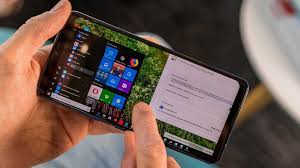
How to Control Your PC From a Mobile Device
Are you tired of leaving your computer on when you’re not at home? Do you want to be able to monitor its activity remotely? Look no further! In this guide, we’ll show you how to control your PC from a mobile device using some incredibly intuitive services that require only the installation of a client on your PC and an app on your smartphone.
What You Need to Know Before Getting Started
Before we dive into the step-by-step instructions, it’s essential to understand what you need to get started. The solutions we’ll be covering are straightforward and accessible to everyone, regardless of their technical expertise. All you need is a mobile device with internet access and a PC with a client installed.
Controlling Your PC From a Mobile Device With Teamviewer
One of the most popular services for remote control is TeamViewer. This free software allows you to control any device with an internet connection remotely. To get started, follow these steps:
Installing Teamviewer on Your Pc
- Visit the TeamViewer website and download the client.
- Follow the installation instructions, which may vary depending on your operating system (Windows or Mac).
- Once installed, launch the application and enter the ID and password you’ve created.
Installing Teamviewer Remote Control on Your Mobile Device
- Download the TeamViewer Remote Control app from the App Store (for iOS devices) or Google Play Store (for Android devices).
- Launch the app and follow the setup instructions.
- Enter your ID and password to connect to your PC.
Controlling Your PC From a Mobile Device With Chrome Remote Desktop
Another excellent solution is Google’s Chrome Remote Desktop service. This free service allows you to access any device running Chrome or another Chromium-based browser remotely. To get started, follow these steps:
Setting Up Chrome Remote Desktop on Your Pc
- Visit the Chrome Remote Desktop website and download the client.
- Launch the extension in your browser.
- Follow the setup instructions, which include creating a PIN to secure your connection.
Accessing Your PC From a Mobile Device With Chrome Remote Desktop
- Download the Chrome Remote Desktop app from the App Store (for iOS devices) or Google Play Store (for Android devices).
- Launch the app and follow the setup instructions.
- Enter your ID and password to connect to your PC.
Other Solutions For Controlling Your PC From a Mobile Device
There are other services available that allow you to control your PC from a mobile device, including AnyDesk, Supreme, and VNC Connect. These services offer varying levels of functionality and pricing plans, so be sure to research each option before choosing the one that best suits your needs.
Conclusion
Controlling your PC from a mobile device has never been easier or more accessible. With TeamViewer, Chrome Remote Desktop, and other services available, you can now monitor your computer’s activity remotely and control it with ease. Whether you’re looking to save energy, troubleshoot issues, or simply stay connected, these solutions are perfect for anyone who wants to stay in touch with their PC from anywhere.
Frequently Asked Questions (FAQs)
- What is Teamviewer?
TeamViewer is a free software that allows you to control any device with an internet connection remotely.
- How do I Install Teamviewer on my Pc?
Visit the TeamViewer website and download the client, following the installation instructions for your operating system (Windows or Mac).
- What Are The Requirements For Using Chrome Remote Desktop?
You need a device running Chrome or another Chromium-based browser, as well as a Google account to access the service.
- Can I Use Multiple Profiles With Chrome Remote Desktop?
Yes, you can create and switch between multiple profiles using the app.
- What Are Some Other Services Available For Controlling my PC From a Mobile Device?
Other solutions include AnyDesk, Supreme, and VNC Connect, each offering varying levels of functionality and pricing plans.
- Is Teamviewer Secure?
TeamViewer uses end-to-end encryption to ensure that all data transmitted between your devices is secure.
- Can I Access my PC From Multiple Mobile Devices?
Yes, most services allow you to connect to your PC from multiple devices simultaneously.
- Are There Any Limitations or Restrictions on Using These Services?
Each service has its own set of rules and guidelines; be sure to review them before getting started.


