
How to Subtract a Percentage in Excel: A Step-by-step Guide
As a business owner or accountant, you’re likely familiar with the need to calculate discounts and percentages in your daily work. While this may seem like a simple task, it can be challenging to get it right, especially when working with complex formulas. In this article, we’ll explore how to subtract a percentage in Excel using various methods.
Why Subtracting Percentages is Important
Subtracting percentages is crucial in various industries, such as retail, finance, and healthcare. For example, you might need to calculate the discount amount for a customer’s purchase or determine the commission rate for a salesperson. By understanding how to subtract percentages correctly, you can make informed decisions that impact your business.
Method 1: Using The Formula =NUMBER*(1-Percent)
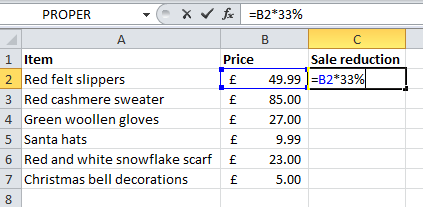
The most straightforward way to subtract a percentage in Excel is by using the formula =NUMBER*(1-PERCENT). This formula takes two inputs:
NUMBER: The original value or price.PERCENT: The percentage to be deducted.
To use this formula, follow these steps:
- Enter the original value (number) in a cell.
- Enter the percentage to be deducted in another cell.
- Use the formula
=A1*(1-B1)assuming the original value is in cell A1 and the percentage is in cell B1.
Method 2: Using The Formula With Cell References
You can also use the same formula, but this time reference the cells containing the number and percentage directly. To do this:
- Enter the original value (number) in a cell.
- Enter the percentage to be deducted in another cell.
- Use the formula
=A1*(1-B1)assuming the original value is in cell A1 and the percentage is in cell B1.
Method 3: Subtracting Multiple Percentages
If you need to subtract multiple percentages, you can concatenate the formulas. For example:
=(NUMBER*(1-PERCENT1%))*(1-PERCENT2%)
Here’s how it works:
- Enter the original value (number) in a cell.
- Enter the first percentage to be deducted in another cell.
- Use the formula
=A1*(1-B1)assuming the original value is in cell A1 and the percentage is in cell B1. - Apply the second percentage by concatenating the formulas:
=(A1*(1-B1))*(1-C1)
Subtracting Percentages in Excel Online
If you don’t have access to a copy of Excel on your computer, you can still use Excel Online. This web-based version offers most of the features found in the desktop version, including subtracting percentages.
To use Excel Online:
- Create an account if you haven’t already.
- Open a new file or upload an existing one to edit it online.
- Use the same formulas as described earlier:
=NUMBER*(1-PERCENT)or=(NUMBER*(1-PERCENT))*(1-PERCENT)
Subtracting Percentages on Mobile Devices
Excel is also available on mobile devices, including smartphones and tablets. To subtract percentages using Excel on your mobile device:
- Download the app from the App Store (for iOS) or Google Play Store (for Android).
- Open a new file or upload an existing one to edit it.
- Use the same formulas as described earlier:
=NUMBER*(1-PERCENT)or=(NUMBER*(1-PERCENT))*(1-PERCENT)
Conclusion
Subtracting percentages in Excel is a straightforward process that can be done using various methods. Whether you’re working on a desktop computer, mobile device, or using Excel Online, these formulas will help you calculate the correct discount amounts and commissions for your business.
Frequently Asked Questions (FAQs)
Here are some frequently asked questions about subtracting percentages in Excel:
-
What is The Formula to Subtract a Percentage From a Number?
- The formula is
=NUMBER*(1-PERCENT). -
How do I Subtract Multiple Percentages?
-
Concatenate the formulas:
=(NUMBER*(1-PERCENT1%))*(1-PERCENT2%). -
Can I Use Excel Online to Subtract Percentages?
-
Yes, you can create a new file or upload an existing one and use the same formulas as described earlier.
-
Is it Possible to Subtract Percentages on Mobile Devices?
-
Yes, download the Excel app from the App Store (for iOS) or Google Play Store (for Android) and follow the instructions to edit your spreadsheet.
- The formula is
Hope this article provided you with a good starting point for understanding how to subtract percentages in excel.


