
Blocking Unwanted Calls on Your Smartphone: A Step-by-step Guide
Are you tired of receiving unwanted calls on your smartphone? Do you wish there was a way to block these pesky calls and regain some peace and quiet in your life? Look no further! In this article, we will guide you through the process of blocking unwanted calls on both Android and iPhone devices.
What Are Unwanted Calls?
Unwanted calls can come from telemarketers, spammers, or even unknown numbers. These calls can be annoying and disrupt your daily routine. Blocking these calls is a simple way to avoid them and focus on what’s important.
Blocking Unwanted Calls on Android Devices
If you own an Android device, blocking unwanted calls is a straightforward process. Here’s how:
- Access The Phone App: Open the Phone app on your Android device.
- Tap Menu: Tap the three vertical dots (Menu) in the top right corner of the screen.
- Select Settings: Choose “Settings” from the menu options.
- Block Numbers And Contacts: Scroll down to the “Block numbers and contacts” section.
- Toggle Block Unknown Calls On/off: Toggle the switch next to “Block unknown calls” on.
- Save Changes: Save your changes by tapping the back button.
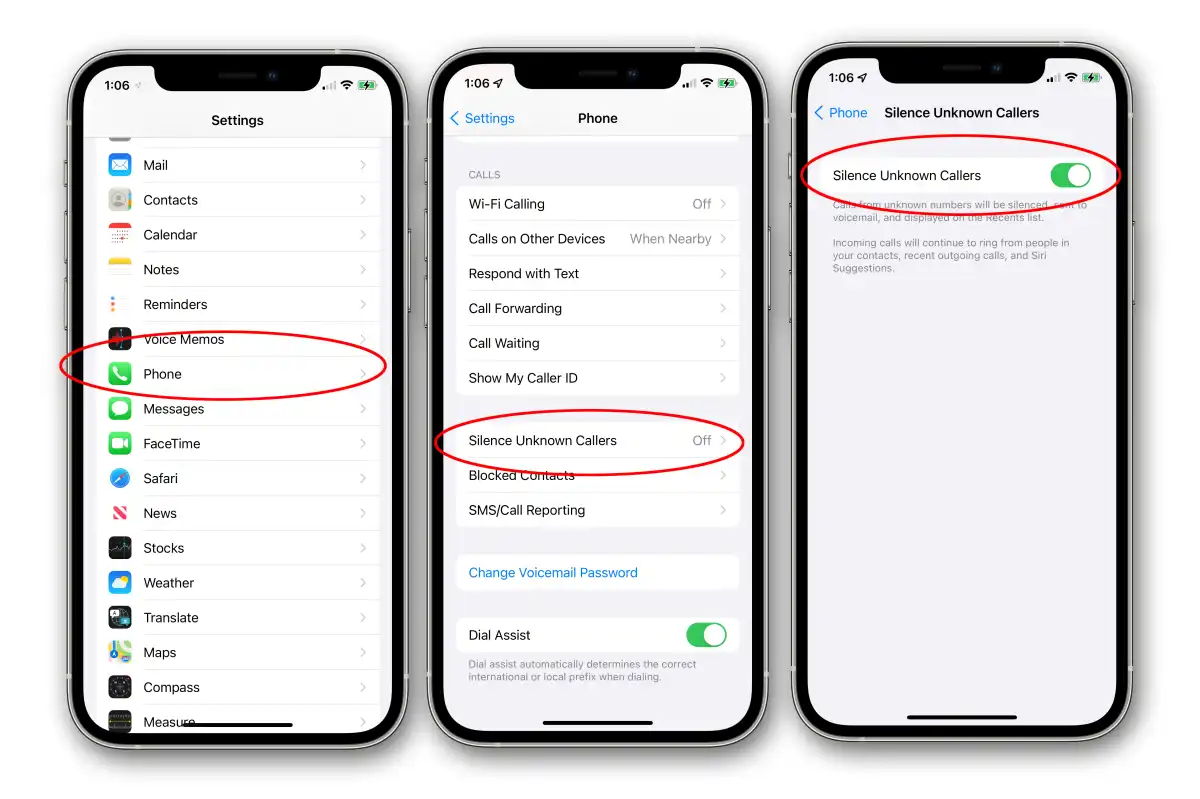
Blocking Unwanted Calls on Iphone Devices
If you own an iPhone device, blocking unwanted calls is just as easy:
- Access Settings: Open the Settings app on your iPhone device.
- Select Phone: Choose “Phone” from the settings menu options.
- Silence Unknown Numbers: Scroll down to the “SILENCE UNKNOWN NUMBERS” section.
- Toggle On: Toggle the switch next to “SILENCE UNKNOWN NUMBERS” on.
- Save Changes: Save your changes by tapping the back button.
Using Apps to Block Unwanted Calls
In addition to blocking unwanted calls using the built-in features of your smartphone, there are also several apps available that can help you achieve this goal. Some popular options include:
- Hiya (Android/iOS): An app that identifies and blocks unwanted calls and messages.
- Should I Answer (Android/iOS): A solution that helps you identify and block unwanted calls.
- Truecaller (Android/iOS): A well-known app that “mutes” unwanted calls and blocks them automatically.
Blocking Unwanted Calls on Whatsapp
If you’re looking to block unwanted calls specifically on WhatsApp, here’s how:
- Open Whatsapp: Open the WhatsApp app on your Android or iPhone device.
- Tap Menu: Tap the three vertical dots (Menu) in the top right corner of the screen.
- Select Settings: Choose “Settings” from the menu options.
- Block Contact: Scroll down to the “Account” section and choose “Privacy.”
- Toggle Block Contacts On/off: Toggle the switch next to “Blocked contacts” on.
Blocking Unwanted Calls on Fixed Phones
If you’re looking to block unwanted calls specifically on a fixed phone, here’s how:
- Access Phone Settings: Access the phone settings menu.
- Select Blacklist: Choose the option to create a blacklist with numbers of your choice.
- Add Numbers: Add the numbers you want to block.
Conclusion
Blocking unwanted calls on your smartphone is a simple and effective way to regain control over your communication experience. Whether you’re using an Android or iPhone device, there are several options available to help you achieve this goal. Try out one of the methods outlined in this article today and say goodbye to unwanted calls!
Faqs
Q: What Happens When I Block a Number?
A: When you block a number, all calls and messages from that number will be blocked.
Q: Can I Unblock a Number if I Want to Talk to it Again?
A: Yes, you can unblock a number at any time by following the same steps as before.
Q: Are There Any Apps Available to Help me Block Unwanted Calls?
A: Yes, there are several apps available that can help you identify and block unwanted calls.
Q: Can I Use a Blacklist to Block Unwanted Calls on my Fixed Phone?
A: Yes, most fixed phones come with the option to create a blacklist with numbers of your choice.


