
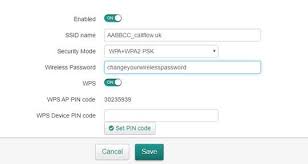
How to Change Your Password on a Modem
Are you tired of using the same old password on your modem? Do you want to add an extra layer of security to your online activities? Look no further! In this article, we will guide you through the process of changing your password on various modems, including TIM, WINDTRE, Fastweb, Linkem, Vodafone, and Fritz! Box.
Why Change Your Password?
Changing your password is an essential step in maintaining the security of your online activities. A strong password can prevent unauthorized access to your modem, Wi-Fi network, and other sensitive information. Moreover, changing your password regularly can help you avoid potential security breaches.
How to Access Your Modem’s Administrative Panel
To change your password on a modem, you first need to access the administrative panel of your device. Here’s how:
- Tim: Log in to the TIM hub and select “Admin” from the menu. Then, choose “Settings profile” and enter the old password.
- Windtre: Access the WINDTRE modem by logging into the administrative panel. From there, navigate to “Maintenance” and select “Account user.”
- Fastweb: To change your password on a Fastweb modem, access the administrative panel and select “Management & Diagnosis.” Then, choose “Management account” and enter the old password.
- Linkem: Log in to the Linkem modem by accessing its administrative panel. From there, navigate to “Account” and enter the current password.
How to Change Your Password
Once you have accessed your modem’s administrative panel, follow these steps:
- Select the option to change your password.
- Enter your old password.
- Choose a strong new password.
- Confirm your new password.
Tips And Variations
Some modems may require additional steps or variations on this process. Be sure to consult your modem’s manual or contact customer support if you’re unsure about how to change your password.
Conclusion
Changing your password is an essential step in maintaining the security of your online activities. By following these simple steps, you can ensure that your modem and Wi-Fi network are protected from unauthorized access. Remember to choose a strong and unique password for each device or system you use.
Frequently Asked Questions (FAQs)
- Q: How often should I change my password?
A: It’s recommended to change your password every 60-90 days. - Q: What makes a good password?
A: A strong password should be at least 8 characters long, include uppercase and lowercase letters, numbers, and special characters. - Q: How do I recover my password if I forget it?
A: If you forget your password, try using the “Forgot password” option on your modem’s administrative panel or contact customer support for assistance. - Q: Can I use the same password for all my devices?
A: No, it’s recommended to use a unique and strong password for each device or system you use. - Q: How do I know if my password is secure?
A: A secure password should not be easily guessed by others and should be changed regularly.
Additional Resources
By following these steps and tips, you can ensure that your modem and Wi-Fi network are protected from unauthorized access.


