
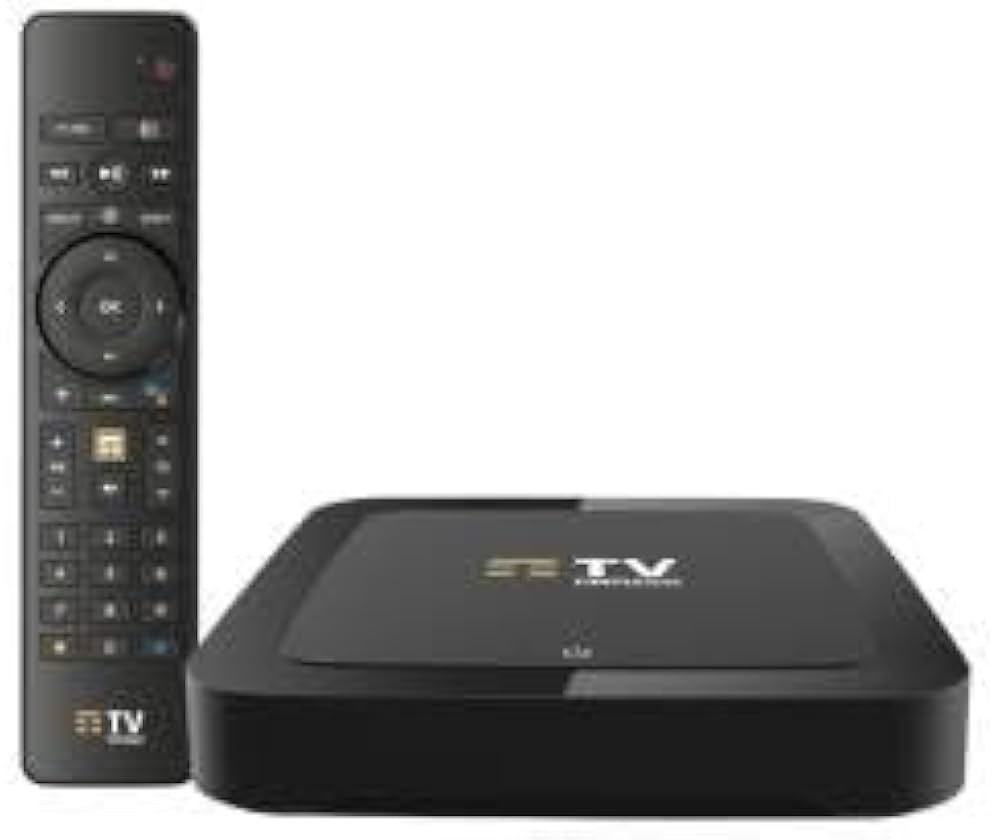
Introducing Timvision: The Ultimate Streaming Platform
Are you tired of the same old TV shows and movies? Do you want to experience a new level of entertainment on your television? Look no further than TIMvision, the innovative streaming platform from TIM. In this article, we will guide you through the process of setting up TIMvision on your Smart TV, Chromecast, Fire TV Stick, or Apple TV.
What is Timvision?
TIMvision is a streaming service that offers a wide range of content, including movies, TV shows, and sports events. With TIMvision, you can enjoy high-quality video and audio on your television, without the need for a separate device like a smart TV box. The platform is designed to be user-friendly and easy to navigate, making it perfect for those who want to experience the best of entertainment from the comfort of their own homes.
Why Choose Timvision?
There are many reasons why you should choose TIMvision as your go-to streaming service. Here are just a few:
- Wide Range of Content: TIMvision offers an extensive library of movies, TV shows, and sports events, ensuring that there’s something for everyone.
- High-quality Video And Audio: With TIMvision, you can enjoy stunning video and audio quality on your television, making for an immersive viewing experience.
- User-friendly Interface: The platform is designed to be easy to use, even for those who are not tech-savvy.
- No Need For a Separate Device: Unlike other streaming services, TIMvision does not require a separate device like a smart TV box. Instead, it can be set up directly on your television.
Setting Up Timvision on Your Smart TV
If you have a Smart TV, setting up TIMvision is relatively straightforward. Here’s how to do it:
- Make Sure Your Smart TV is Connected to The Internet: You’ll need an active internet connection to set up and use TIMvision.
- Download And Install The Timvision App: Search for the TIMvision app on your Smart TV’s app store and download it. Once installed, launch the app and follow the on-screen instructions to set it up.
- Create a Timvision Account: If you don’t already have a TIMvision account, create one by following the prompts on the screen.
Setting Up Timvision on Your Chromecast
If you don’t have a Smart TV or prefer to use your Chromecast for streaming, here’s how to set up TIMvision:
- Make Sure Your Chromecast is Connected to The Same Wi-fi Network: Both your Chromecast and smartphone or tablet need to be connected to the same Wi-Fi network.
- Download And Install The Timvision App: Search for the TIMvision app on your smartphone or tablet’s app store and download it. Once installed, launch the app and follow the prompts to set up a new account or log in to an existing one.
- Connect Your Chromecast to The Timvision App: Open the TIMvision app and tap on the ‘Chromecast’ icon to connect your device to the Chromecast.
- Choose What You Want to Watch: Browse through the available content and select what you’d like to watch.
Setting Up Timvision on Your Fire TV Stick
If you have a Fire TV Stick, setting up TIMvision is relatively easy:
- Make Sure Your Fire TV Stick is Connected to The Same Wi-fi Network: Both your Fire TV Stick and smartphone or tablet need to be connected to the same Wi-Fi network.
- Download And Install The Timvision App: Search for the TIMvision app on your smartphone or tablet’s app store and download it. Once installed, launch the app and follow the prompts to set up a new account or log in to an existing one.
- Connect Your Fire TV Stick to The Timvision App: Open the TIMvision app and tap on the ‘Fire TV Stick’ icon to connect your device to the Fire TV Stick.
- Choose What You Want to Watch: Browse through the available content and select what you’d like to watch.
Setting Up Timvision on Your Apple TV
If you have an Apple TV, setting up TIMvision is relatively easy:
- Make Sure Your Apple TV is Connected to The Same Wi-fi Network: Both your Apple TV and smartphone or tablet need to be connected to the same Wi-Fi network.
- Download And Install The Timvision App: Search for the TIMvision app on your smartphone or tablet’s app store and download it. Once installed, launch the app and follow the prompts to set up a new account or log in to an existing one.
- Connect Your Apple TV to The Timvision App: Open the TIMvision app and tap on the ‘Apple TV’ icon to connect your device to the Apple TV.
- Choose What You Want to Watch: Browse through the available content and select what you’d like to watch.
Conclusion
TIMvision is an innovative streaming service that offers a wide range of high-quality content, including movies, TV shows, and sports events. With its user-friendly interface and ability to be set up directly on your television, it’s the perfect choice for those who want to experience the best of entertainment from the comfort of their own homes. Whether you have a Smart TV, Chromecast, Fire TV Stick, or Apple TV, setting up TIMvision is relatively easy and takes just a few minutes.
Frequently Asked Questions
Here are some frequently asked questions about TIMvision:
- Q: What Kind of Content Does Timvision Offer?
A: TIMvision offers a wide range of high-quality content, including movies, TV shows, and sports events. - Q: Is Timvision Available on Multiple Devices?
A: Yes, TIMvision is available on multiple devices, including Smart TVs, Chromecast, Fire TV Stick, and Apple TV. - Q: How do I Set up Timvision on my Device?
A: To set up TIMvision, simply follow the instructions provided in this article, depending on your device type.
References
For more information about TIMvision, please visit their official website.


