
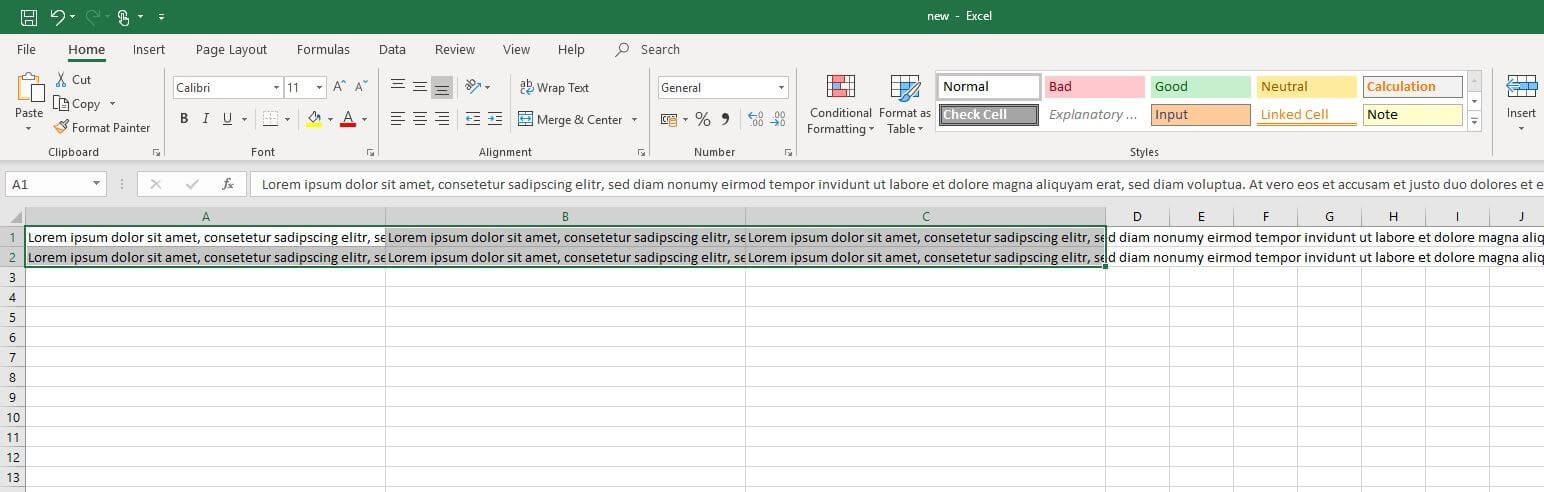
Adapting Cells in Excel: A Comprehensive Guide
Are you tired of struggling to fit your content into the cells of Microsoft Excel? Do you find yourself constantly adjusting the dimensions of individual cells or entire columns and rows? Look no further! This article will guide you through the process of adapting cells in Excel, providing step-by-step instructions for both desktop and online versions.
Understanding Cell Dimensions
Before we dive into the adaptation process, it’s essential to understand how cell dimensions work. Cells can be resized horizontally (width) or vertically (height), depending on their content. If you’re trying to fit a large amount of text into a single cell, you’ll need to adjust its width and height accordingly.
Adapting Cells in Excel Desktop
Step 1: Select The Column or Row
Select the column or row containing the cells you want to adapt by clicking on their headers. You can also use the Select All option (Ctrl+A/Cmd+A) to choose all columns and rows.
Step 2: Open The Format Cells Dialog
Right-click on the selected column or row, then select Format Cells from the context menu. Alternatively, you can press Ctrl+1/Cmd+1 to open the format cells dialog directly.
Step 3: Adjust Cell Dimensions
In the format cells dialog, go to the Width and Height tabs to adjust the cell dimensions. You can set specific values for each column or row, or use the AutoFit option to automatically resize them based on their content.
Adapting Cells in Excel Online
The process of adapting cells in Excel online is similar to that of desktop versions. Follow these steps:
Step 1: Select The Column or Row
Highlight the column or row containing the cells you want to adapt by clicking on their headers.
Step 2: Open The Format Cells Dialog
Right-click on the selected column or row, then select Format Cells from the context menu.
Step 3: Adjust Cell Dimensions
In the format cells dialog, go to the Width and Height tabs to adjust the cell dimensions. You can set specific values for each column or row, or use the AutoFit option to automatically resize them based on their content.
Adapting Cells in Excel Mobile App
The Excel mobile app offers a streamlined interface for adapting cells. Follow these steps:
Step 1: Select The Cell
Tap on the cell you want to adapt to select it.
Step 2: Tap The Format Button
Tap the Format button (represented by a pencil icon) at the top of the screen.
Step 3: Adjust Cell Dimensions
In the format dialog, go to the Width and Height tabs to adjust the cell dimensions. You can set specific values for each cell, or use the AutoFit option to automatically resize them based on their content.
Tips And Tricks
- To adapt multiple cells at once, select the entire column or row.
- Use the
AutoFitoption to quickly resize cells without manual intervention. - Experiment with different font sizes and styles to improve cell readability.
- Consider using a spreadsheet template to streamline your work and save time.
Conclusion
Adapting cells in Excel is an essential skill for anyone working with spreadsheets. By following these step-by-step instructions, you’ll be able to confidently adjust cell dimensions, even on mobile devices. Whether you’re a beginner or an experienced user, this guide will help you get the most out of Microsoft Excel.
Frequently Asked Questions (FAQs)
-
Q: How do I Adapt Cells in Excel Desktop?
A: Select the column or row containing the cells you want to adapt, then open the format cells dialog and adjust the width and height tabs accordingly. -
Q: Can I Adapt Cells on Excel Online?
A: Yes! The process is similar to that of desktop versions; select the column or row, open the format cells dialog, and adjust the width and height tabs as needed. -
Q: How do I Adapt Cells in The Excel Mobile App?
A: Select the cell you want to adapt, tap theFormatbutton, then go to the width and height tabs to make adjustments. -
Q: What is Autofit in Excel?
A: AutoFit automatically resizes cells based on their content, saving you time and effort. -
Q: Can I Use a Spreadsheet Template to Adapt Cells?
A: Yes! Templates can streamline your work and save time by providing pre-formatted layouts for common tasks. -
Q: How do I Adjust Cell Dimensions in Excel Online?
A: Select the column or row, open the format cells dialog, then go to the width and height tabs to make adjustments. -
Q: Can I Adapt Multiple Cells at Once?
A: Yes! Simply select the entire column or row by clicking on its headers. -
Q: What is The Best Way to Improve Cell Readability in Excel?
A: Experiment with different font sizes and styles, and consider using a spreadsheet template to streamline your work.


