
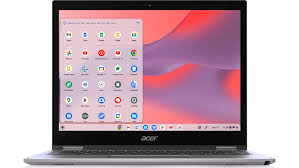
Chromebook: A Comprehensive Guide
As we continue to navigate the world of technology, it’s essential to understand the various options available to us. One such option is the Chromebook, a portable computer that has gained immense popularity in recent years. In this article, we will delve into the world of Chromebooks, exploring their features, benefits, and how they can be used for both personal and professional purposes.
What is a Chromebook?
A Chromebook is a type of laptop that runs on Google’s Chrome OS operating system. It’s designed to provide users with a seamless browsing experience, making it an ideal choice for those who spend most of their time online. Chromebooks are known for their speed, ease of use, and affordability.
Characteristics of a Chromebook
Chromebooks come in various shapes and sizes, ranging from traditional laptops to modern 2-in-1 devices that can be used as both a laptop and a tablet. They typically have:
- A lightweight design, making them easy to carry around
- A long-lasting battery life, providing users with hours of uninterrupted use
- A simple and intuitive interface, perfect for those who are new to computers or want a hassle-free experience
- Access to the Google Play Store, allowing users to download a wide range of apps
How to Use a Chromebook
Using a Chromebook is a straightforward process. Here’s a step-by-step guide to get you started:
- Power On: Press the power button to turn on your Chromebook.
- Language Selection: Select your language and country from the options provided.
- Sign In: Enter your Google account credentials or create a new one if you don’t have an existing account.
- Set Up: Follow the prompts to set up your device, including setting up Wi-Fi, adding users, and configuring other settings.
Personalizing Your Chromebook
Once you’ve set up your Chromebook, it’s time to personalize it according to your preferences. Here are some ways to do so:
- Change The Wallpaper: Click on the “Start” button, select “Settings,” and then choose “Display.” From there, you can browse through various wallpaper options or upload your own image.
- Customize Your Shelf: The shelf is where you’ll find all your frequently used apps. You can customize it by adding or removing apps, changing its layout, and more.
Using Shortcuts
Chromebooks have a range of shortcuts that can be accessed using the keyboard or mouse. Here are some essential ones to know:
- Ctrl + D: Opens the downloads folder
- Ctrl + Shift + T: Reopens the last closed tab
- Ctrl + Shift + N: Opens a new incognito window
Downloading And Organizing Apps
Chromebooks have access to the Google Play Store, making it easy to download apps. Here’s how to do so:
- Click on the “Start” button.
- Select “Google Play Store.”
- Browse through various app categories or search for specific ones.
- Once you’ve found an app you like, click on the “Install” button.
Opening And Saving Files
Managing files on a Chromebook is a breeze. Here’s how to do so:
- Click on the “Start” button.
- Select “Files.”
- Browse through your local storage or access cloud storage services like Google Drive.
- To save a file, click on the “Save” button.
Adding Users
If you want to share your Chromebook with others, you can add users by following these steps:
- Click on the “Start” button.
- Select “Settings.”
- Choose “Users.”
- Add a new user account and configure their settings.
Configuring Printers
Chromebooks make it easy to print documents using both Wi-Fi and USB connections. Here’s how to do so:
- Open a document you want to print.
- Press the Ctrl + P keys.
- Select your printer from the list of available options.
- Click on the “Print” button.
Security Settings
Chromebooks have robust security features, including:
- Sandbox: A protective layer that prevents malware from affecting other apps or files.
- Advanced Cryptography: Ensures data stored in the cloud is protected using advanced encryption methods.
- Family Link: Allows parents to monitor and control their child’s device usage.
Conclusion
In conclusion, Chromebooks offer an affordable and user-friendly alternative to traditional laptops. With their lightweight design, long battery life, and access to a wide range of apps, they’re perfect for those who spend most of their time online. By following the steps outlined in this article, you’ll be able to get the most out of your Chromebook experience.
Frequently Asked Questions
- Q: What is a Chromebook?
A: A Chromebook is a type of laptop that runs on Google’s Chrome OS operating system. - Q: Can I Use a Chromebook For Professional Purposes?
A: Yes, Chromebooks are suitable for both personal and professional use. - Q: How do I Personalize my Chromebook?
A: You can change the wallpaper, customize your shelf, and more by accessing the settings menu. - Q: Can I Download Apps on a Chromebook?
A: Yes, you can access the Google Play Store to download various apps. - Q: How do I Open And Save Files on a Chromebook?
A: You can manage your files by accessing the “Files” menu or using cloud storage services like Google Drive. - Q: Can I Add Users to my Chromebook?
A: Yes, you can add new user accounts by following the steps outlined in this article. - Q: How do I Configure Printers on a Chromebook?
A: You can print documents using both Wi-Fi and USB connections by following the steps outlined in this article. - Q: What Security Features Does a Chromebook Have?
A: Chromebooks come with robust security features, including sandbox protection, advanced cryptography, and Family Link.


