
How to Disable Icloud on Iphone, Ipad, Mac, And PC
Are you tired of using iCloud on your devices? Do you want to free up some space on your device or simply disable the service? Look no further! In this article, we will guide you through the process of disabling iCloud on your iPhone, iPad, Mac, and PC.
Why Disable Icloud?
Before we dive into the steps, let’s quickly discuss why you might want to disable iCloud. While iCloud is a great service that allows you to access your files, photos, and contacts across all your devices, it can also consume a significant amount of storage space on your device. If you’re running low on space or simply don’t need the service, disabling iCloud is a good option.
How to Disable Icloud on Iphone And Ipad
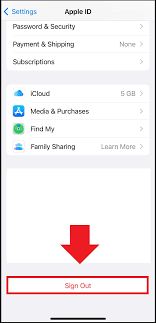
Disabling iCloud on your iPhone or iPad is a relatively straightforward process. Here’s how:
- Go to Settings > [your name] > iCloud.
- Tap on the toggle switch next to each app you want to disable (e.G., Photos, Contacts, Calendars).
- To completely disable iCloud, tap on the toggle switch next to “iCloud” and select “Disable”.
How to Disable Icloud Drive
ICloud Drive is a service that allows you to access your files across all your devices. If you want to disable it, follow these steps:
- Go to Settings > [your name] > iCloud.
- Tap on the toggle switch next to “iCloud Drive”.
- To completely disable iCloud Drive, tap on the toggle switch and select “Disable”.
How to Disable Icloud Photo Library
If you want to disable iCloud Photo Library, follow these steps:
- Go to Settings > [your name] > iCloud.
- Tap on the toggle switch next to “Photos”.
- To completely disable iCloud Photo Library, tap on the toggle switch and select “Disable”.
How to Disable Icloud Synchronization
If you want to disable iCloud synchronization for a specific app, follow these steps:
- Go to Settings > [your name] > iCloud.
- Tap on the toggle switch next to each app you want to disable (e.G., Messages, Calendars, Reminders).
- To completely disable iCloud synchronization, tap on the toggle switch and select “Disable”.
How to Disable Icloud+
ICloud+ is a paid service that offers additional storage space and features. If you want to disable it, follow these steps:
- Go to Settings > [your name] > iCloud.
- Tap on the toggle switch next to “iCloud”.
- Select “Options” and then tap on the toggle switch next to “iCloud+”.
- To completely disable iCloud+, select “Downgrade” and follow the prompts.
How to Disable Icloud on Mac
Disabling iCloud on your Mac is also relatively straightforward. Here’s how:
- Go to System Preferences > Apple ID.
- Click on the “iCloud” tab.
- Select each app you want to disable (e.G., Photos, Contacts, Calendars).
- To completely disable iCloud, select “Turn Off”.
How to Disable Icloud on PC
Disabling iCloud on your PC is a bit more involved. Here’s how:
- Go to the iCloud website and sign in with your Apple ID.
- Click on the toggle switch next to each app you want to disable (e.G., Photos, Contacts, Calendars).
- To completely disable iCloud, click on the toggle switch next to “iCloud” and select “Turn Off”.
Conclusion
Disabling iCloud is a simple process that can help free up space on your device or simply disable the service. We hope this article has helped you understand how to disable iCloud on your iPhone, iPad, Mac, and PC.
Faqs
Q: Will disabling iCloud affect my ability to access my files?
A: No, disabling iCloud will not affect your ability to access your files. You can still access your files locally on your device.
Q: Will disabling iCloud affect my ability to use certain apps?
A: Yes, disabling iCloud may affect your ability to use certain apps that rely on iCloud services (e.G., Photos, Contacts).
Q: Can I re-enable iCloud if I need it again?
A: Yes, you can easily re-enable iCloud by following the same steps outlined in this article.
We hope this article has helped you understand how to disable iCloud on your device. If you have any further questions or concerns, please don’t hesitate to reach out!


