
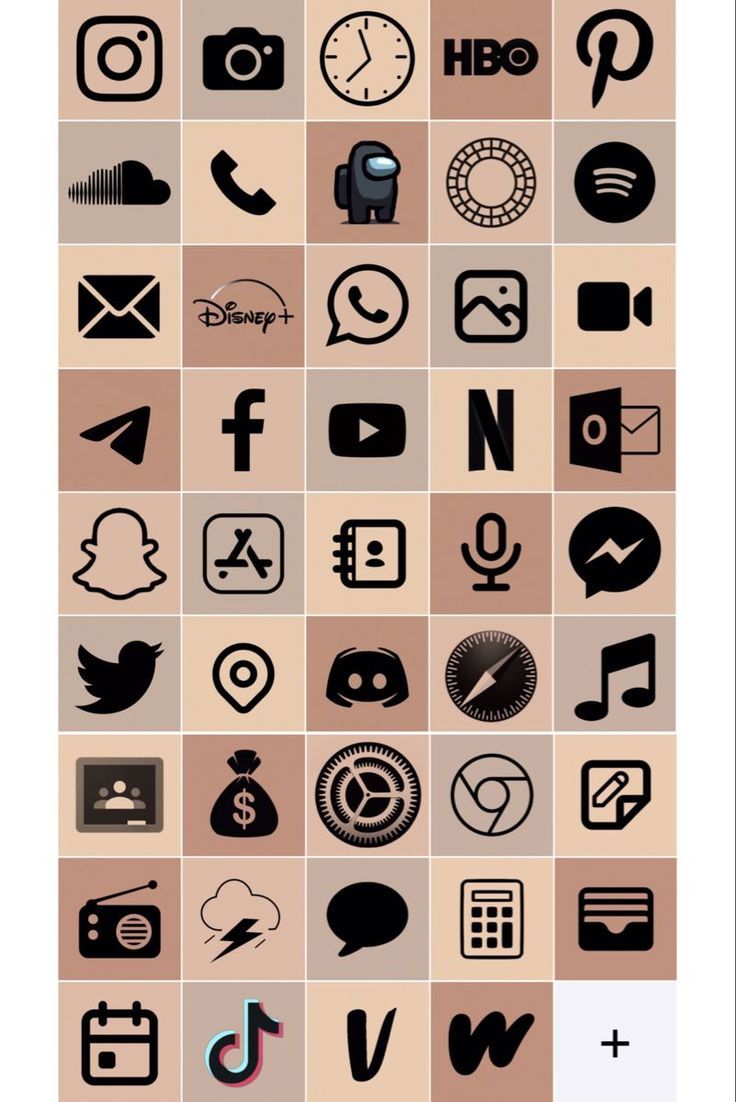
Unlocking Personalization on Your Iphone: A Step-by-step Guide
Are you tired of using the same old icons on your iPhone’s Home screen? Do you want to personalize your device with unique and stylish designs? Look no further! In this article, we’ll show you how to unlock personalization on your iPhone using various methods.
What You Need to Know About Personalizing Your Iphone
Personalizing your iPhone is easier than ever, thanks to Apple’s latest updates. With the release of iOS 14, users can now customize their Home screen with widgets, icons, and even themes. But what if you want to take it a step further? What if you want to change the default icons of your apps?
Method 1: Using The Command Swift App
The first method we’ll explore is using the Command Swift app. This app allows you to create custom links on your Home screen that open specific apps or actions. Here’s how to do it:
- Open the Command Swift app
- Tap on the “+” button at the top-right corner of the screen
- Search for the action you want to perform (e.G., “Open the app”)
- Select the action and choose an icon from the gallery
- Name your command and add it to your Home screen
Method 2: Using Iskin
The second method we’ll explore is using iSkin. This tool allows you to customize your iPhone’s icons without requiring any additional apps or jailbreaking.
- Open Safari on your iPhone
- Go to the iSkin website
- Choose an icon from the gallery and add it to your Home screen
Method 3: Using App Themer
The third method we’ll explore is using App Themer. This app allows you to customize the icons of your apps directly from the app.
- Open App Themer on your iPhone
- Select the app you want to change the icon for
- Choose an icon from the gallery and add it to your Home screen
Method 4: Using Color Widgets
The fourth method we’ll explore is using Color Widgets. This app allows you to customize your iPhone’s widgets with various colors and designs.
- Open Color Widgets on your iPhone
- Select a widget from the gallery and add it to your Home screen
Tips And Tricks For Personalizing Your Iphone
Here are some tips and tricks for personalizing your iPhone:
- Use custom icons to differentiate between apps
- Use widgets to display important information
- Experiment with different themes and designs
- Take advantage of the latest iOS updates to unlock new features
Conclusion
Personalizing your iPhone is easier than ever, thanks to Apple’s latest updates. With the right tools and techniques, you can unlock custom icons, widgets, and even themes for your device.
Frequently Asked Questions (FAQs)
Here are some frequently asked questions about personalizing your iPhone:
- Q: Can I Customize my Iphone’s Icons?
A: Yes, you can customize your iPhone’s icons using various methods. - Q: What is The Command Swift App?
A: The Command Swift app is a tool that allows you to create custom links on your Home screen that open specific apps or actions. - Q: Can I Use Iskin to Customize my Iphone’s Icons?
A: Yes, you can use iSkin to customize your iPhone’s icons without requiring any additional apps or jailbreaking. - Q: What is App Themer?
A: App Themer is an app that allows you to customize the icons of your apps directly from the app. - Q: Can I Use Color Widgets to Customize my Iphone’s Widgets?
A: Yes, you can use Color Widgets to customize your iPhone’s widgets with various colors and designs. - Q: What Are Some Tips And Tricks For Personalizing my Iphone?
A: Some tips and tricks for personalizing your iPhone include using custom icons to differentiate between apps, using widgets to display important information, experimenting with different themes and designs, and taking advantage of the latest iOS updates to unlock new features.


