
How to Set a Password on Netflix: A Step-by-step Guide
Are you tired of wondering if someone has been accessing your Netflix account without your permission? Do you want to add an extra layer of security to protect your viewing habits from unwanted intrusions? If so, you’re in the right place! In this article, we’ll show you how to set a password on Netflix and keep your account safe.
Why Set a Password on Netflix?
Setting a password on Netflix is a simple yet effective way to prevent unauthorized access to your account. By adding a PIN or password to your profile, you can ensure that only you can access your viewing history, watchlists, and other sensitive information.
How to Set a Password on Netflix (Computer)
To set a password on Netflix using a computer, follow these steps:
- Log in to Netflix: Go to the Netflix website and log in with your email address or phone number and password.
- Click on Your Profile Picture: In the top right corner of the screen, click on your profile picture.
- Select Account: From the dropdown menu, select “Account.”
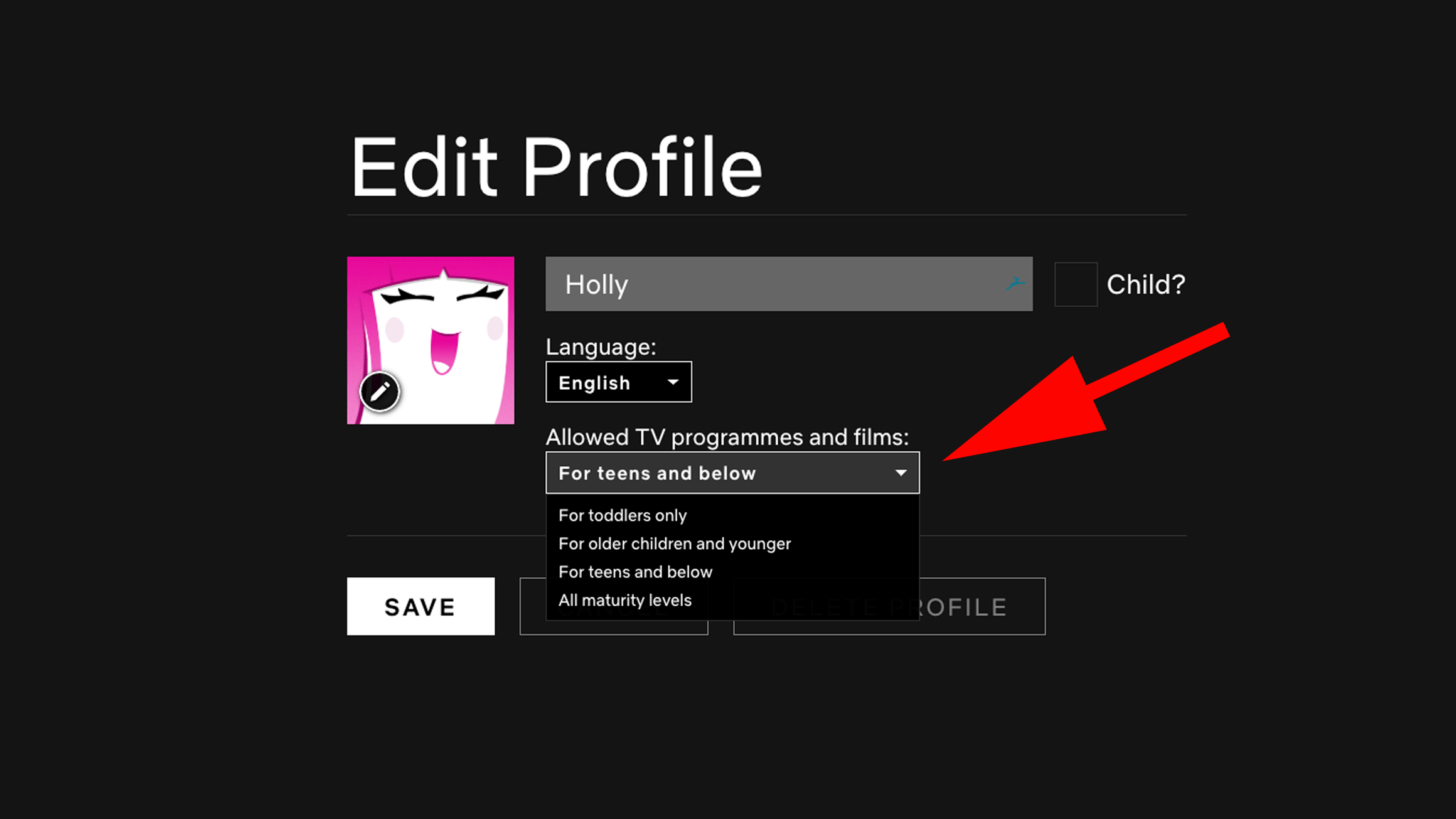
- Click on Profiles & Filter Family: On the next page, scroll down to the “Profiles” section and click on “Filter family.”
- Block a Profile: Click on the three dots next to the profile you want to block and select “Block profile.”
- Enter Your Password: Enter your Netflix password in the field provided.
- Create a Pin: Create a four-digit PIN that will be required to access this profile.
- Save Changes: Click on the “Save” button to save your changes.
How to Set a Password on Netflix (Smartphone And Tablet)
To set a password on Netflix using a smartphone or tablet, follow these steps:
- Open The Netflix App: Open the Netflix app on your device.
- Tap on Your Profile Picture: Tap on your profile picture in the top right corner of the screen.
- Select Account: From the dropdown menu, select “Account.”
- Click on Profiles & Filter Family: On the next page, scroll down to the “Profiles” section and click on “Filter family.”
- Block a Profile: Tap on the three dots next to the profile you want to block and select “Block profile.”
- Enter Your Password: Enter your Netflix password in the field provided.
- Create a Pin: Create a four-digit PIN that will be required to access this profile.
- Save Changes: Tap on the “Save” button to save your changes.
How to Set a Password on Netflix (TV)
To set a password on Netflix using a TV, follow these steps:
- Access The Netflix App: Access the Netflix app on your TV.
- Go to Settings: Go to the settings menu and select “Parental control.”
- Create a Pin: Create a four-digit PIN that will be required to access Netflix.
- Save Changes: Save your changes and exit the settings menu.
Troubleshooting Common Issues
If you’re experiencing issues setting a password on Netflix, here are some common problems and solutions:
- Issue: You can’t find the “Block profile” option.
- Solution: Make sure you’re using the latest version of the Netflix app or website.
- Issue: You’re unable to create a PIN.
- Solution: Try creating a new PIN by going to Settings > Parental control and selecting “Create a new PIN.”
- Issue: You’ve forgotten your password.
- Solution: Go to the Netflix website and click on “Forgot password” to reset your password.
Conclusion
Setting a password on Netflix is a simple yet effective way to protect your account from unauthorized access. By following these steps, you can ensure that only you can access your viewing history, watchlists, and other sensitive information. If you’re experiencing issues setting a password or have forgotten your password, don’t worry! Our troubleshooting guide has got you covered.
Frequently Asked Questions
- Q: Why do I need to set a password on Netflix?
- A: To protect your account from unauthorized access and ensure that only you can access your viewing history and other sensitive information.
- Q: How do I set a password on Netflix using a computer?
- A: Go to the Netflix website, log in with your email address or phone number and password, click on your profile picture, select Account, click on Profiles & Filter family, block a profile, enter your password, create a PIN, and save changes.
- Q: How do I set a password on Netflix using a smartphone or tablet?
- A: Open the Netflix app, tap on your profile picture, select Account, click on Profiles & Filter family, block a profile, enter your password, create a PIN, and save changes.
- Q: How do I set a password on Netflix using a TV?
- A: Access the Netflix app, go to Settings > Parental control, create a PIN, and save changes.
- Q: Can I reset my password if I’ve forgotten it?
- A: Yes! Go to the Netflix website and click on “Forgot password” to reset your password.
- Q: What happens if someone tries to access my account without knowing the password or PIN?
- A: If someone tries to access your account without knowing the password or PIN, they won’t be able to access your viewing history and other sensitive information.
- Q: Can I change the password or PIN on Netflix?
- A: Yes! You can change the password or PIN by going to Settings > Parental control and selecting “Change password” or “Change PIN.”
- Q: How do I disable the password or PIN on Netflix?
- A: Go to Settings > Parental control, select “Disable password” or “Disable PIN,” and confirm your changes.


