
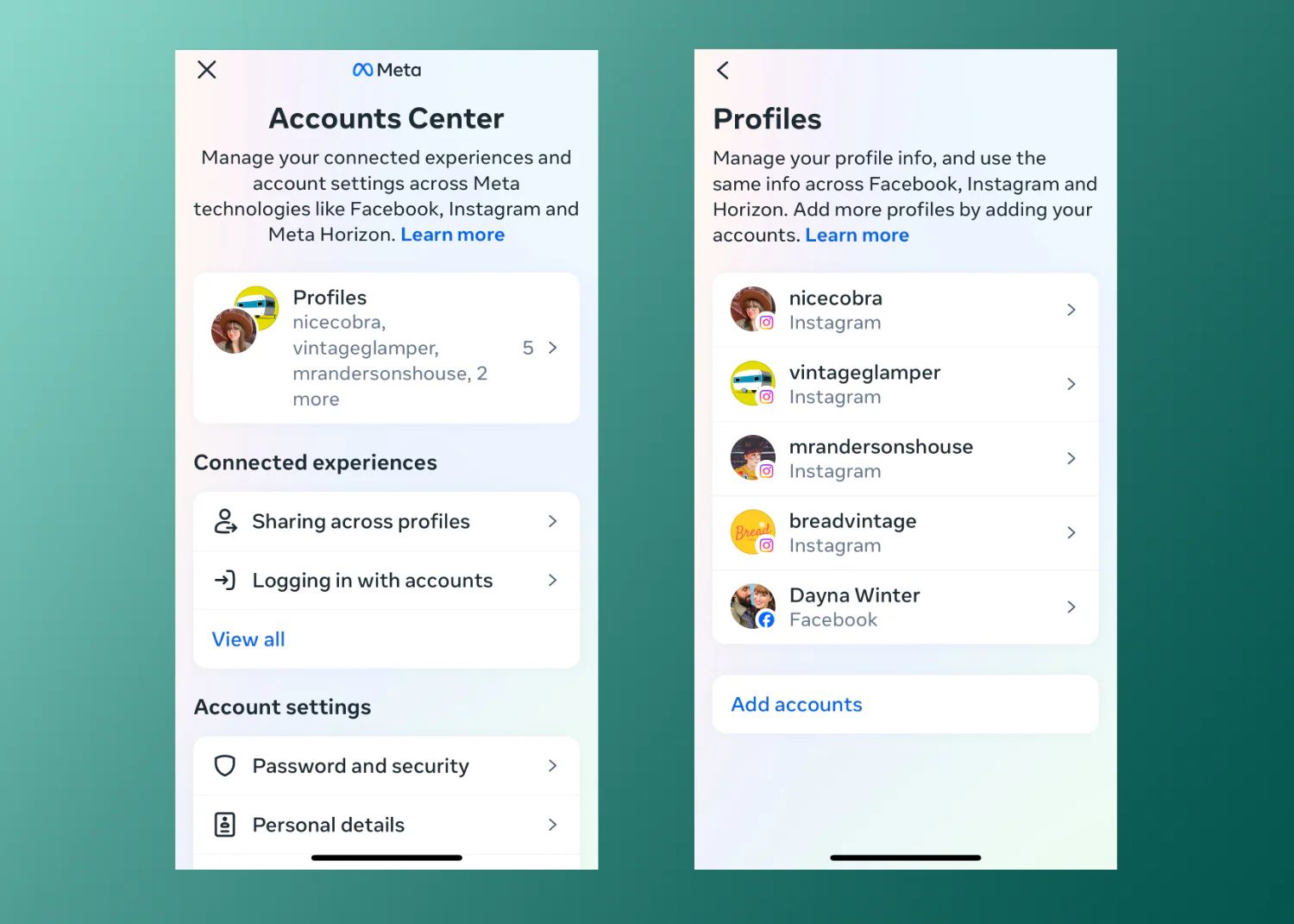
How to Create a Professional Instagram Profile: A Step-by-step Guide
Are you looking to create a professional Instagram profile but don’t know where to start? Look no further! In this article, we will guide you through the process of creating a professional Instagram profile, step by step.
Why Create a Professional Instagram Profile?
Creating a professional Instagram profile can have numerous benefits for your business or personal brand. Some of these benefits include:
- Increased visibility and reach
- Improved credibility and trust with your audience
- Ability to share high-quality content that showcases your brand or personality
- Access to Instagram’s advanced features, such as analytics and advertising tools
Getting Started
To get started, you’ll need to download the Instagram app on your smartphone or tablet. If you’re using a computer, you can access Instagram through their official website.
Step 1: Create a Professional Account
To create a professional account, follow these steps:
- Open the Instagram app and tap on the icon of your profile picture in the bottom right corner
- Tap on the three horizontal lines (≡) in the top right corner
- Select “Type of account” from the menu
- Choose “Business” or “Creator” as the type of account you want to create
Step 2: Add Your Business Information
If you chose to create a business account, you’ll need to add your business information. This includes:
- Business name and address
- Phone number and email address
- Website URL (if applicable)
Step 3: Choose Your Category
Instagram will ask you to choose a category that best represents your business or personal brand. Choose the one that’s most relevant to you.
Step 4: Add a Call-to-action Button
Once you’ve created your professional account, you’ll need to add a call-to-action (CTA) button to your profile. This will allow users to easily contact you or visit your website.
- Tap on the three horizontal lines (≡) in the top right corner
- Select “Settings”
- Scroll down and select “Add a CTA button”
Step 5: Connect Your Facebook Page
If you have a Facebook page, you can connect it to your Instagram account. This will allow you to share content from both platforms and access Instagram’s advanced features.
- Tap on the three horizontal lines (≡) in the top right corner
- Select “Settings”
- Scroll down and select “Connect Facebook”
Step 6: Customize Your Profile
Finally, customize your profile by adding a profile picture, bio, and contact information. Make sure to keep your profile up-to-date and consistent with your brand.
Creating a Professional Instagram Profile Without Facebook
If you don’t have a Facebook page or prefer not to connect it to your Instagram account, you can still create a professional Instagram profile without using Facebook.
- Follow the same steps as above, but skip connecting your Facebook page
- You’ll need to add your business information and choose your category manually
How to Deactivate Your Professional Instagram Profile
If you want to deactivate your professional Instagram profile, you can do so by following these steps:
- Tap on the three horizontal lines (≡) in the top right corner
- Select “Settings”
- Scroll down and select “Capsize type of account”
- Choose “Personal” as the type of account you want to create
Tips For Creating a Professional Instagram Profile
Here are some additional tips for creating a professional Instagram profile:
- Use high-quality images and videos that showcase your brand or personality
- Post regularly to keep your audience engaged and interested in your content
- Utilize Instagram’s advanced features, such as analytics and advertising tools
- Engage with your audience by responding to comments and messages
Conclusion
Creating a professional Instagram profile can have numerous benefits for your business or personal brand. By following these step-by-step instructions, you’ll be able to create a professional account that showcases your brand or personality and helps you reach a wider audience.
Frequently Asked Questions
Q: What is the difference between a personal and business Instagram account?
A: A personal account allows users to follow you for personal reasons, while a business account allows you to access Instagram’s advanced features, such as analytics and advertising tools.
Q: Can I create a professional Instagram profile without Facebook?
A: Yes, you can create a professional Instagram profile without using Facebook. Simply skip connecting your Facebook page during the setup process.
Q: How do I deactivate my professional Instagram profile?
A: To deactivate your professional Instagram profile, follow these steps:
- Tap on the three horizontal lines (≡) in the top right corner
- Select “Settings”
- Scroll down and select “Capsize type of account”
- Choose “Personal” as the type of account you want to create
Q: What are some tips for creating a professional Instagram profile?
A:
- Use high-quality images and videos that showcase your brand or personality
- Post regularly to keep your audience engaged and interested in your content
- Utilize Instagram’s advanced features, such as analytics and advertising tools
- Engage with your audience by responding to comments and messages
We hope this article has been helpful in creating a professional Instagram profile. If you have any further questions or need additional guidance, please don’t hesitate to ask!


