
How to Insert an Index in Word: A Step-by-step Guide
Are you tired of searching through your documents to find specific words, phrases, or references? Do you want to make your writing more organized and easier to navigate? Look no further than inserting an index in Microsoft Word!
In this article, we will guide you through the process of creating a summary index and an analytical index in Word, as well as how to insert an index of figures. We will also cover how to update these indexes automatically.
What is an Index in Word?
An index in Word is a table of contents that allows you to easily locate specific words, phrases, or references within your document. There are two types of indexes: Summary and analytical.
- A Summary Index, also known as an index of the contents, lists the chapters and subchapters of your document.
- An Analytical Index is a list of words and key phrases from your document, organized alphabetically.
How to Insert a Summary Index in Word
To insert a summary index in Word, follow these steps:
- Select The Chapters: Highlight the beginning of each chapter and subchapter using the appropriate buttons in the Home tab.
- Choose The Type of Summary: Go to the References tab, click on the Summary button (located on the right side), and select the type of summary you want to create (Automatic or Personalized).
- Add a Page Break: Insert a page break before adding the summary by selecting the Insert tab and choosing Page Break.
- Insert The Summary: Go back to the References tab, click on Summary, and choose the style of summary you want to insert.
How to Update a Summary Index in Word
To update a summary index in Word, follow these steps:
- Go to The References Tab: Select the chapter or subchapter you want to update.
- Click on Update Summary: Click on the Update Summary button (located on the left side).
How to Insert an Analytical Index in Word
To insert an analytical index in Word, follow these steps:
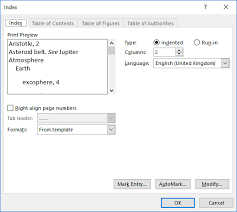
- Select The Phrases And Words: Highlight the phrases and words you want to include in the index using the Mark Selection button.
- Go to The References Tab: Click on the Mark Selection button (located on the right side).
- Choose The Type of Index: Select the type of index you want to create (Analytical or Index of Figures).
- Insert The Index: Go back to the References tab, click on Insert Index, and choose the style of index you want to insert.
How to Update an Analytical Index in Word
To update an analytical index in Word, follow these steps:
- Go to The References Tab: Select the phrase or word you want to update.
- Click on Update Index: Click on the Update Index button (located on the left side).
Inserting an Index of Figures in Word
To insert an index of figures in Word, follow these steps:
- Select The Location: Click on the exact spot where you want to insert the index.
- Go to The References Tab: Select the Insert Index of Figures button (located on the right side).
- Personalize The Index: Choose the style and format of the index using the available options.
How to Update an Index of Figures in Word
To update an index of figures in Word, follow these steps:
- Go to The References Tab: Select the figure you want to update.
- Click on Update Index: Click on the Update Index button (located on the left side).
Conclusion
In conclusion, inserting an index in Microsoft Word is a simple process that can greatly improve the organization and readability of your documents. Whether you choose to create a summary index or an analytical index, updating them automatically will save you time and effort.
Frequently Asked Questions
Q: What is the difference between a summary index and an analytical index?
A: A summary index lists the chapters and subchapters of your document, while an analytical index is a list of words and key phrases from your document, organized alphabetically.
Q: How do I update a summary index in Word?
A: To update a summary index, go to the References tab and click on Update Summary.
Q: How do I insert an analytical index in Word?
A: To insert an analytical index, select the phrases and words you want to include, go to the References tab, and click on Mark Selection. Choose the type of index (Analytical or Index of Figures) and select the style of index.
Q: Can I update an analytical index automatically?
A: Yes, you can update an analytical index automatically by going to the References tab and clicking on Update Index.
Q: How do I insert an index of figures in Word?
A: To insert an index of figures, click on the exact spot where you want to insert the index, go to the References tab, and select Insert Index of Figures. Choose the style and format of the index using the available options.
Q: Can I update an index of figures automatically?
A: Yes, you can update an index of figures automatically by going to the References tab and clicking on Update Index.
Q: Do I need a subscription to use Word for Android or iOS?
A: No, you don’t need a subscription to use Word for Android or iOS. However, if you want to create new documents with indexes, you’ll need a Microsoft 365 subscription.
Q: Can I update summaries in Word Online or the Word app for smartphone and tablet?
A: Yes, you can update summaries in Word Online or the Word app for smartphone and tablet by going to the References tab and clicking on Update Summary.


